


Learning how to get transcript from video does not need to involve hours of pausing, typing, and rewinding. Video Transcriber AI turns spoken content into editable text in a few straightforward steps, helping you move from a video file to a useful transcript while your coffee is still warm. If you need a faster way to create a transcript from video, this guide walks you through the complete workflow.
Introduction
Video contains valuable information, but finding one quote inside a 60-minute recording can feel like searching for a paper clip in a filing cabinet. A transcript makes every spoken word searchable, scannable, and reusable. That is why knowing how to get transcript from video is useful for creators, students, researchers, marketers, journalists, and busy teams.
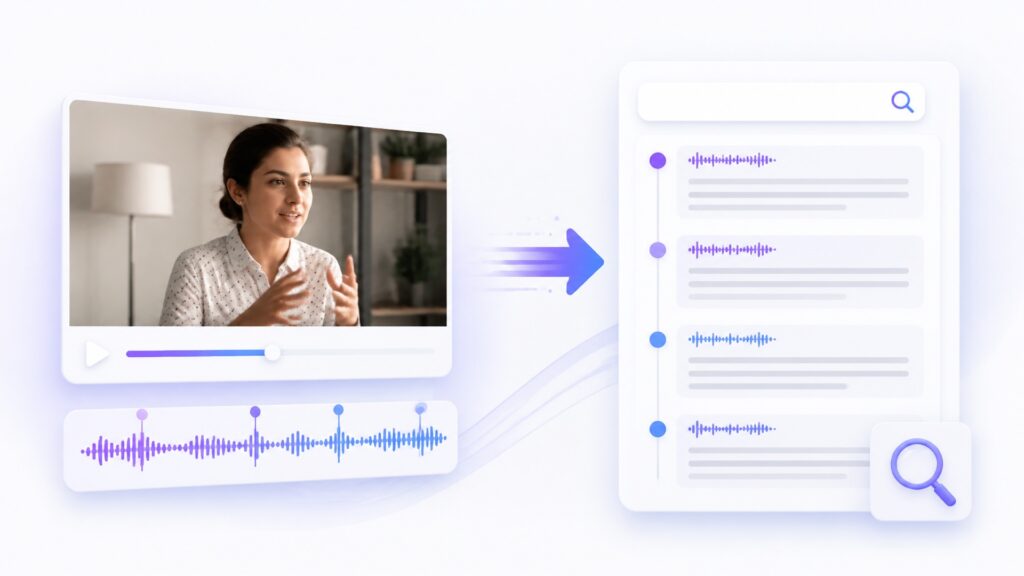
Video Transcriber AI simplifies the job. Upload a recording, choose the appropriate language, let the AI process the speech, review the result, and export the finished text. You avoid typing every sentence manually while retaining control over corrections and formatting.
The Fastest Way to Turn Video into Usable Text
When people ask how to get transcript from video efficiently, speed is only part of the answer. The transcript also needs to be readable and easy to correct. A useful tool should help you move quickly without trapping the text inside an inflexible output.
How Video Transcriber AI Simplifies the Process
The product is especially helpful when you regularly need to know how to get transcript from video for interviews, lectures, meetings, tutorials, webinars, or recorded presentations. Instead of rebuilding the process every time, you can follow the same reliable workflow for each new file.
What Is a Video Transcript?
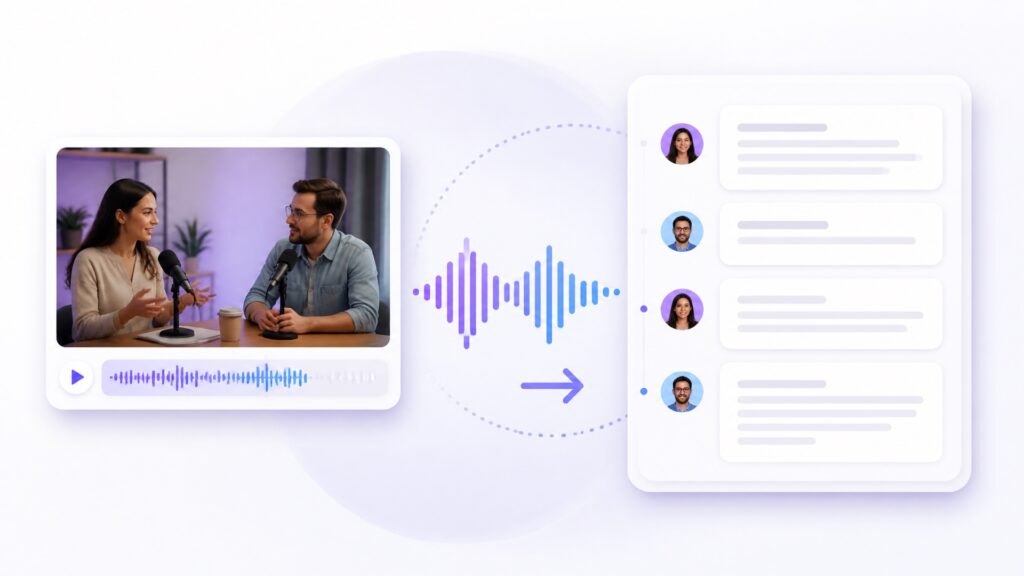
If your main question is how to get transcript from video, it helps to decide what the final text should accomplish. A study transcript may need clean headings and key terms. An interview transcript may need speaker identification. A content workflow may need text that can quickly become an article, newsletter, or social post.
The Essential Elements of an Accurate Video Transcript
A dependable transcript usually includes:
- The complete spoken content
- Correct names, brands, and technical vocabulary
- Clear paragraph breaks
- Speaker labels when multiple people are talking
- Timestamps when quick navigation matters
- Consistent punctuation and capitalization
Video Transcriber AI creates the initial text automatically, then lets you review areas that need human judgment. Even strong speech recognition can misinterpret an unusual surname, an acronym, a number, or a sentence spoken over background noise, so targeted review remains valuable.
Video Transcripts vs. Captions and Subtitles
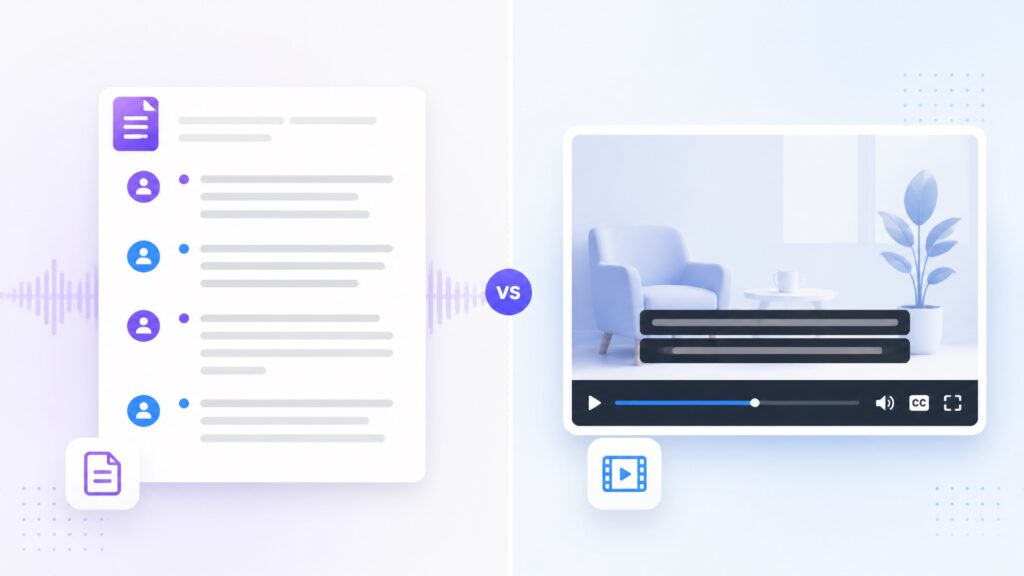
When your priority is how to get transcript from video for research, editing, content reuse, or documentation, a clean text transcript is usually the best starting point. You can edit the words first and later adapt them for captions, summaries, or other formats.
Automatic Transcription vs. Manual Transcription
Video Transcriber AI handles the first pass, and you check names, numbers, terminology, and unclear moments. This approach makes how to get transcript from video practical even when you have a backlog of recordings rather than one short clip.
Why Get a Transcript from Video?
Using a transcript from video as part of a repeatable process also helps teams create more value from material they already produced. One recorded conversation can support an article, a set of notes, a quote library, and an accessible reference document.
A transcript from video also reduces the friction between watching and acting. A project manager can scan decisions, a writer can collect quotations, and a student can locate a difficult explanation without replaying the whole recording. Because Video Transcriber AI keeps the text connected to the source material, each transcript from video becomes a practical working document rather than a forgotten export.
Make Video Content Searchable and Easier to Review
This is one of the clearest reasons to learn how to get transcript from video. Video Transcriber AI helps transform a linear recording into information you can navigate. Researchers can find quotations, editors can flag highlights, and teammates can review decisions without watching the entire file again.
Repurpose Videos into Articles, Notes, and Social Posts
If you publish frequently, how to get transcript from video becomes part of a larger content system. Video Transcriber AI produces the text foundation, and you decide how to shape it for each channel and audience.
Improve Accessibility with Video Transcriber AI
Video Transcriber AI makes how to get transcript from video manageable enough to include transcription in a regular publishing routine. You still need to review the result, but the initial workload is dramatically smaller than typing every spoken word.
How to Get Transcript from Video with Video Transcriber AI
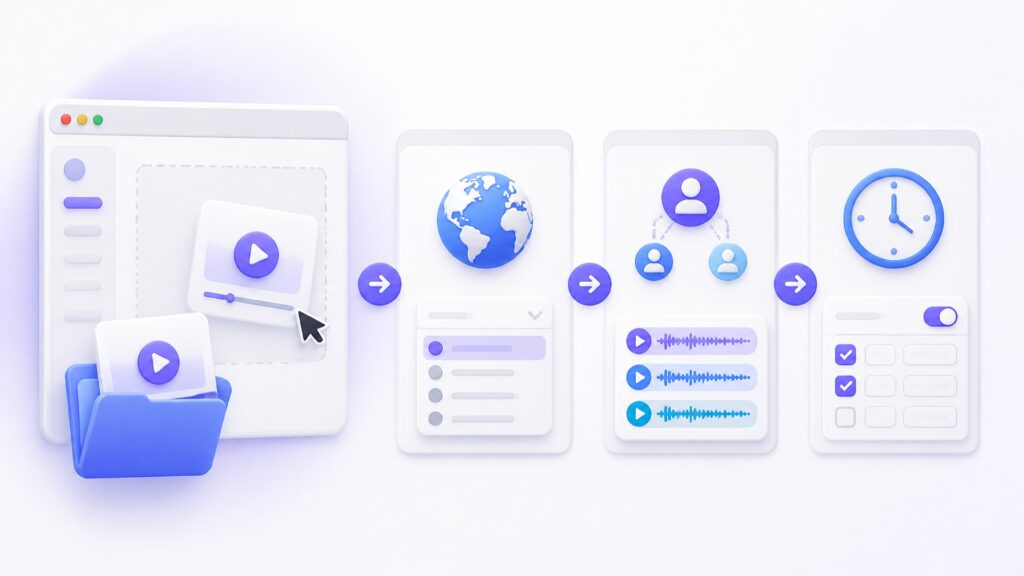
The complete workflow is simple: prepare the file, upload it, configure the language, generate the text, review the result, and export it. The following steps explain how to create a transcript from video using Video Transcriber AI from beginning to end.
Step 1: Upload Your Video File
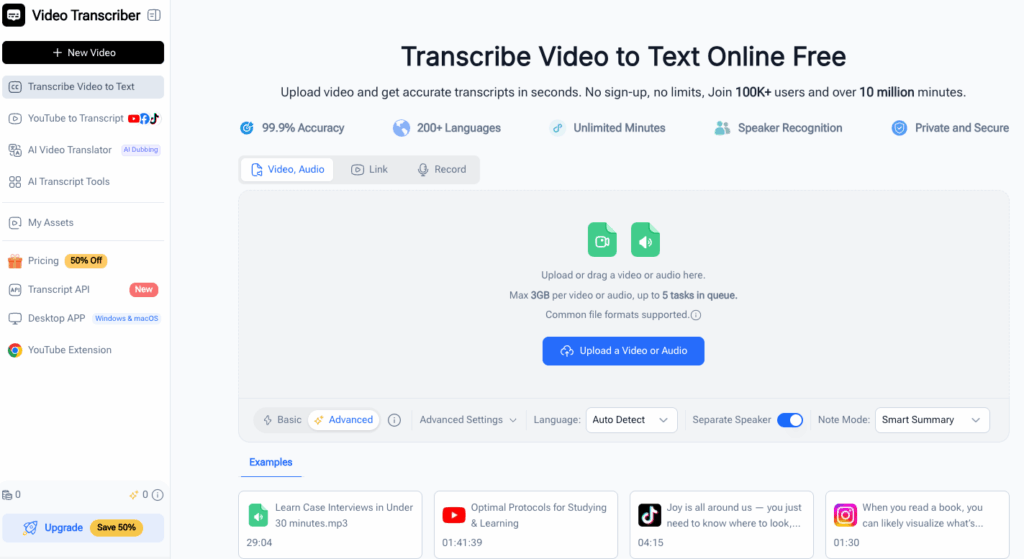
Open Video Transcriber AI and start a new transcription. Select your video file from your device, then wait for the upload to complete before leaving the page. A stable connection is helpful for large recordings, and checking the file beforehand prevents avoidable upload delays.
Before uploading, confirm that the file plays correctly and contains the expected audio. If you are learning how to get transcript from video for a batch of files, use clear filenames such as interview-jane-2026-10-10.mp4. Sensible naming prevents confusion when several exports are downloaded later.
Step 2: Select the Correct Language and Settings
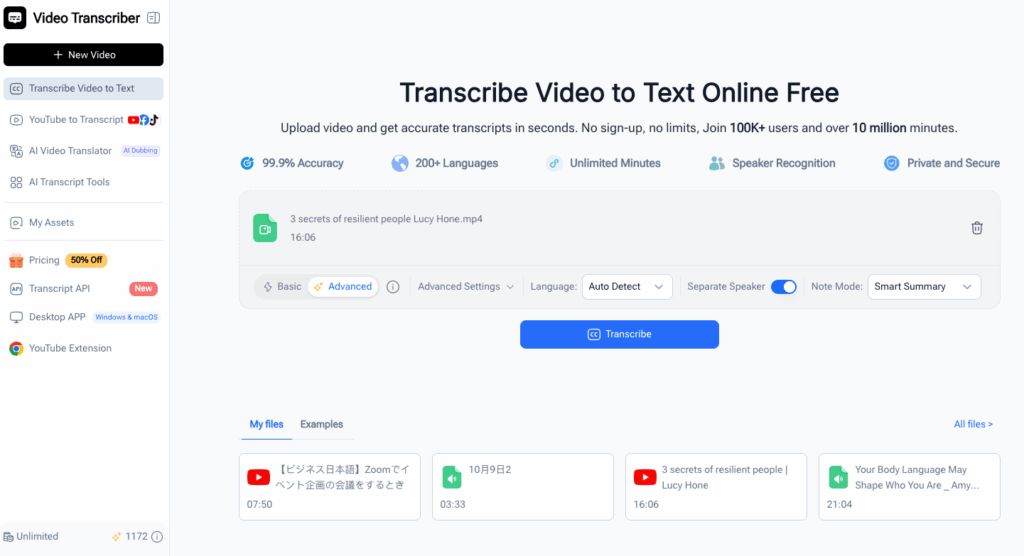
Check any available options for speakers, timestamps, or output structure. The best settings depend on your goal. An interview benefits from speaker separation, while a short solo tutorial may only need clean paragraphs. Good configuration is a small step that can noticeably improve how to get transcript from video accurately.
Match the settings to the way you will use the transcript from video. Enable speaker separation for conversations, preserve timestamps for research or editing, and choose cleaner paragraph formatting for articles or study notes. Making these decisions before processing gives Video Transcriber AI better context and reduces the amount of restructuring required later.
Step 3: Generate the Video Transcript with AI
Once processing finishes, the generated transcript becomes your editable first draft. At this point, how to get transcript from video is no longer a blank-page problem. You have structured text that can be checked against the original recording.
Do not rush to publish the first draft. Open the transcript from video inside Video Transcriber AI and scan for obvious gaps, repeated phrases, or sections where several speakers overlap. This quick quality pass tells you which moments deserve careful listening and prevents you from spending equal time on every line.
Step 4: Review Speakers, Timestamps, and Transcription Accuracy
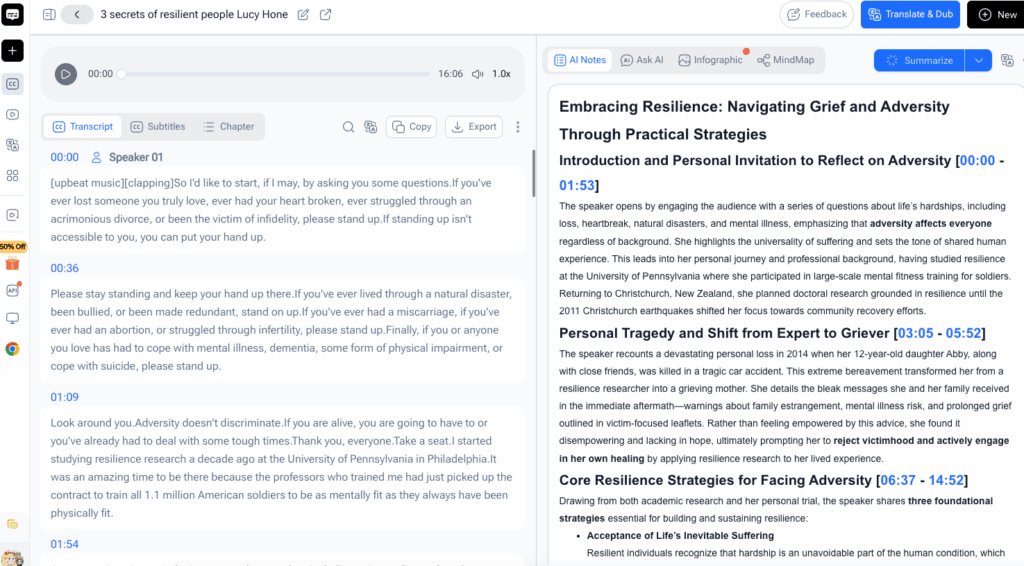
Read the transcript while listening to important or uncertain sections. Focus first on details that automatic speech recognition commonly finds difficult:
- Personal and company names
- Product names and acronyms
- Numbers, dates, and prices
- Specialized terminology
- Overlapping speech
- Words spoken with background noise
Use timestamps to jump between the text and matching video moments. If speakers are labeled, confirm that each label stays with the correct person. Review is the step that turns how to get transcript from video from a quick automated result into a trustworthy document.
Step 5: Edit and Export Your Finished Transcript
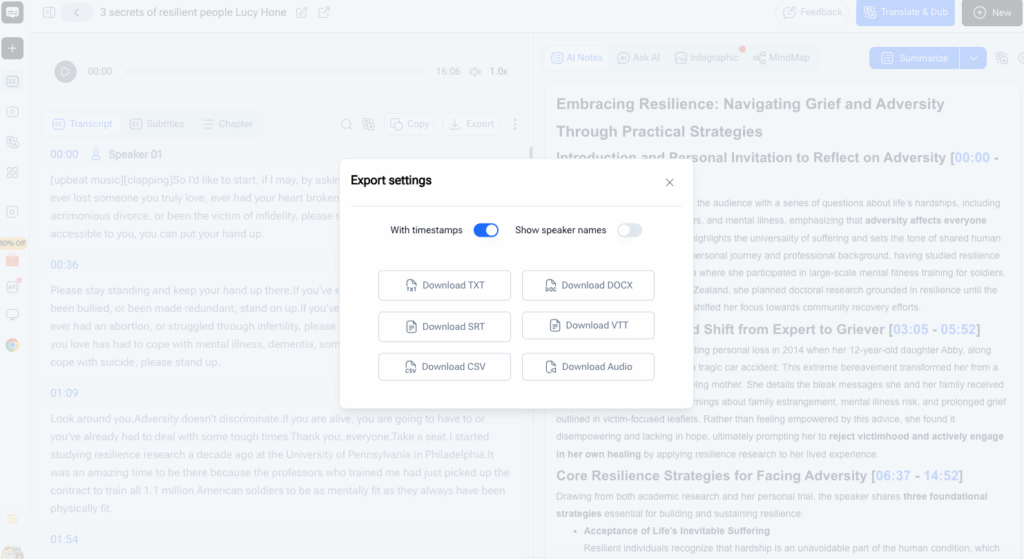
Export the transcript in the format that suits your next task. Save an untouched copy before making major editorial changes. This gives you a reliable source version and a separate working document. With that final export, you have completed how to get transcript from video using Video Transcriber AI.
Name the export according to its purpose, such as interview-clean-copy or lecture-study-notes. Keep one original transcript from video as your reference, then create separate copies for publishing, summarizing, or sharing. This small version-control habit prevents polished edits from replacing the more faithful source text.
Pro Tips for Better Results with Video Transcriber AI
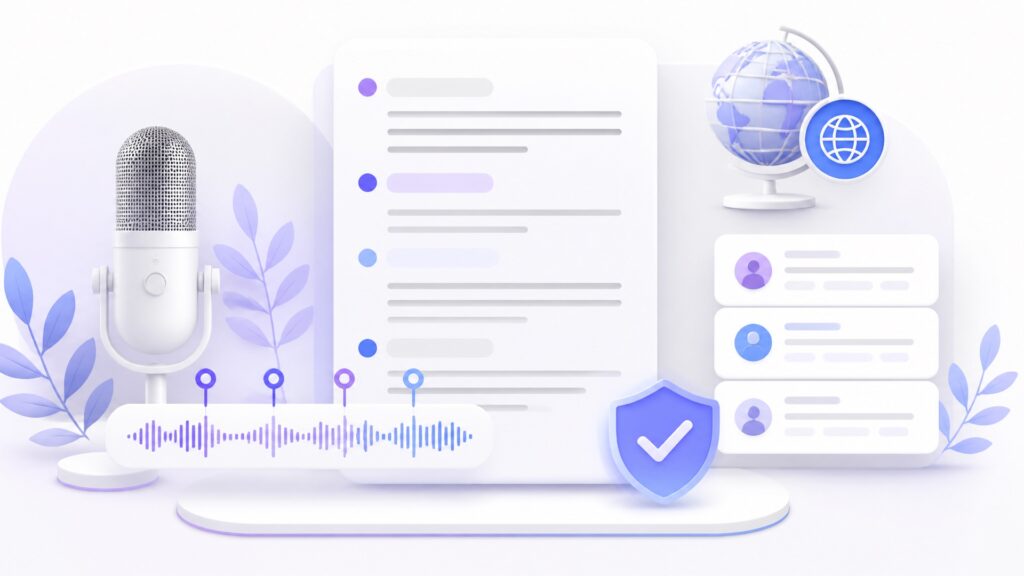
Better results usually come from better inputs and a focused review plan. Before uploading, decide whether the transcript from video needs to be verbatim, lightly cleaned, or publication ready. That choice determines how much editing to apply after Video Transcriber AI completes the automated pass.
Use Clear Audio to Improve Transcription Accuracy
Clear audio reduces corrections and makes how to get transcript from video faster from start to finish. It is difficult for any transcription system to recover words completely buried under wind, traffic, or multiple people speaking at once.
When you control the recording, keep microphones close to speakers and reduce music beneath dialogue. When you do not control it, upload the clearest available source instead of a compressed copy. Cleaner sound gives the transcript from video stronger sentence boundaries and fewer uncertain words.
Choose the Right Language Before Processing
For multilingual recordings, note where the language changes. When evaluating how to get transcript from video with mixed-language content, plan extra review time around those transitions.
Review Names and Technical Terms in the Transcript
Video Transcriber AI gives you the searchable draft, and your subject knowledge supplies the final precision. That division of work is a practical answer to how to get transcript from video without sacrificing important details.
Use Timestamps to Navigate Long Videos Efficiently
When exporting, keep timestamps if the transcript will be used for review or editing. Remove them only when you need a smooth reading document. Video Transcriber AI lets the transcript support both needs.
Real-World Examples of Using Video Transcriber AI
Example 1: Turning a Recorded Interview into an Editable Transcript
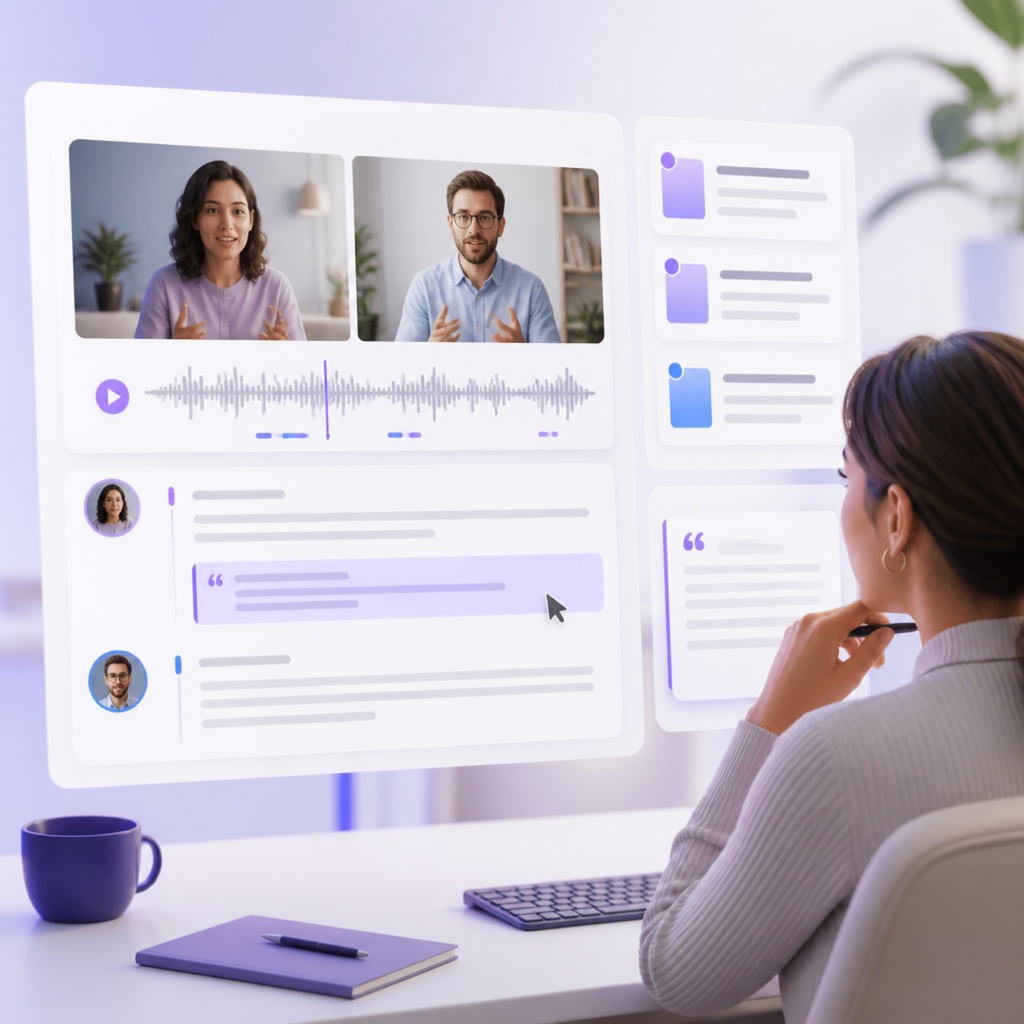
A marketer uploads a 45-minute customer interview to Video Transcriber AI, selects the spoken language, and enables speaker separation. After processing, they review the guest's name, product terminology, and two moments affected by laughter. The corrected transcript from video now preserves the customer's meaning without forcing the marketer to type the conversation from scratch.
The finished transcript becomes a source for approved quotations and an article draft. Instead of typing the conversation from scratch, the marketer creates a transcript from video, then spends time shaping the customer's insights into useful content.
Example 2: Converting a Lecture Video into Study Notes
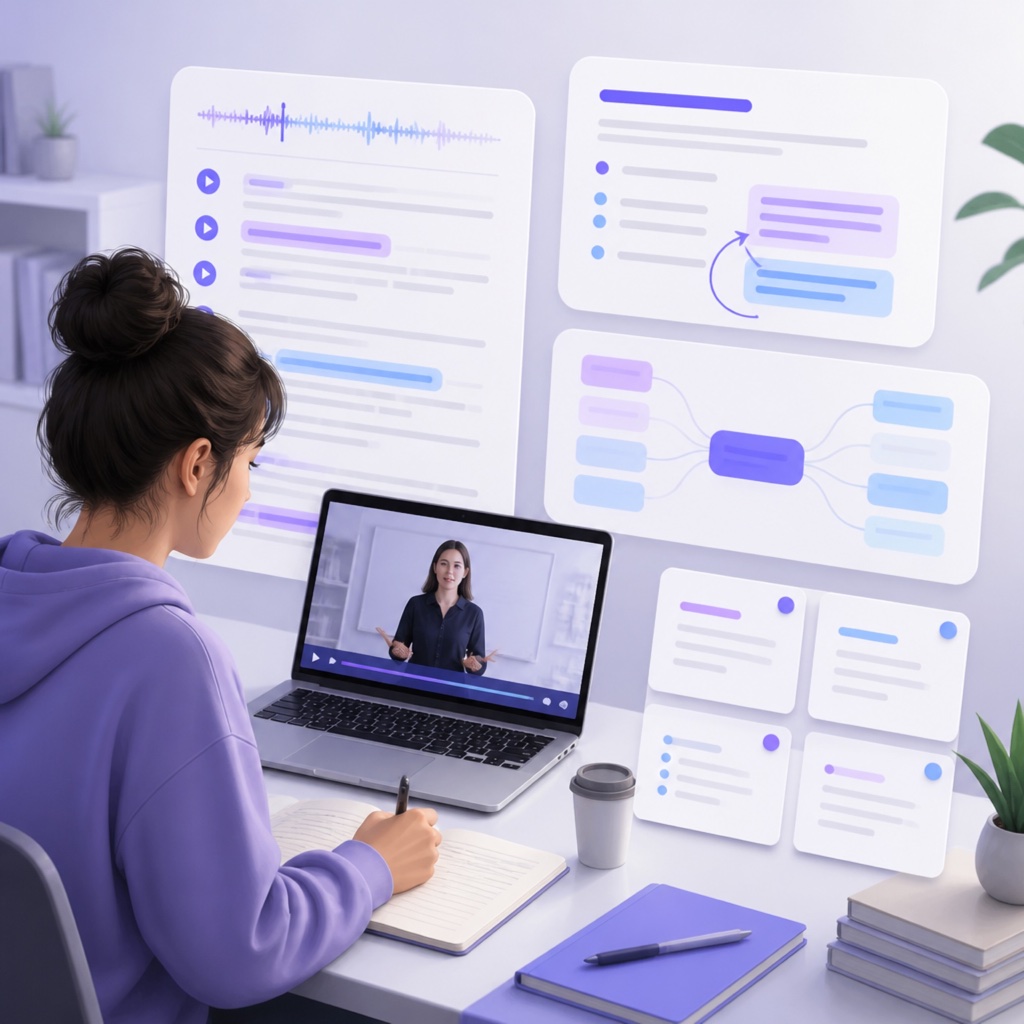
A student uploads a recorded lecture, keeps timestamps enabled, and generates the first draft with Video Transcriber AI. They search the transcript from video for terms from the course syllabus, correct technical vocabulary, and add short headings for each major concept. Timestamps make it easy to replay only the explanations that need another listen.
For the student, how to get transcript from video is not merely about producing a wall of text. Video Transcriber AI creates a searchable learning resource that can be summarized, annotated, and reviewed at a comfortable pace.
Frequently Asked Questions
Can Video Transcriber AI Get a Transcript from Any Video Format?
Video Transcriber AI can create a transcript from video files in commonly supported formats. Before uploading, check the current format, file size, and duration limits in the product. These practical details determine whether you can process one complete recording or should divide a very long project into logical sections.
After processing, the transcript from video remains available for review and editing before you export the final text.
How Accurate Is the Transcript Generated by Video Transcriber AI?
Accuracy depends on recording quality, speech clarity, accents, vocabulary, background noise, and overlapping voices. Clear single-speaker audio generally requires fewer corrections than a noisy group conversation. Review any detail that will be quoted, published, or used for a formal decision.
Treat the generated result as a strong first draft and review details that matter. Video Transcriber AI accelerates how to get transcript from video, while your final check protects names, numbers, quotations, and specialized language.
How Long Does Video Transcriber AI Take to Process a Video?
The important benefit is that automated processing changes how to get transcript from video from a manual typing session into a review workflow. Even when a long file takes time to process, you are not forced to type it in real time.
Can I Edit and Export the Generated Video Transcript?
Editing is essential when how to get transcript from video supports publication, research, client work, or formal documentation. Keep a source copy, then create separate versions for polished reading, quotations, notes, or content repurposing.
Conclusion: Get a Transcript from Video in Minutes
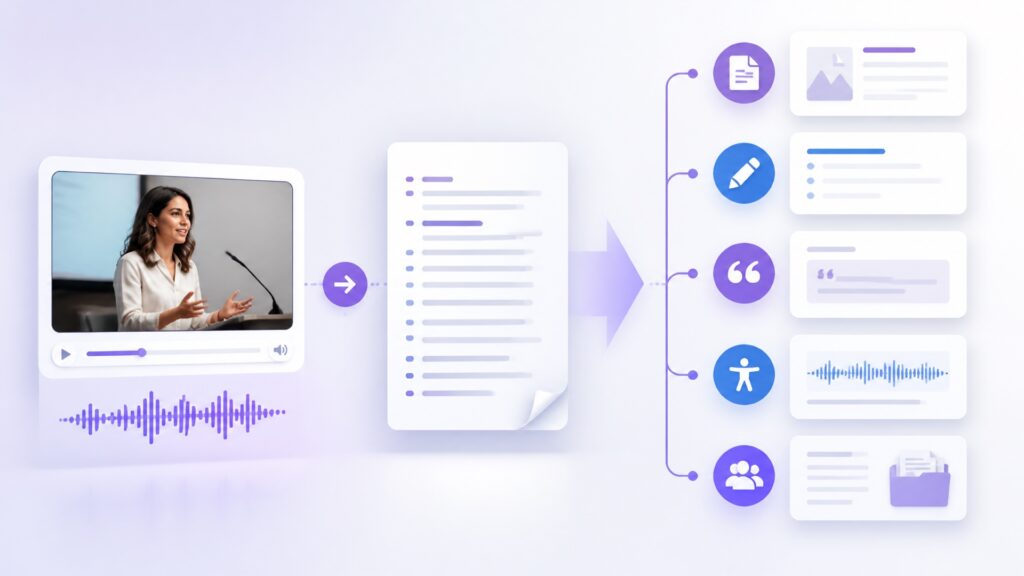
Video Transcriber AI gives you a direct path from recording to editable text. Upload the file, select the language, generate the first draft, review important details, and export the transcript from video. A reliable transcript from video depends on clear audio, sensible settings, and a focused check of names, numbers, speakers, and technical terms
Once reviewed, a transcript from video can support articles, research, study notes, quotations, accessibility, and team documentation. Keep an untouched source copy, then create separate versions for each purpose. This protects accuracy while giving you room to clean or reorganize the text.
If you are ready to stop pausing and typing, create a transcript from video with Video Transcriber AI. The product handles the repetitive first pass, while you make the decisions that matter. Start with one recording today, refine the transcript from video, and turn spoken content into text you can search, share, and reuse.