


Video is now a routine part of how people learn, work, and create. HubSpot’s latest marketing statistics say 93% of marketers see video as an important part of their strategy, and 37% plan to increase investment in video marketing in 2026. As more lectures, webinars, interviews, tutorials, and team recordings are saved as MP4 files, more users need a faster way to turn spoken content into something they can actually review and reuse.
That is where the right MP4 to transcript tool becomes useful. Instead of leaving useful information trapped inside a timeline, a good MP4 to transcript workflow turns spoken content into text that is easier to search, edit, summarize, and reuse. For many users, the goal is not transcription alone. It is getting to notes, takeaways, captions, documentation, or follow-up content with less friction.
Why MP4 to Transcript Matters
Most people do not look for an MP4 to transcript tool because they want a transcript for its own sake. They use it because text is easier to work with after the recording is done.
1. It makes long videos easier to review
A lecture, webinar, interview, or meeting can contain one explanation, quote, or decision that matters most. Without an MP4 to transcript workflow, users often have to replay long sections just to find one useful moment. Once the video becomes text, review gets faster because users can scan instead of scrub. Tools in this category increasingly position transcripts as searchable working documents rather than static output.
2. It turns spoken content into editable text
A good MP4 to transcript workflow also changes the format of the content itself. Once speech becomes text, users can clean up wording, remove filler, fix names, highlight key sections, and prepare the material for other tasks. That is why editable transcript support matters so much in any mp4 to transcription tool comparison.
3. It helps users pull out summaries and key takeaways
For many people, the real value of MP4 to transcript is what comes after the conversion. Students want study notes. Teams want action items. Researchers want quotes and themes. Creators want outlines, captions, or follow-up material. The transcript is not the end product. It is the working version of the video.
4. It supports reuse across different workflows
One MP4 file can often become much more than one transcript. Depending on the workflow, users can turn MP4 to transcript output into notes, captions, subtitles, summaries, scripts, documentation, or search-friendly archives.
5. It makes video content easier to search and manage
Text is easier to organize than a video timeline. Once an MP4 to transcript file exists, users can search for phrases, identify sections faster, and manage recurring recordings with more control. For teams and researchers especially, that makes recorded content much easier to revisit later.
How We Evaluated These MP4 to Transcript Tools
What matters in a real MP4 to transcript workflow
For this list, the best MP4 to transcript tools were evaluated based on the factors users usually care about most:
- transcript editing
- summary and note value
- file-size handling
- timestamps and speaker features
- export flexibility
- ease of use online
- best-fit user type
Who this guide is for
This guide is most useful for students reviewing classes, researchers handling interviews, teams revisiting meetings, and creators repurposing videos. Some users need an MP4 to transcript tool for large files. Others need a lighter mp4 to transcript free option. Some care most about summary workflows, while others need detailed transcript control or caption publishing.
8 Best MP4 to Transcript Tools for Editing and Summaries
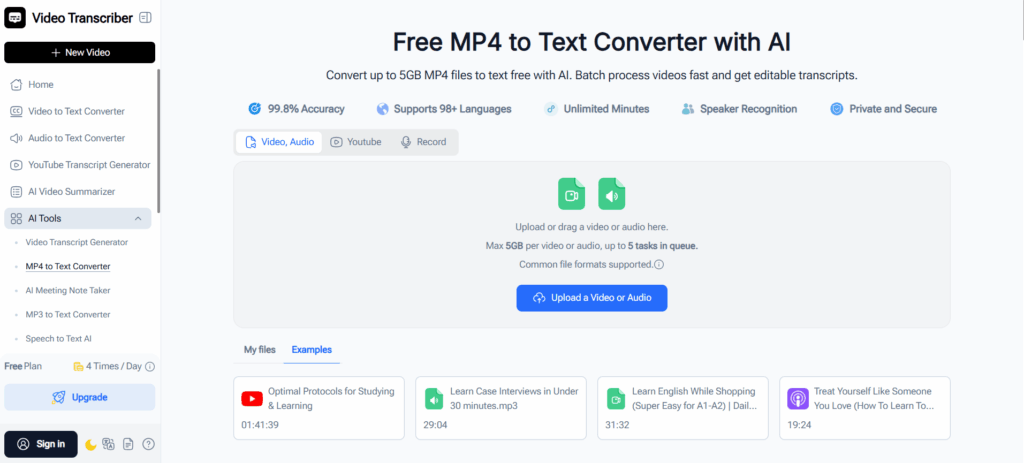
1. Video Transcriber AI: Best for 5GB MP4 Large Files
Video Transcriber AI is one of the strongest all-around options if your MP4 to transcript workflow involves long files and you want to move quickly from upload to usable text. It highlights uploads up to 5GB, batch transcription, editable transcripts, and no sign-up. It also emphasizes AI notes and summaries, which makes this MP4 to transcript tool especially relevant for users who want editing and summary value in the same flow.
Key Features
- uploads up to 5GB
- batch MP4 processing
- editable transcript online
- AI notes and summaries
- no-sign-up workflow
Pros
- one of the better MP4 to transcript options for large files
- strong fit for lectures, webinars, interviews, and meetings
- summary support makes the MP4 to transcript output easier to reuse
- practical for repeated or batch work
Cons
- more transcript-and-summary focused than design-focused
- less built around visual caption styling than Canva-like workflows
Best For
Students, educators, researchers, teams, and creators who want a balanced MP4 to transcript tool for large files, editing, and summary-ready output.
2. NoteGPT: Best for Notes and Takeaways
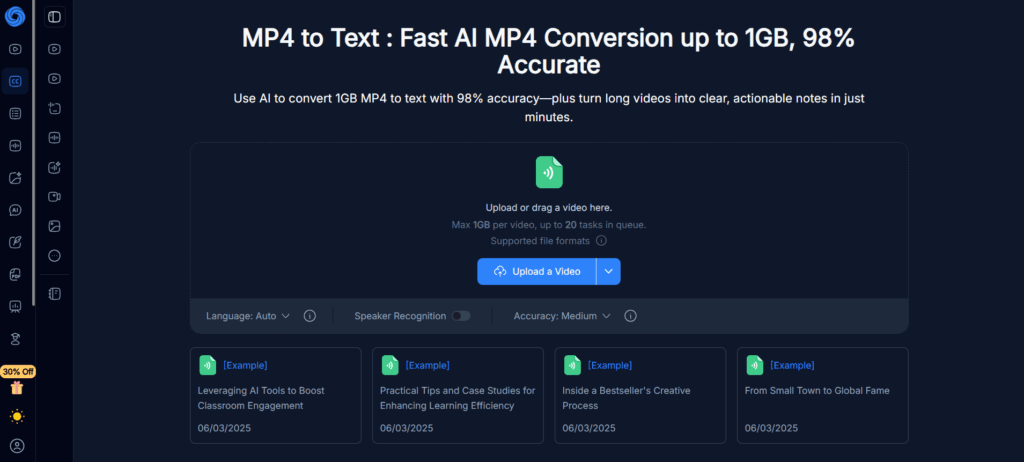
NoteGPT takes a more notes-first approach to MP4 to transcript. Its MP4 page says users can upload files up to 1GB, queue up to 20 tasks, use speaker recognition, and turn long videos into clear, actionable notes. That makes it a strong fit for users who care more about understanding content than polishing every transcript detail.
Key Features
- up to 1GB MP4 uploads
- up to 20 queued tasks
- speaker recognition
- note and takeaway workflow
Pros
- strong for turning MP4 to transcript into notes and highlights
- useful for tutorials, classes, explainers, and research videos
- easier to frame as a learning tool than a plain mp4 to text utility
Cons
- less editing-centered than transcript-first tools
- less export-focused than some alternatives
Best For
Students, learners, and knowledge workers who want an MP4 to transcript tool mainly for review, notes, and key takeaways.
3. Any2Text: Best for Flexible Exports
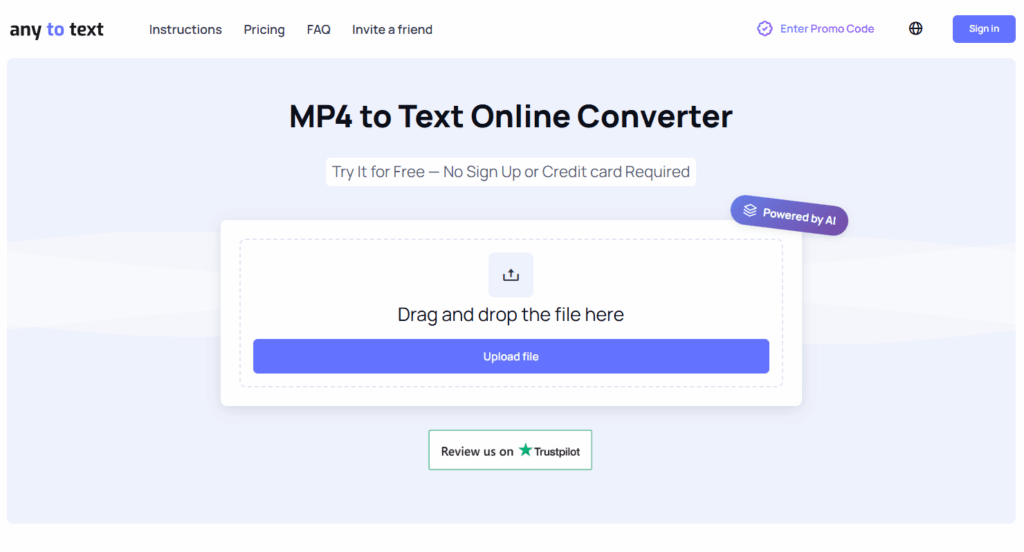
Any2Text is a simpler MP4 to transcript option with a practical export angle. Its page highlights a three-step process and downloads in DOCX, XLSX, SRT, and TXT. For users who want to convert mp4 to transcript and then move straight into docs, spreadsheets, or subtitle files, that is a real advantage.
Key Features
- three-step workflow
- DOCX, XLSX, SRT, and TXT exports
- support for multiple media formats
Pros
- good MP4 to transcript choice when export format matters
- easy to understand and easy to start
- useful for users moving from transcript to document or subtitle workflows
Cons
- lighter on summaries and notes
- less distinctive on detailed transcript editing
Best For
Users who want a straightforward mp4 to transcription workflow with flexible export options.
4. ElevenLabs: Best for Detailed Transcript Control
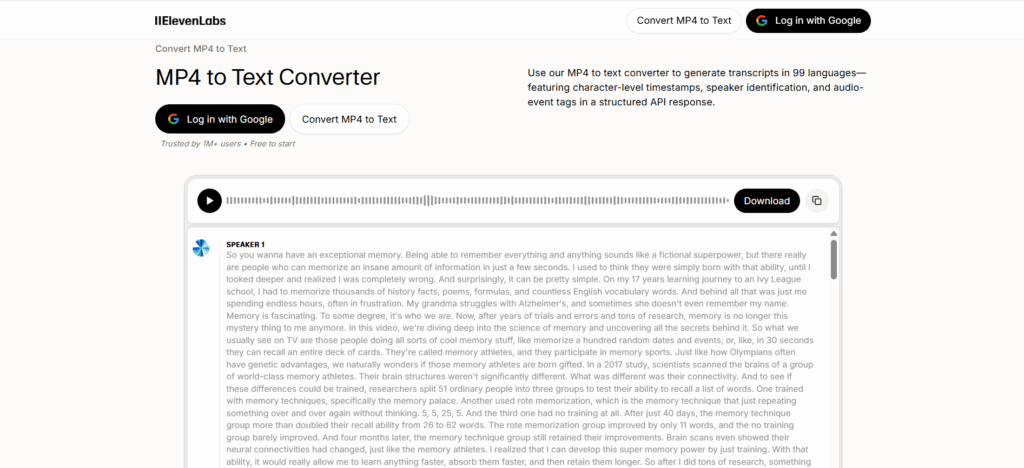
ElevenLabs brings a more precision-oriented MP4 to transcript workflow. Its pages highlight speaker identification, character-level or word-level timestamps, split-and-merge controls, and structured exports. It also supports 99 languages. This gives ElevenLabs a stronger precision-editing profile than a basic video to text converter.
Key Features
- speaker-labeled transcripts
- character-level or precise timestamps
- segment editing controls
- structured transcript output
- support for 99 languages
Pros
- strong for detailed MP4 to transcript cleanup
- useful when speaker separation matters
- better fit for transcript precision than many simpler tools
Cons
- more advanced than casual users may need
- less clearly positioned around notes than NoteGPT-style tools
Best For
Researchers, interview-heavy users, and professionals who want a more detailed MP4 to transcript workflow with precise control.
5. Happy Scribe: Best for Professional Workflows
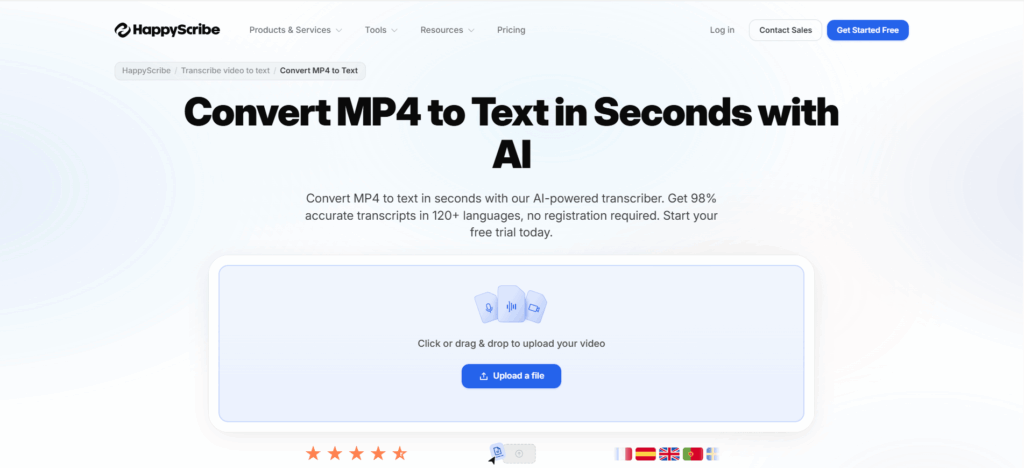
Happy Scribe positions its MP4 to transcript product around speed, accuracy, language coverage, and privacy. Its MP4 page says it offers 98% accurate transcripts in 120+ languages and free trial access, while its broader site emphasizes AI and human workflows, plus security and compliance positioning. That gives it a more formal tone than many lighter tools.
Key Features
- 98% accuracy claim
- 120+ languages on the MP4 page
- free trial
- AI and human workflow positioning
- privacy and compliance messaging
Pros
- good MP4 to transcript fit for recurring business workflows
- strong trust and quality messaging
- appealing for teams that want a more formal service layer
Cons
- less notes-first than some alternatives
- can feel more service-oriented than lightweight free tools
Best For
Teams, agencies, and professionals who want a more formal MP4 to transcript option with strong trust signals.
6. Go Transcribe: Best for Fast Simple Conversion
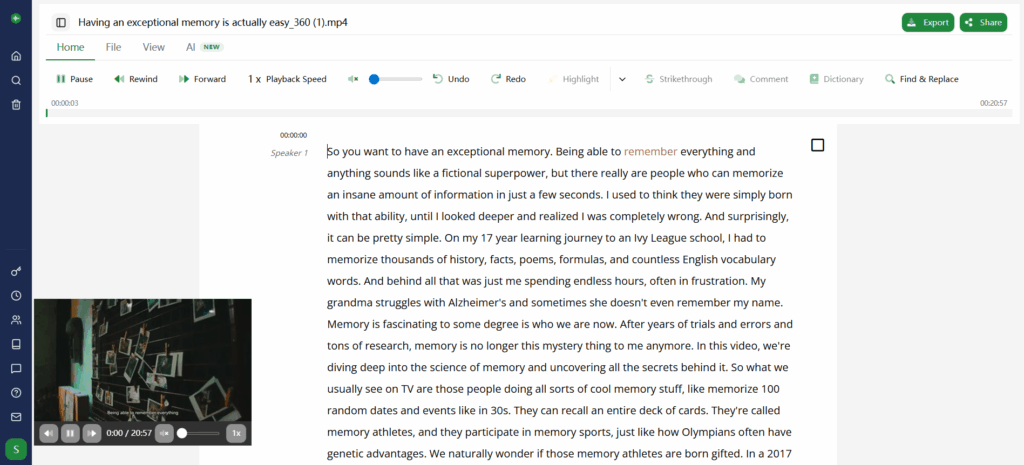
Go Transcribe is a lighter MP4 to transcript choice built around speed and simplicity. Its MP4 page describes an automated way to transcribe MP4 to text with results back in minutes, while its broader video-to-text pages also mention editing, search, multiple exports, and 46+ languages.
Key Features
- online MP4-to-text conversion
- results in minutes
- editing and search
- multiple export formats
- 46+ languages on the video-to-text page
Pros
- easy to understand and easy to try
- good for quick MP4 to transcript tasks
- less complexity than feature-heavy platforms
Cons
- fewer advanced workflow layers
- less distinct on summaries than some competitors
Best For
Users who want a fast mp4 to transcript free style workflow for everyday conversion tasks.
7. Audio Converter AI: Best for Broader Video-to-Text Needs
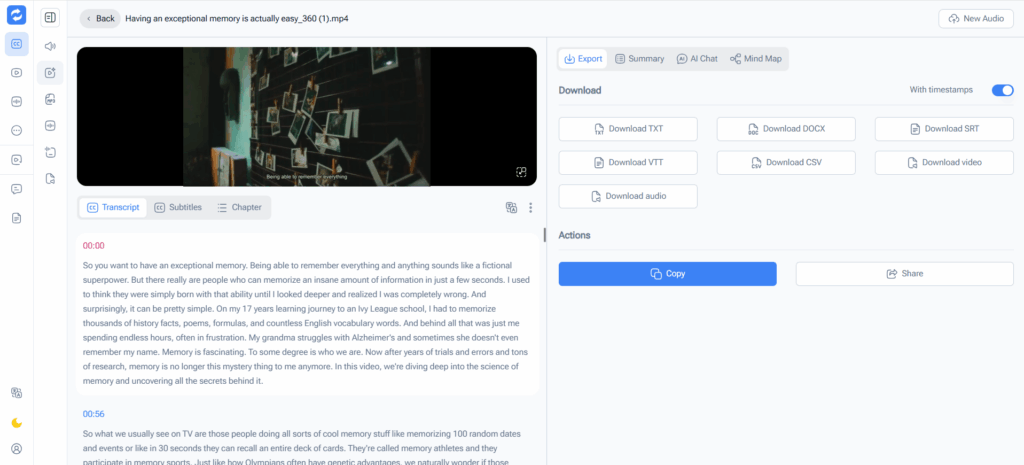
Audio Converter AI is broader than a typical MP4 to transcript tool. Its page frames the product as an AI Video to Text Converter that is free to use, requires no sign-up, supports long videos up to 1GB, and creates editable text for notes, subtitles, articles, and research. That makes it a good fit for users who start with MP4 to transcript but may later need a wider video to transcript workflow.
Key Features
- up to 1GB video support
- no sign-up
- editable text output
- positioned for notes, subtitles, articles, and research
Pros
- useful when your video to text converter needs go beyond MP4 only
- broad reuse angle makes the output easier to repurpose
- simple browser-based workflow
Cons
- less MP4-specific than dedicated tools
- less distinctive on large-file handling than Video Transcriber AI
Best For
Users who want a general video to transcript tool rather than a narrowly framed MP4 to transcript product.
8. Canva: Best for Captions and Publishing
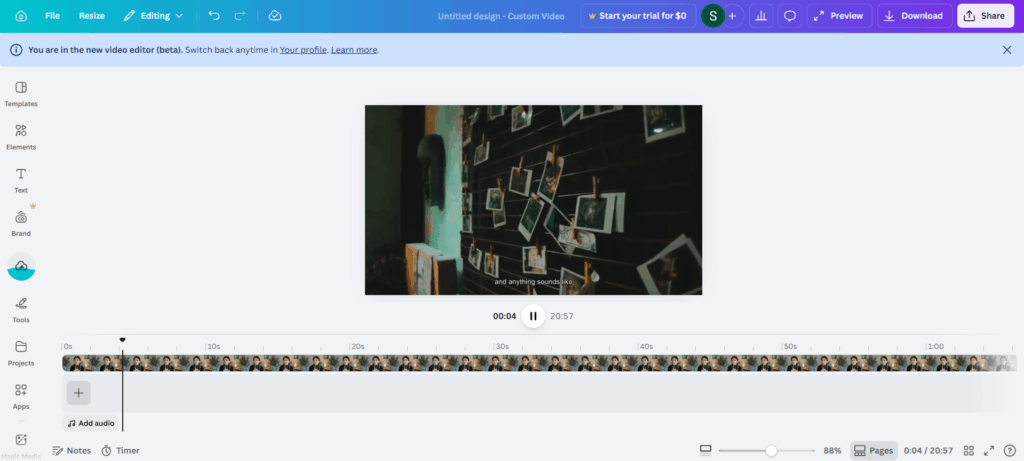
Canva is the least transcript-first product on this list, but it can still fit an MP4 to transcript workflow when the real goal is publishing. Its pages emphasize video-to-text conversion, automatic captions, editing inside the platform, mobile access, and translation into 100+ languages through related Canva translation tools. Canva’s strength is what users can do after the transcript appears.
Key Features
- automatic captions
- caption editing inside Canva
- desktop and mobile access
- translation into 100+ languages through Canva tools
- design and publishing integration
Pros
- strong choice when MP4 to transcript really means captions and publishing
- useful for accessibility, branded videos, and social content
- keeps transcript, captions, and design in one environment
Cons
- not the most transcript-first tool here
- less specialized for note-taking or transcript-heavy review
Best For
Creators, marketers, and teams who want an MP4 to transcript workflow mainly for captions, accessible publishing, and content distribution.
Comparison Table
| Tool | Core strength | Main limitation | Best for |
| Video Transcriber AI | 5GB uploads, batch workflow, summaries | Less design-focused | Long files and practical reuse |
| NoteGPT | Notes and takeaways | Lighter editing depth | Study and review |
| Any2Text | Flexible exports | Lighter summary angle | Quick conversion and downloads |
| ElevenLabs | Detailed transcript control | More advanced workflow | Precision editing |
| Happy Scribe | Professional trust signals | Less notes-first | Business workflows |
| Go Transcribe | Fast simple conversion | Fewer advanced layers | Everyday quick use |
| Audio Converter AI | Broader video-to-text use | Less MP4-specific | General video transcription |
| Canva | Captions and publishing | Less transcript-first | Content publishing |
How to Choose the Right MP4 to Transcript Tool
The best MP4 to transcript tool is not always the one with the most features. It is the one that fits the kind of work you actually do after transcription. Some users need help with long files. Some care more about notes and summaries. Others need cleaner captions, more precise transcript editing, or a simpler online workflow.
Choose Based on File Size and Workload
If you mostly work with short clips, a lightweight MP4 to transcript tool may be enough. But if you regularly handle long lectures, webinars, interviews, or meeting recordings, file limits and workflow efficiency become much more important.
Tools such as Video Transcriber AI are more suitable for heavier workloads because they support larger files and batch-style use. Lighter tools may still work well for everyday conversion, but they are usually a better match for shorter recordings or more occasional use.
Choose Based on What You Want to Do After Transcription
Not every MP4 to transcript tool is built for the same next step. Some are better when you want editable text and summaries. Some are more useful for pulling out notes and takeaways. Others make more sense when the transcript is mainly a step toward captions, subtitles, or publishing.
For example, Video Transcriber AI and NoteGPT are more aligned with summary and note workflows. ElevenLabs is a stronger fit when transcript control, timestamps, and speaker structure matter more. Canva makes more sense when the end goal is captions and publish-ready content rather than transcript review alone.
Choose Based on How You Work
The easiest way to choose an MP4 to transcript tool is to start with your own workflow.
If you are studying from recorded classes, a notes-first tool may be more useful than a feature-heavy editor. If you work with interviews or research material, transcript precision and speaker handling may matter more. If you deal with meetings, searchable text and quick review may be the priority. If you create content, you may care more about reuse, subtitles, and follow-up material.
Instead of asking which tool has the longest feature list, it is usually more useful to ask one question first: What do I want this transcript to help me do next?
Frequently Asked Questions About MP4 to Transcript Tools
Q1: Are MP4 to transcript tools free to use?
Some MP4 to transcript tools are free to start, while others use trials or feature limits. Video Transcriber AI offers daily free trial usage, and logging in unlocks a more advanced and complete experience. ElevenLabs is also free to start, while Happy Scribe is positioned more around trial-based access.
Q2: Do I need to download software to convert MP4 to transcript?
Not always. Many MP4 to transcript tools work directly in the browser, so users can upload files, generate transcripts, and edit text online without installing anything. That browser-based workflow is common across tools like Video Transcriber AI, NoteGPT, ElevenLabs, and Canva.
Q3: Can MP4 to transcript tools handle different languages?
Many tools support multiple languages, but the range varies. Video Transcriber AI supports 100+ languages, NoteGPT positions itself as multilingual, ElevenLabs supports 99 languages, and Canva’s broader caption and translation workflow supports 100+ languages. If multilingual use matters, this is one of the first things to compare.
Q4: Can I edit the transcript or subtitles after conversion?
In many cases, yes. Some tools focus on transcript editing, while others are stronger for subtitle or caption workflows. Video Transcriber AI is a good fit if you want online transcript editing and online subtitle editing. ElevenLabs is stronger when you need more detailed transcript structure and timestamps, while Canva makes more sense when the goal is caption editing and publishing.
Q5: What can I do with an MP4 transcript after it is generated?
An MP4 transcript can be reused for notes, summaries, captions, subtitles, blog outlines, documentation, or searchable archives. If your priority is notes and takeaways, NoteGPT is more aligned with that workflow. If you want editable text and summary-ready output from larger recordings, Video Transcriber AI is a better fit. If your end goal is captions and publishing, Canva is the more natural choice.
Conclusion
The best MP4 to transcript tools do more than turn video into text. What really matters is how well they support the next step, especially when users need to clean up transcripts, extract key points, build summaries, or turn long recordings into more usable content.
That is also the key takeaway from this list. Some MP4 to transcript tools are better for notes and takeaways. Some are stronger for detailed transcript control. Others fit caption and publishing workflows better. The right choice depends on whether your priority is transcript editing, summary creation, subtitle handling, or broader content reuse.
For users who care most about editing and summaries, it makes more sense to choose an MP4 to transcript tool that combines editable text, practical workflow support, and strong post-transcription value. From that perspective, Video Transcriber AI stands out as a strong fit, especially for larger files, online transcript and subtitle editing, and summary-ready workflows. In the end, the best MP4 to transcript tool is the one that helps you move from recorded video to something clearer, more searchable, and more useful.