


A lot of people search for zoom transcription when they already have a meeting recording and need one practical result: text they can actually use.
That need usually shows up after the meeting ends. A team lead wants action items without replaying an hour-long call. A consultant wants to confirm client requests before sending follow-up notes. A trainer wants to turn a webinar into reusable material. A researcher wants searchable interview text. In all of these cases, zoom transcription is not just about seeing words on a screen. It is about getting a transcript from Zoom recordings in a form that is easier to review, edit, organize, and reuse.
That is why zoom transcription matters so much. A recording stores the conversation, but zoom transcription helps turn that conversation into something more actionable. And once users reach that stage, the next question is no longer just “Can I get a transcript?” It becomes “How do I turn this Zoom recording into clean, structured, reusable text?”
What Users Need From Zoom Transcription
Most people already have the recording. What they need next is a faster way to turn that recording into text they can actually use.
In practice, that usually means solving a few specific problems:
- finding action items without replaying the full meeting
- checking client requests and decisions before a follow-up
- turning a long Zoom call into clearer meeting notes
- summarizing a webinar, lesson, or training session
- reusing recorded discussion for documentation, research, or content drafts
So the real value of zoom transcription is not just having a transcript. It is being able to move from a Zoom recording to text that is easier to review, edit, organize, and reuse.
Can Zoom Generate Transcripts From Recordings?
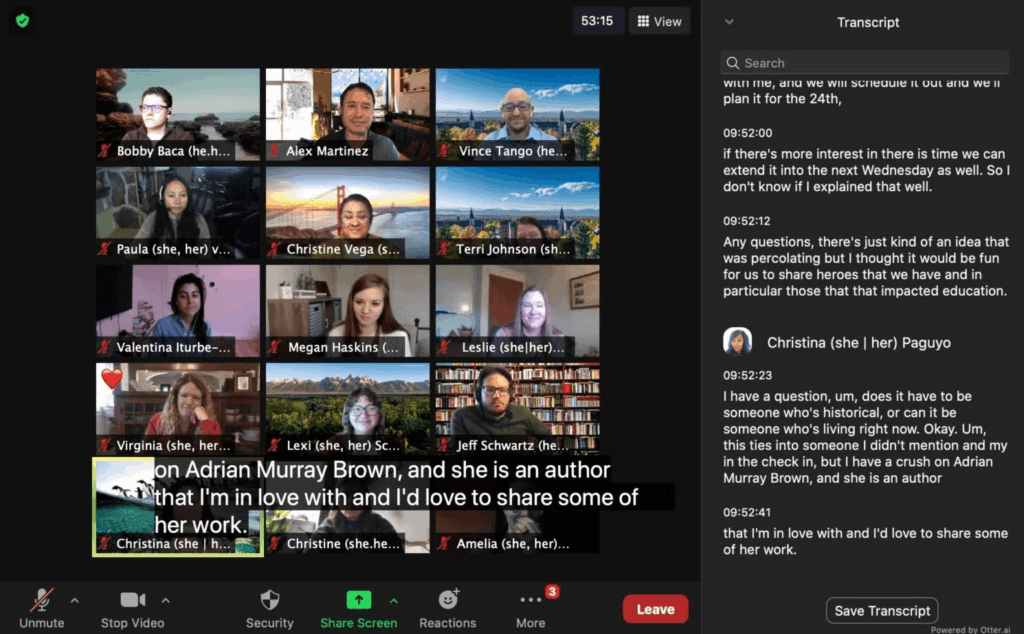
Yes. Zoom can generate audio transcripts for supported cloud recordings. Zoom says that after a cloud recording is processed, the audio transcript appears as a separate VTT file, can be viewed in the web portal, can be edited there, and can also be opened in a text editor or word processor after download.
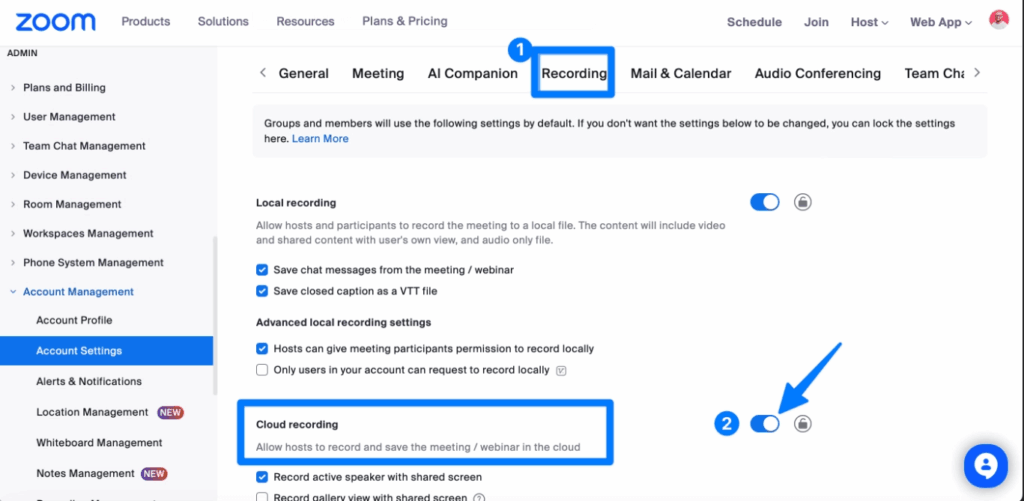
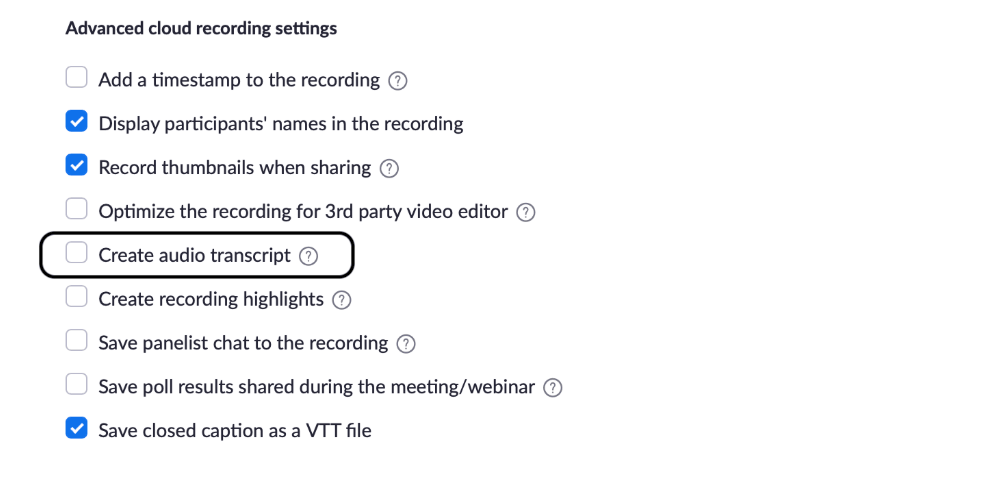
Zoom also makes clear that this part of zoom transcription depends on settings. In the Recording & Transcript settings, cloud recording must be enabled and the Create audio transcript option must be turned on. If those settings were not enabled beforehand, the transcript may not be created for that meeting.
So the answer is simple: native zoom transcription already exists, and for basic review it can absolutely help. A native zoom transcript is useful when you want quick access to what was said, need to search by keyword, or want a transcript file from a supported cloud recording workflow. Zoom also lets users download the transcript file from the recording page in supported cases.
But that does not automatically mean native zoom transcription is enough for every workflow. Getting a zoom recording transcript and getting editable, reusable text are not always the same thing.
How to Get a Transcript From Zoom Recordings
This is the core workflow for zoom transcription.
Check whether a native Zoom transcript already exists
If the meeting was recorded to the cloud and transcript settings were enabled, Zoom may already have created a transcript. In Zoom’s web portal, users can open cloud recordings, view the audio transcript, edit the transcript there, and search processed recordings by keywords in the transcript.
For some users, this resolves the zoom transcription task immediately. If you only need quick reference, native zoom transcription may already do the job.
Review or download the transcript file
If the transcript is available, the next step is to review it or download it. Zoom says users can download the audio transcript from the cloud recording page, and that the file is saved in VTT format. Zoom’s file-format documentation also notes that VTT contains the audio transcription for a cloud recording.
At this point, some zoom transcription searches are effectively solved. The recording exists, the transcript exists, and the user can access the text.
Use another workflow if the transcript is missing or hard to reuse
This is where many zoom transcription workflows change direction.
If the transcript was never created, if you only have a downloaded Zoom recording, if the file is awkward to work with, or if the text still needs heavier cleanup, native zoom transcription may no longer be the best endpoint. That is usually the moment when users move from “How do I get transcript from Zoom recording?” to “How do I convert this Zoom video to text in a way that is easier to work with?”
That shift matters because zoom transcription is often only the first step. After that, users usually want editable text, better organization, easier export, or a cleaner way to turn a meeting recording into something practical.
When Zoom’s Native Transcript Is Not Enough
Zoom’s built-in zoom transcription features are useful, but they are strongest for access and reference. The limitation shows up when users need more than access.
Common cases where native zoom transcription starts to feel limited include:
- the transcript setting was not enabled before the meeting
- you have the Zoom recording but no usable transcript
- the transcript exists, but the text still needs cleanup before sharing
- the recording is long and part of a larger workflow
- you want more than transcript access, such as summaries or deeper analysis
That difference matters because a raw zoom transcript is rarely the final deliverable. In most real workflows, users still need to:
- remove filler words and repetition
- identify who said what
- keep time context for review
- pull out action items and decisions
- turn a long discussion into a concise summary
- reuse the content in documentation, research, or content creation
This is where native zoom transcription and a stronger post-meeting workflow begin to separate. Native zoom transcription helps expose the words. A more advanced workflow helps turn those words into something more valuable.
Why Video Transcriber AI Is a Better Next Step for Editable Text
This is where the product connection becomes natural.
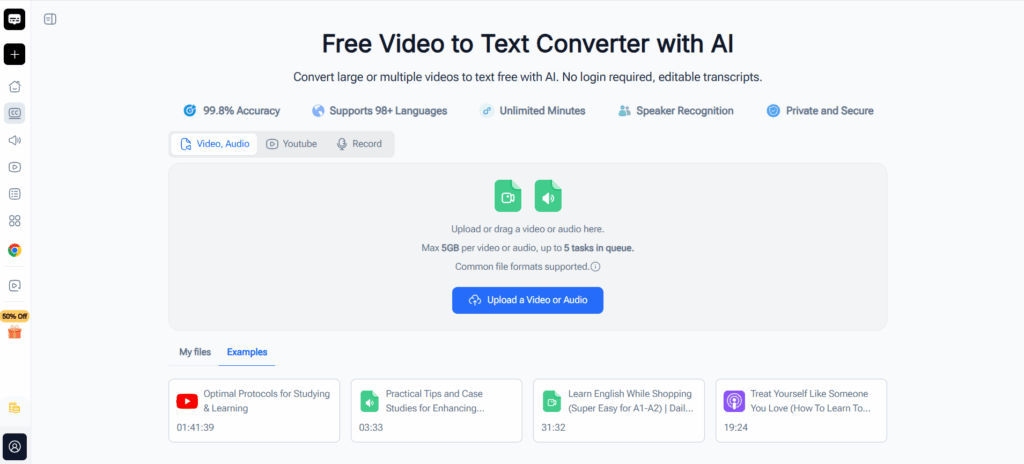
If your goal after zoom transcription is not just viewing a transcript but creating editable, reusable output, Video Transcriber AI is the stronger next step. Its Video to Text Converter is designed to turn video and audio into editable text online, with support for large or multiple files, speaker recognition, timestamps, AI summaries, translation, and AI chat for deeper transcript analysis.
That makes it a better fit for many zoom transcription needs, especially when the native Zoom transcript is missing, limited, or not enough for what you need next.
More importantly, the value here is not only transcription. The extra value comes from what you can do after zoom transcription.
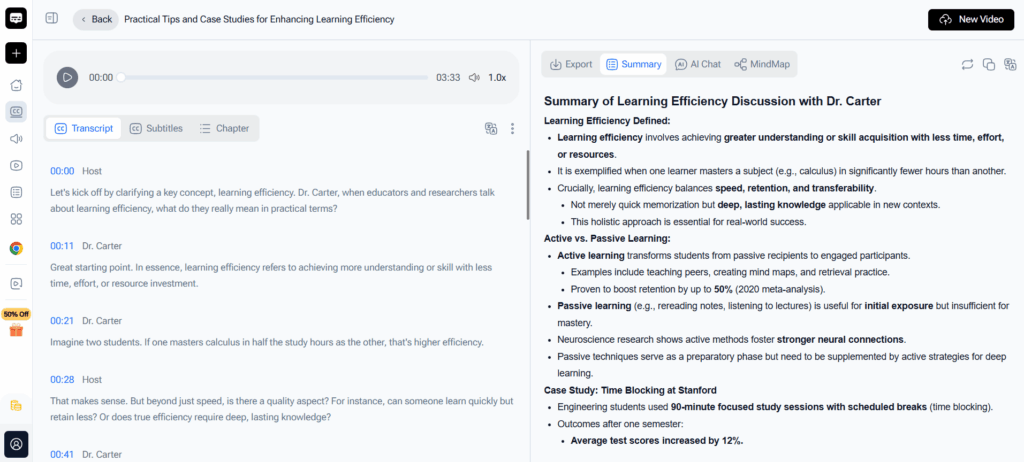
Speaker Recognition Makes Zoom Transcription Easier to Follow
One practical problem with zoom transcription is that meetings often involve multiple speakers. When you are reviewing a client call, interview, workshop, or internal discussion, it is not enough to see the words. You also need to know who said what.
Video Transcriber AI supports speaker recognition, which helps separate speakers more clearly in the transcript.
For zoom transcription, that helps solve a real problem. It makes it easier to:
- separate participants in a long meeting
- review interviews and panel-style conversations
- trace decisions back to the right person
- clean up multi-speaker transcripts faster
That means the transcript is not just readable. It is easier to analyze and trust.
Timestamps Make Zoom Transcription Easier to Review and Verify
Another common challenge with zoom transcription is going back to the exact moment something was said. A transcript without time reference is useful, but a transcript with timestamps is more practical for review.
Zoom’s native transcript files are saved as VTT, which is a time-based transcript format for cloud recordings. Video Transcriber AI also supports timestamped transcript output, which makes transcript review more useful in real workflows.
For users working from recorded meetings, timestamped zoom transcription helps with:
- checking a quote against the original recording
- jumping back to a specific section of the meeting
- reviewing decisions in sequence
- building notes while keeping time context intact
This is especially useful for long recordings, interviews, training sessions, and webinars where review speed matters.
AI Summaries Help Turn Zoom Transcription Into Faster Outputs
A big reason users need zoom transcription is not just to get the words. It is to save time after the meeting.
Video Transcriber AI supports AI-powered summaries, which help turn long transcripts into shorter, more structured outputs.
That helps when you need to:
- send a quick meeting recap
- extract decisions and next steps
- shorten a webinar into key takeaways
- turn a long conversation into something teammates can scan quickly
This is where zoom transcription becomes more than text conversion. It becomes a way to reduce post-meeting workload.
AI Chat Helps Users Go Deeper Than Basic Zoom Transcription
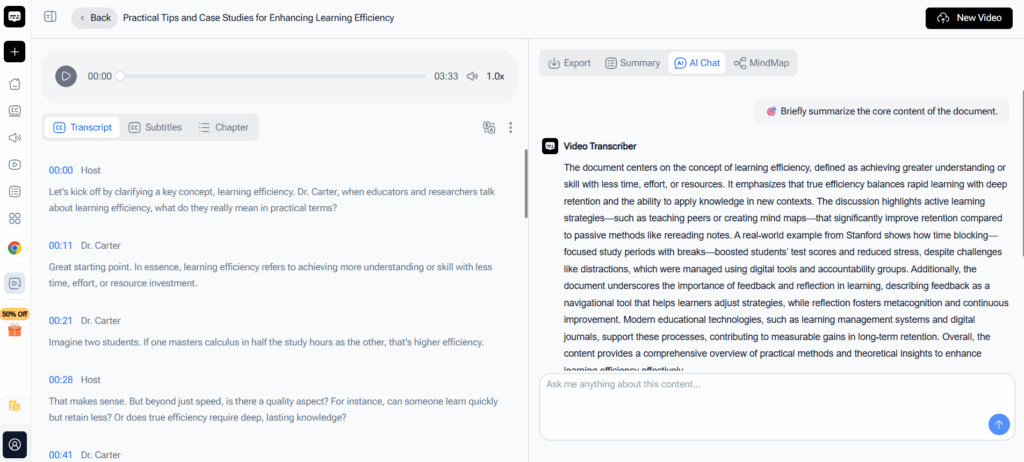
Another feature that adds value is AI chat on top of the transcript.
With Video Transcriber AI, users can continue working with the transcript by asking follow-up questions about the content.
For zoom transcription, that creates a more advanced workflow. Instead of only reading the transcript, users can ask questions based on the meeting content itself. That is especially useful when the recording is long, dense, or research-heavy.
This helps users:
- ask what the key takeaways were
- find where a specific topic was discussed
- surface action items faster
- explore details inside long interviews or meetings
- turn the transcript into a more searchable knowledge source
That is a major upgrade from basic zoom transcription alone. The transcript becomes something you can work with more intelligently, not just something you download and store.
How Video to Text Converter Helps With Long Zoom Recordings
This is also where one specific product advantage matters a lot: file size.
Video Transcriber AI supports large file handling, including Zoom recordings up to 5GB, which makes it much more practical for longer sessions and heavier transcription workflows.
That matters for zoom transcription because not every Zoom recording is a short internal call. Larger files often come from:
- webinars
- online classes
- training sessions
- workshops
- interviews
- long strategy meetings
- recorded presentations
In these cases, zoom transcription is not just about extracting text. It is about handling a long recording efficiently and getting useful output without extra friction. A converter built for larger or multiple files is much more practical when the meeting is part of a heavier workflow.
For users trying to convert Zoom recording to text, transcribe Zoom recording, or turn a meeting recording to text, this is exactly where the product fit becomes stronger. The issue is no longer only whether a transcript exists. The issue is whether the workflow can handle the recording comfortably and turn it into something useful.
Best Ways to Reuse a Zoom Transcript After Transcription
Once the text is ready, the real value of zoom transcription begins.
Meeting notes and action items
Use the transcript to turn a long meeting into a short record of what was decided, what is still open, and who owns the next step.
Client summaries and documentation
Pull requests, feedback, approvals, and timelines from a client meeting without replaying the full recording.
Training material and content reuse
Turn webinars, classes, workshops, and interviews into study notes, internal guides, FAQs, outlines, or article drafts.
This is also where the extra value of Video Transcriber AI becomes clearer. Speaker recognition makes multi-person discussions easier to follow. Time-based transcript output makes review easier. AI summaries speed up outputs. AI chat helps users go deeper into the transcript. So the benefit is not only better zoom transcription. It is a better post-transcription workflow.
Conclusion
The real question behind zoom transcription is not whether Zoom can generate transcripts. In supported cloud-recording workflows, it can. Zoom can create audio transcripts, save them as VTT files, and let users view, edit, search, and download them.
The more important question is whether that workflow is enough for what you need after the meeting.
If your goal is quick transcript access, native zoom transcription may be enough.
If your goal is to turn Zoom recordings into editable, structured, reusable text — and then go further with speaker recognition, timestamps, AI summaries, and AI chat for deeper review — then Video Transcriber AI is the stronger next step. Its Video to Text Converter fits the broader workflow much better, especially when zoom transcription is only the start of what you need to do next.
That is why many users begin with the search term zoom transcription, but what they really need is something more powerful: a faster way to turn Zoom recordings into text they can analyze, summarize, organize, and reuse.