


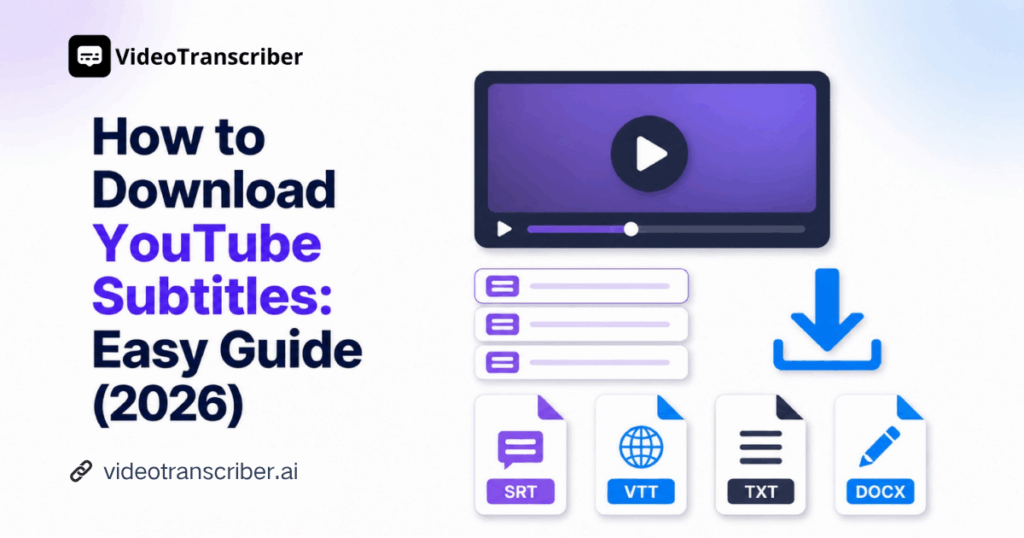
Need to download YouTube subtitles without copying captions line by line? Video Transcriber AI turns a public video link into useful subtitle and text files in a few straightforward steps.
Introduction
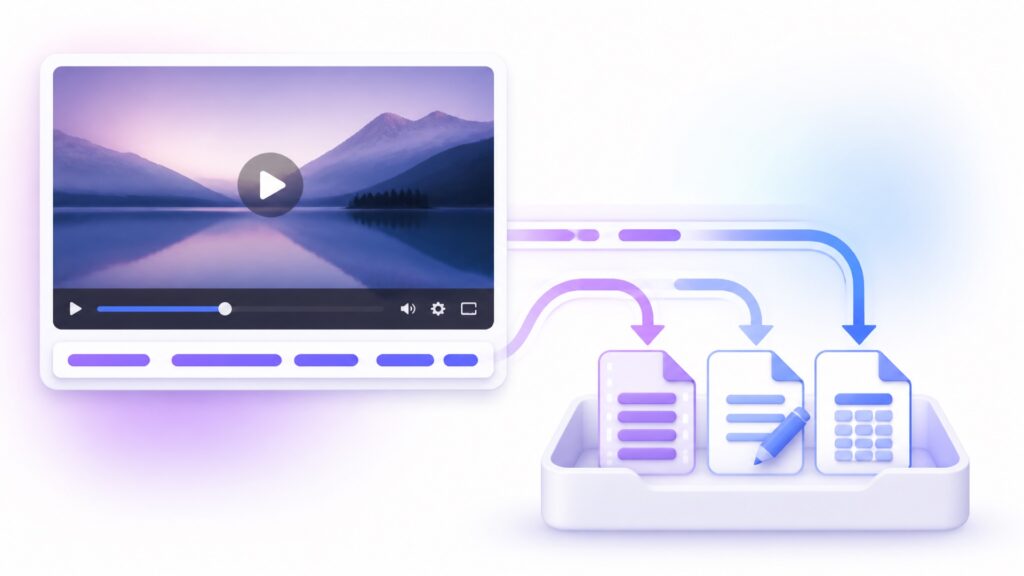
Subtitles make video content easier to edit, translate, study, search, and share. The trouble starts when the captions are trapped inside a player, the available file format does not suit your workflow, or you need clean text instead of a scrolling subtitle panel. Knowing how to download YouTube subtitles gives you a reusable file instead of a one-time viewing experience.
Video Transcriber AI provides an online YouTube Subtitle Downloader that works from a public video URL. You can retrieve subtitle content, review it, and export formats suited to video production, web captions, notes, document editing, or structured data. If you want to download YouTube subtitles without installing extra software, this guide explains the complete workflow.
What Does It Mean to Download YouTube Subtitles?
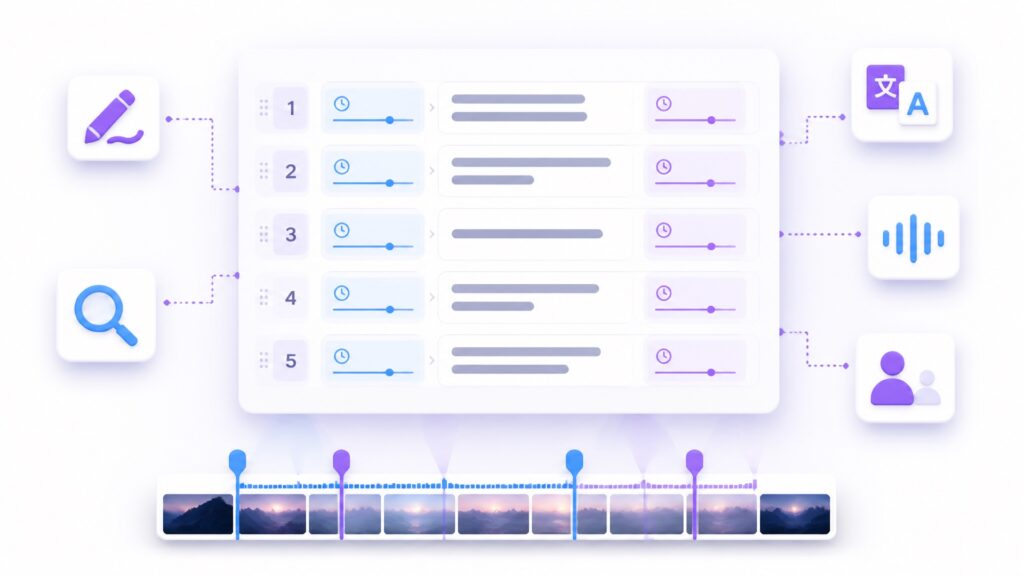
To download YouTube subtitles means saving dialogue and timing as a separate file that can be edited, translated, archived, or imported into another tool.
Video Transcriber AI supports SRT, VTT, TXT, DOCX, and CSV. You can download YouTube subtitles as timed cues or readable text, depending on your next task.
What a Downloaded YouTube Subtitle File Contains
A subtitle file combines dialogue with timing. When you download YouTube subtitles for editing, timed cues tell the video software when each line should appear and disappear.
Depending on the chosen format, the file may contain:
- Spoken dialogue or narration
- Start and end timestamps
- Separate rows or numbered subtitle cues
- Speaker changes or labels when available
- Plain text that can be searched and edited
These details help you correct wording, adjust timing, translate dialogue, or find a quotation.
Subtitle Files vs. Plain Transcript Text
SRT and VTT preserve timing for players, editors, and web video. TXT and DOCX prioritize readable text for notes, articles, and review.
When you download YouTube subtitles, choose a timed file for synchronized video, a document for reading, or CSV for structured rows.
SRT, VTT, TXT, DOCX, and CSV Explained
Choose the format by purpose:
- SRT: Timed subtitles for editors and media players.
- VTT: Timed captions for web and HTML5 video.
- TXT: Plain text for reading and searching.
- DOCX: Editable content for comments and collaboration.
- CSV: Structured rows for bulk editing or analysis.
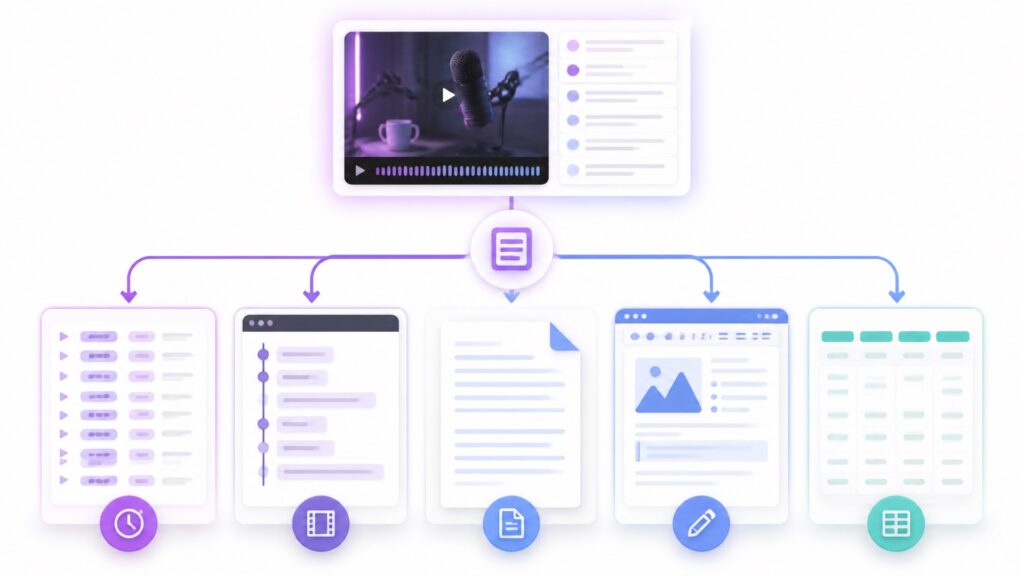
You can download YouTube subtitles as SRT for production and keep DOCX or TXT for review.
Before choosing, check the import requirements of the software or publishing platform that will receive the file. Some systems accept several formats, while others expect one specific structure. Keep an untouched export so you can recover quickly if later edits damage timing or formatting.
Why Download YouTube Subtitles?
Streaming video is linear. A subtitle file converts it into material you can search, edit, and organize. Once you download YouTube subtitles, the information becomes reusable.
Video Transcriber AI prepares captions, study text, or structured translation content so you can focus on review.
Add Captions to Editing and Publishing Workflows
When you download YouTube subtitles as SRT or VTT, each caption keeps its timing and can move into an editing or publishing workflow.
Review line breaks, reading speed, names, and timing before publishing. Video Transcriber AI prepares the file; you control the final experience.
Turn Video Speech into Searchable Study Material
Students can download YouTube subtitles as TXT or DOCX, search for a concept, and return to the relevant video moment when needed.
Organize the material with headings and highlights, and keep the source URL beside your notes for context.
Prepare Subtitle Text for Translation and Localization
When you download YouTube subtitles in SRT, VTT, or CSV, dialogue is divided into manageable units while sequence and timing remain visible.
Video Transcriber AI supports more than 200 languages. Review names, idioms, cultural references, and technical vocabulary before delivering localized subtitles.
How to Download YouTube Subtitles with Video Transcriber AI
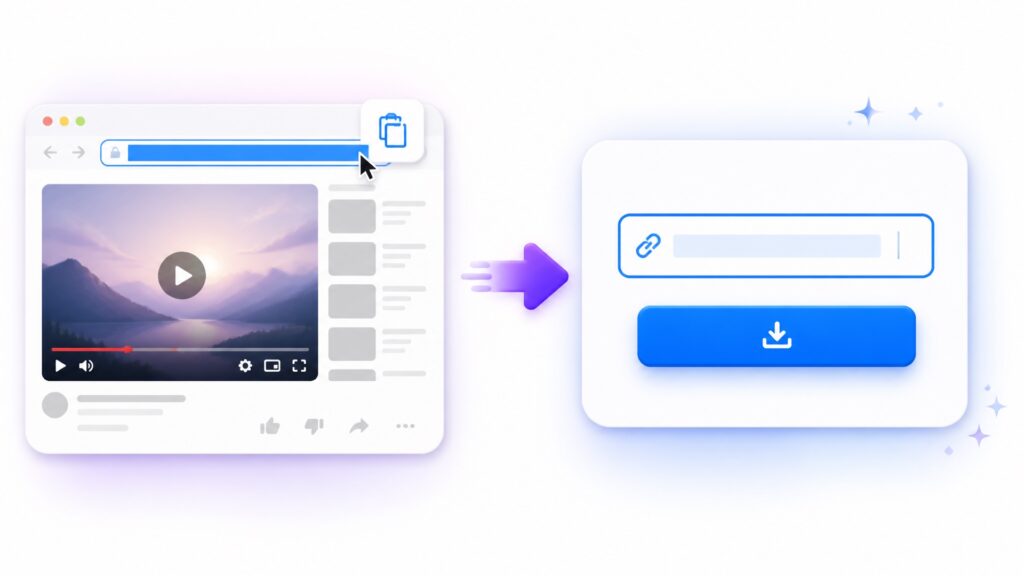
Copy the public link, paste it into Video Transcriber AI, choose settings, review the content, and export the right file. You can download YouTube subtitles without installing a desktop application.
Confirm that the video is public and that you may reuse its content. Subtitle downloads do not change copyright or privacy obligations.
Step 1: Copy the Public YouTube Video URL
Copy the complete URL from the address bar or Share menu. Video Transcriber AI needs a publicly reachable source.
To download YouTube subtitles from several videos, process one URL at a time and use descriptive project names. This prevents a folder full of subtitles-final-final-2 files.
Step 2: Paste the Link into Video Transcriber AI
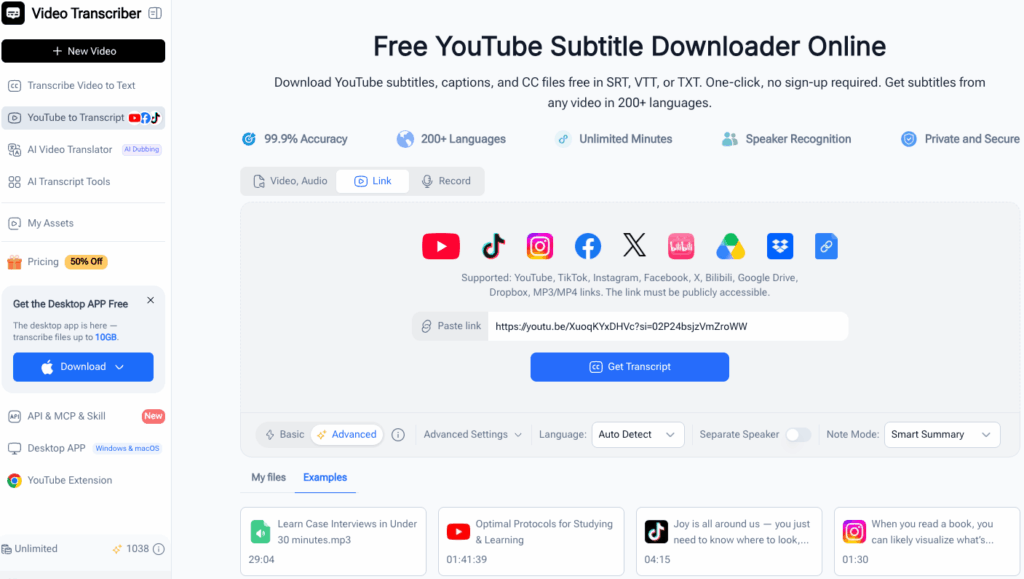
Paste the URL into the YouTube Subtitle Downloader, confirm it points to the intended video, and start processing.
You do not need to save the video before you download YouTube subtitles. Video Transcriber AI works from the public source.
Step 3: Choose the Language and Subtitle Settings
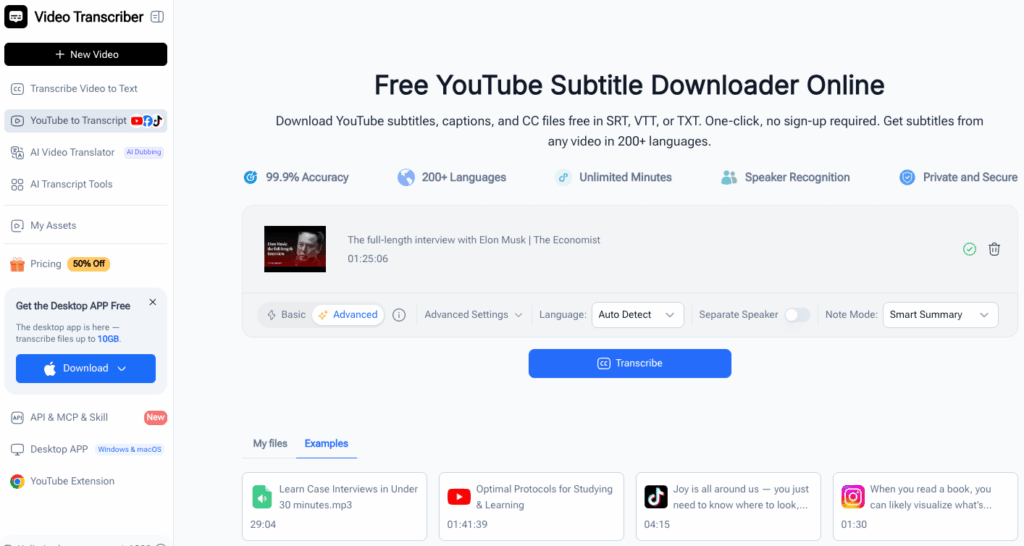
Select the spoken language or use automatic detection. The right setting can improve accents, vocabulary, and sentence boundaries. Use speaker separation for multiple voices when appropriate.
Choose a timed file for playback or a text file for reading. Planning before you download YouTube subtitles reduces later conversion.
Step 4: Generate and Review the Subtitle Content
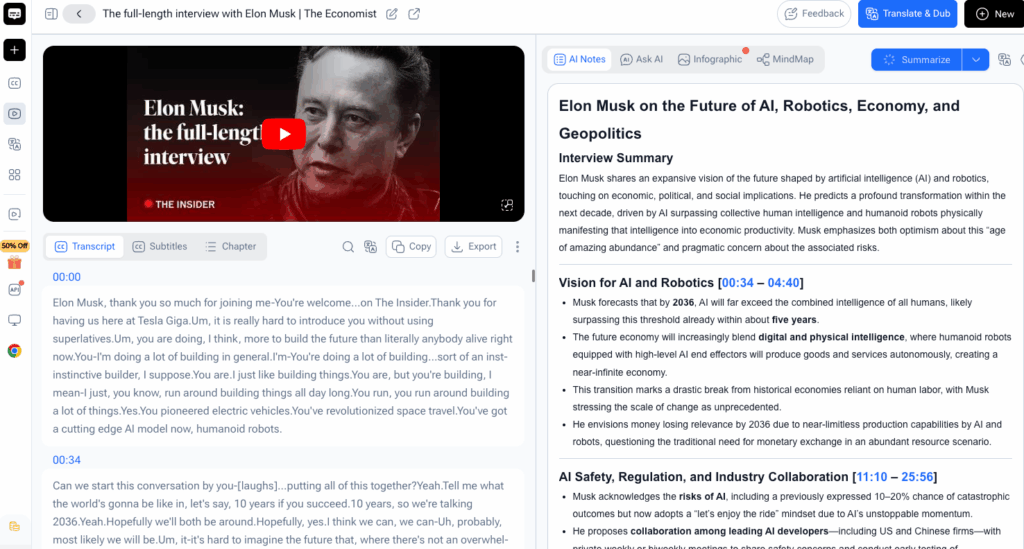
After processing, check several subtitle sections against the audio and review details speech recognition may misinterpret.
Review the following items:
- Personal names, brands, and locations
- Dates, measurements, prices, and percentages
- Acronyms and specialized terminology
- Speaker changes and overlapping dialogue
- Caption breaks and timestamp alignment
Review is essential when you download YouTube subtitles for publication, teaching, or translation. Fixing one name now is easier than correcting five reused files.
Step 5: Download YouTube Subtitles in the Right Format
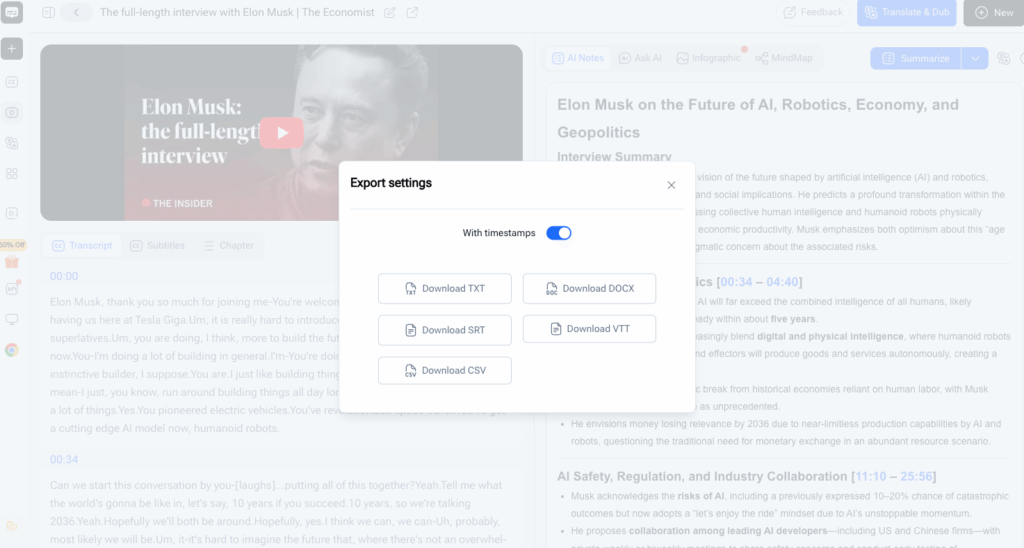
Choose SRT or VTT for timed captions, TXT or DOCX for readable editing, or CSV for structured rows. Open the export once to confirm it works.
Use a name such as topic-language-date-subtitles.srt. For editing and writing, download YouTube subtitles in a timed format and save a text copy too.
Pro Tips for Better Results with Video Transcriber AI
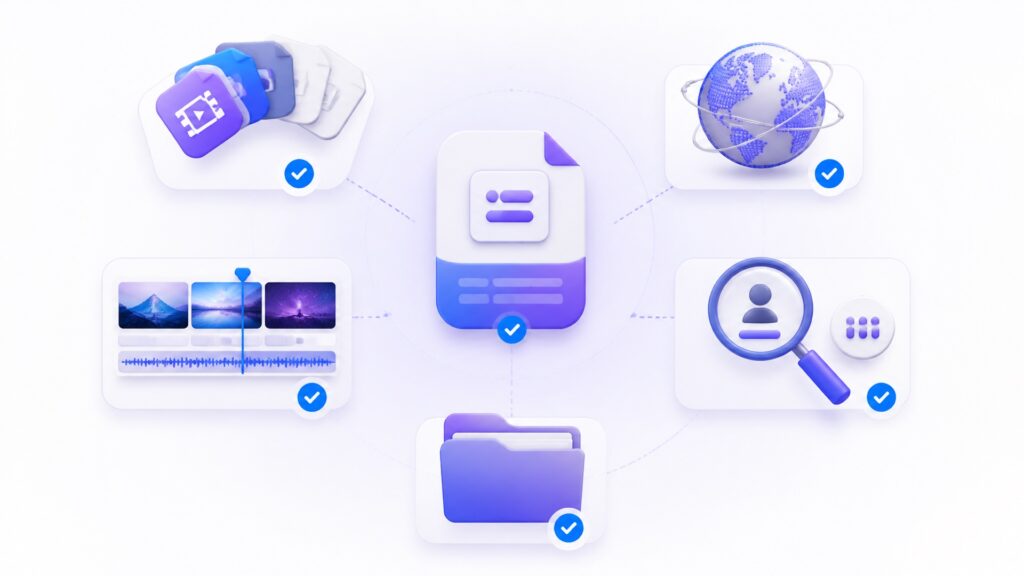
Small choices can make subtitle files much easier to use. The following tips focus on how to configure, review, and organize output from Video Transcriber AI when you download YouTube subtitles.
Choose SRT or VTT for Timed Captions
SRT is a practical default for many video editors and media players. VTT is a strong choice for browser-based video and web caption workflows. Before you download YouTube subtitles, check which format your destination accepts so you do not create an unnecessary conversion step.
After importing the file, spot-check cues near the beginning, middle, and end. This confirms that the subtitle timing has not shifted during handoff.
Choose TXT or DOCX for Reading and Editing
TXT is simple, portable, and easy to search. DOCX is better when reviewers need comments, formatting, or tracked revisions. When you download YouTube subtitles for research, lesson planning, or content repurposing, these formats keep the words easy to work with.
Do not remove timestamps immediately if you may need to verify quotations later. They are useful signposts back to the source video.
Use CSV for Structured Subtitle Data
CSV is helpful for large editing jobs, analysis, or workflows that treat each subtitle cue as a row. You can sort, filter, annotate, or compare subtitle segments in a spreadsheet while keeping timing and text organized.
When you download YouTube subtitles as CSV, avoid changing timestamp formatting unless the next tool expects a different structure. Preserve an untouched copy before performing bulk edits.
Review Names, Numbers, Timing, and Speaker Changes
Clear audio generally produces cleaner subtitle content, but unusual names and technical terms still deserve attention. Search for names, dates, numbers, abbreviations, and repeated speaker changes after processing.
For important projects, listen to the audio while reading selected cues. This targeted review is faster than treating every line with equal suspicion and safer than assuming every detail is perfect.
Keep the Source URL and Exported Files Organized
Store the source URL, language, export date, and file format with the project. If you download YouTube subtitles in several formats, keep them in one clearly named folder and distinguish the original export from edited versions.
A simple naming system such as project-language-version-format makes collaboration easier. It also prevents the classic mystery of deciding whether final-v3-new is newer than final-v4-old.
Real-World Examples of Downloading YouTube Subtitles
The value of a subtitle downloader becomes clearer when the exported file has a specific destination. These examples show how people can use Video Transcriber AI as part of a real workflow.
Example 1: A Video Creator Downloads SRT for Editing
Lena is updating a public tutorial for a new audience. She copies the video URL, pastes it into Video Transcriber AI, confirms the language, and generates the subtitle content. She uses download YouTube subtitles to save an SRT file for her editing timeline.
After importing the file, Lena reviews product names, shortens a few crowded caption lines, and checks the timing around scene changes. She also saves a DOCX copy for her editor. Video Transcriber AI handles the reusable starting point, while Lena controls the final reading experience.
Example 2: A Student Downloads TXT for Lecture Notes
Marcus needs to review a long public lecture before an exam. He processes the URL with Video Transcriber AI and exports TXT for reading. He searches the file for terms from his syllabus, adds headings, and turns key explanations into concise notes.
Marcus keeps timestamps beside important quotations and saves the original source link with the document. By using Video Transcriber AI to download YouTube subtitles, he spends less time replaying the lecture and more time understanding the material.
Frequently Asked Questions
Which Formats Can I Download with Video Transcriber AI?
Video Transcriber AI supports SRT, VTT, TXT, DOCX, and CSV exports. Use SRT or VTT for timed captions, TXT or DOCX for readable editing, and CSV for structured rows. You can download YouTube subtitles in more than one format when a project includes both video production and written review.
Can I Download YouTube Subtitles in Different Languages?
Yes. Video Transcriber AI supports more than 200 languages. Select the spoken language or use automatic detection, then review names, accents, and mixed-language sections. When you download YouTube subtitles for translation, keep the original file alongside the localized version.
Can I Edit the Downloaded Subtitle Files?
Yes. SRT and VTT can be edited in compatible caption or text editors, while TXT, DOCX, and CSV are designed for familiar text, document, or spreadsheet workflows. Preserve a copy of the original export before making major timing or structural changes.
Can Video Transcriber AI Process Long YouTube Videos?
Video Transcriber AI is designed to process long public videos as well as shorter clips. Processing time depends on video length and complexity. When you download YouTube subtitles from a long recording, use descriptive file names and review several points across the timeline before relying on the export.
Conclusion: Download YouTube Subtitles in Minutes
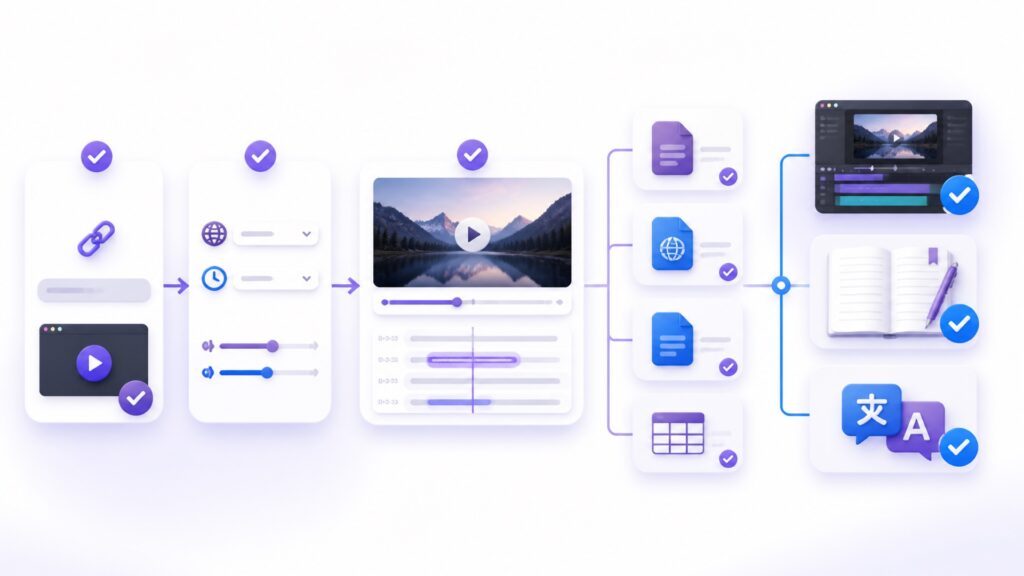
Video Transcriber AI helps you download YouTube subtitles without manual transcription. Paste a public URL, choose the language, review the result, and export SRT, VTT, TXT, DOCX, or CSV.
Use download YouTube subtitles for timed captions, download YouTube subtitles for editable notes, and download YouTube subtitles for translation. Keep the source URL, verify names and timing, and choose the format that matches your next step.
Whether you download YouTube subtitles as SRT, download YouTube subtitles as VTT, download YouTube subtitles as TXT, or download YouTube subtitles as CSV, the same workflow creates a reusable file. Start with Video Transcriber AI when you next need to download YouTube subtitles.