


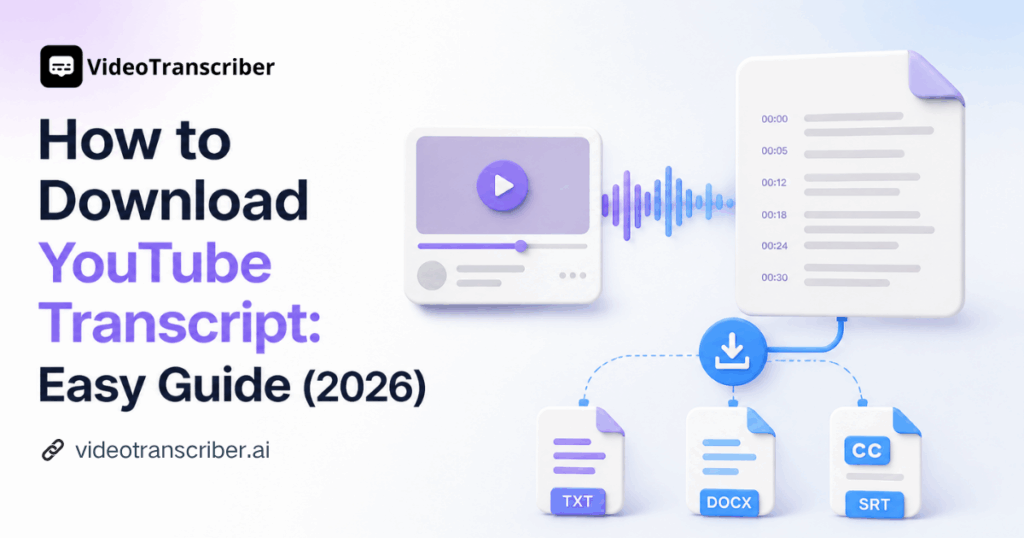
Need to download YouTube transcript text without wrestling with captions or replaying the same sentence twelve times? Video Transcriber AI turns a public video link into readable, timestamped text and lets you save it in practical formats.
Introduction
A transcript makes a long video easier to search, quote, study, and reuse. Instead of scrubbing through a timeline to find one useful remark, you can scan the words, jump to the relevant timestamp, and keep the material in your own workflow. That is why knowing how to download YouTube transcript text is useful for students, researchers, marketers, teachers, and creators.
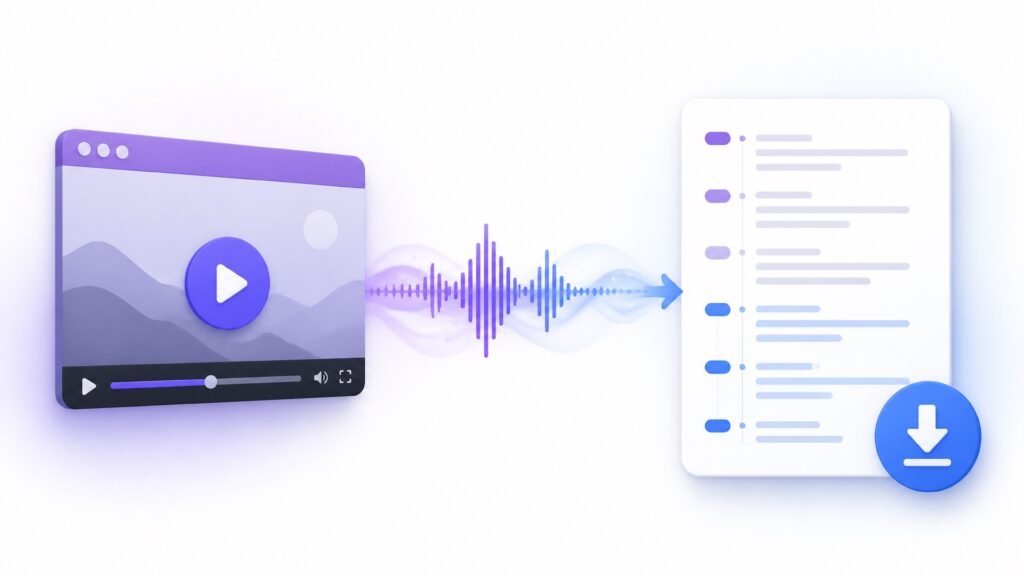
Video Transcriber AI simplifies the process. Paste a public YouTube URL, let its AI speech recognition process the audio, review the result, and export it. The tool can generate text even when the original video has no captions, so you are not limited to whatever the uploader happened to provide. If you want to download YouTube transcript content with less manual work, this guide walks through the complete process.
What Does It Mean to Download a YouTube Transcript?
To download YouTube transcript content means converting spoken audio into a text file you can keep. A useful transcript may include timestamps, speaker labels, or a summary, and it is ready for editing, highlighting, or archiving.
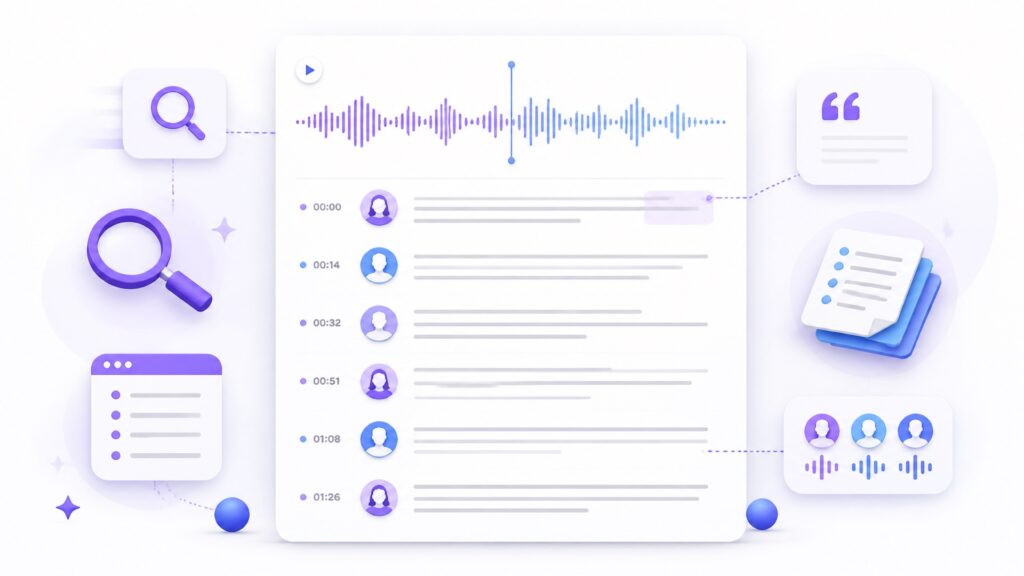
Video Transcriber AI uses speech recognition to create a transcript from the video's audio. It does not require the video to contain existing YouTube captions. That distinction matters when you need to download YouTube transcript text from an interview, lecture, tutorial, or presentation whose creator never uploaded subtitles.
What Information You Get When You Download YouTube Transcript Text
The main ingredient is spoken text, but Video Transcriber AI can also produce timestamps and recognize separate speakers. When you download YouTube transcript results, those details make the file easier to navigate.
Your result may include:
- The spoken dialogue in readable paragraphs
- Timestamps that point back to specific moments
- Speaker separation for conversations or interviews
- A concise summary of the main ideas
- Text suitable for notes, articles, or subtitles
When You Download YouTube Transcript: Text vs. Subtitle Files
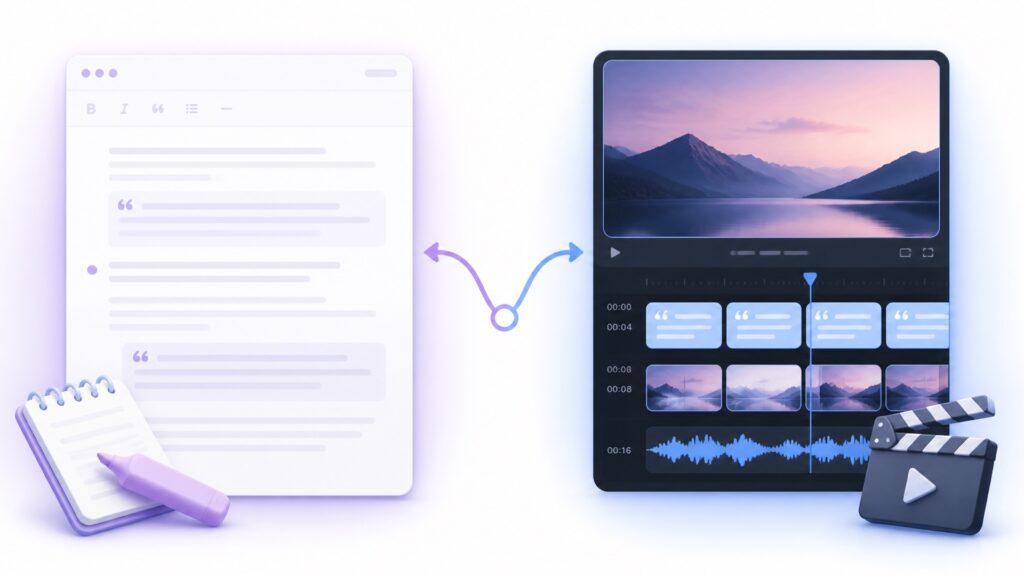
Video Transcriber AI supports both readable text documents and timestamped subtitle files. The best choice depends on what you plan to do after you download YouTube transcript content.
Choose TXT or DOCX for reading, editing, quoting, or repurposing. Choose SRT when you need timed subtitle cues for editing, translation, or accessibility.
You can download YouTube transcript text for editing and also save SRT for timing. One serves the reader; the other serves the video timeline.
Why Download YouTube Transcript Text?
Video is excellent for explanation but awkward for retrieval. A transcript changes a linear recording into information you can scan and search without repeated playback.
You can build notes, capture quotations, outline an article, prepare accessible materials, or locate a claim by searching one phrase.
Turn Long Videos into Searchable Notes
When you download YouTube transcript text with timestamps, you can search for a concept and return to the exact video moment when context matters.
Video Transcriber AI also offers a summary option. Use the summary as a map, then verify important details in the timestamped text rather than treating a short overview as the source.
Repurpose Video Content More Efficiently
After you download YouTube transcript content, you can highlight strong explanations and develop a blog outline, newsletter, social post, or show notes without typing every sentence.
Check quotations against timestamps, remove verbal filler, and reshape spoken language for readers. Video Transcriber AI supplies the first draft; you provide the judgment and voice.
Improve Accessibility, Research, and Learning
Readable text supports quiet study and people who prefer reading. An SRT file supports subtitle workflows. When you download YouTube transcript files in both formats, one source can serve several audiences.
For research, timestamps preserve where a statement appeared. For learning, you can create flash cards, questions, and concise notes from the same transcript.
How to Download YouTube Transcript with Video Transcriber AI
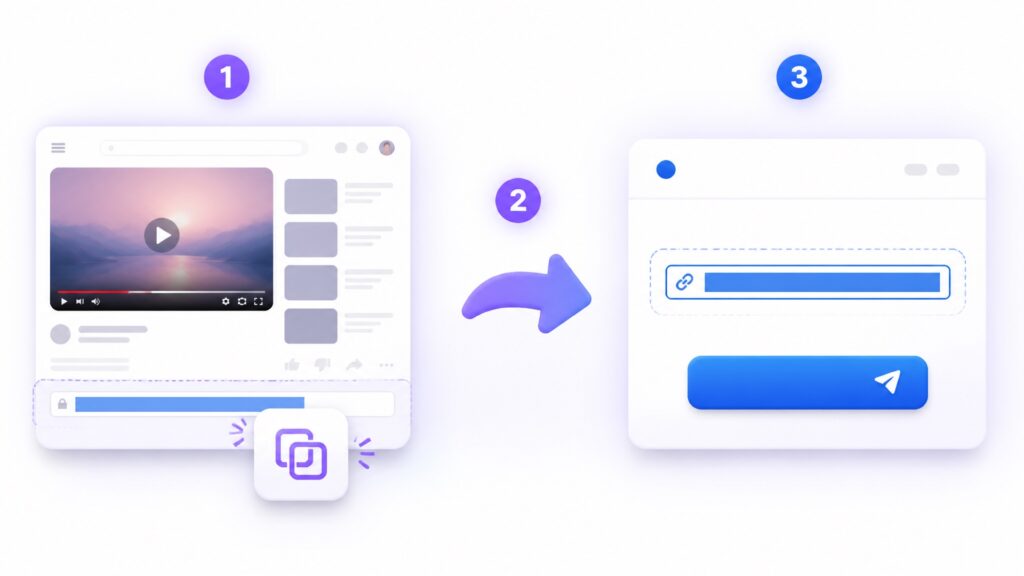
The workflow is intentionally short: provide a public link, choose suitable settings, generate the transcript, review it, and export the format you need. You do not need to install desktop software just to download YouTube transcript text from a public video.
Before you begin, confirm that the video is public and that you have the right to use its content. Transcription does not erase copyright or privacy responsibilities.
Before You Start: Plan the Output
Before you download YouTube transcript content, decide how you will use the result. Choose TXT for lightweight notes, DOCX for editing and comments, or SRT for subtitle timing. Picking the destination first prevents unnecessary exports and keeps the workflow focused.
Check that the public link opens correctly, identify the main spoken language, and note whether the recording has several speakers. For a team that regularly needs to download YouTube transcript files, agree on a naming pattern such as topic-speaker-date-format. Store the original URL beside the exported file so anyone reviewing the text can return to the source. These small preparations take less than a minute, but they make later research, editing, and collaboration much cleaner.
Step 1: Copy the YouTube Video URL
Copy the video's full URL from the address bar or Share menu. Confirm that the link opens publicly and points to the correct video.
For several videos, process links one at a time and use descriptive file names. A folder full of files named “transcript” becomes an administrative horror story quickly.
Step 2: Paste the URL to Download YouTube Transcript Text
Open the YouTube Transcript Generator, paste the public URL into the link field, and check it before selecting Get Transcript.
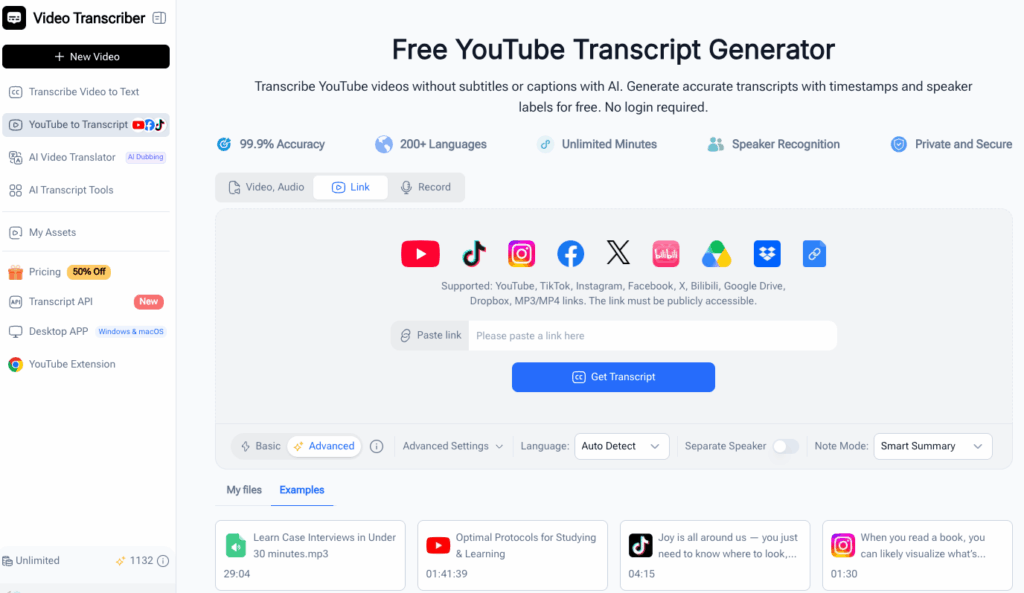
The link-based workflow removes the need to save the video first. Video Transcriber AI processes the public source and prepares the text.
Step 3: Choose Settings Before You Download YouTube Transcript Text
Use automatic detection, or select the spoken language when you know it. The correct choice can improve recognition of names, accents, and vocabulary.
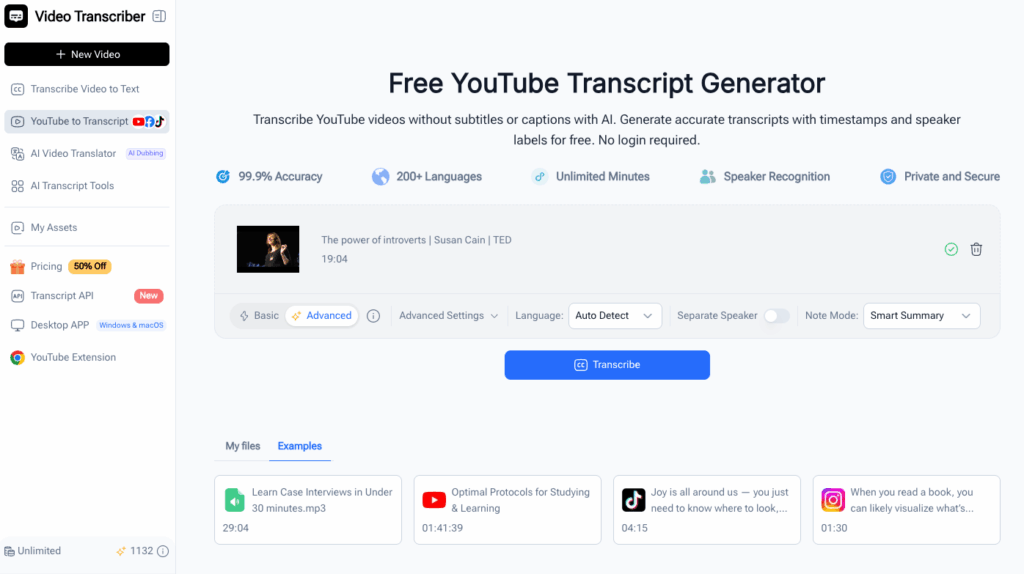
Advanced options include speaker separation and a note mode with smart summaries. Use speaker separation for interviews or panels, and use a summary when you want an overview beside the full result. These choices tailor what you receive when you download YouTube transcript content.
Step 4: Review Before You Download YouTube Transcript Files
Select Get Transcript. Once the result appears, read several sections and check their timestamps against the recording.
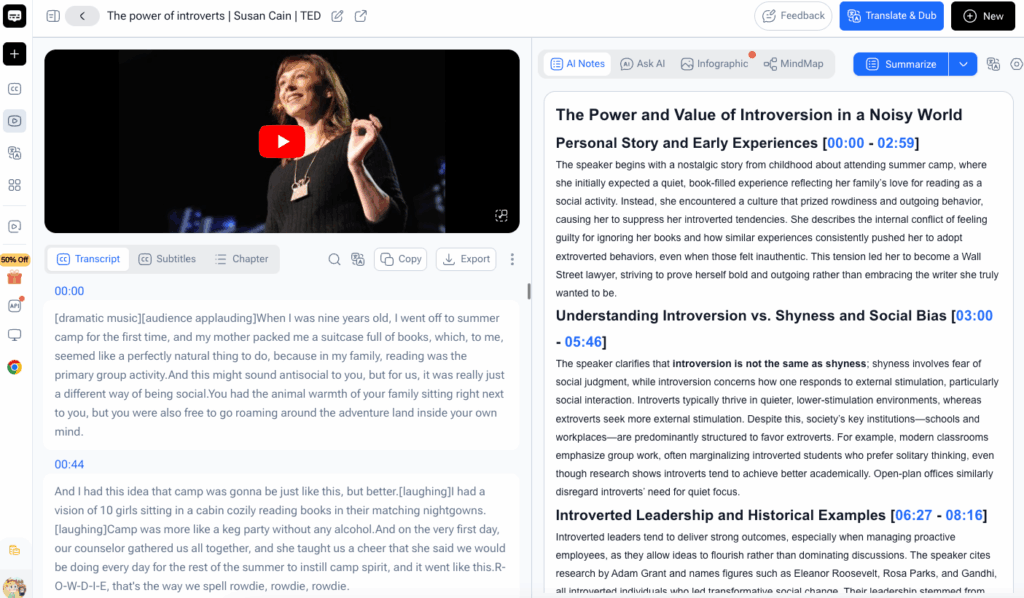
Pay special attention to:
- Personal names, company names, and place names
- Numbers, dates, measurements, and prices
- Acronyms and specialized terminology
- Moments with overlapping speakers
- Sections affected by music, noise, or a weak microphone
AI transcription saves time, but human review is still wise when precision matters. Correcting a name now is easier than finding the mistake in six later documents.
Step 5: Download YouTube Transcript in Your Preferred Format
After reviewing the result, choose the right export. Video Transcriber AI lets you download YouTube transcript files as TXT, DOCX, or SRT. TXT is lightweight, DOCX supports document editing, and SRT preserves subtitle timing.
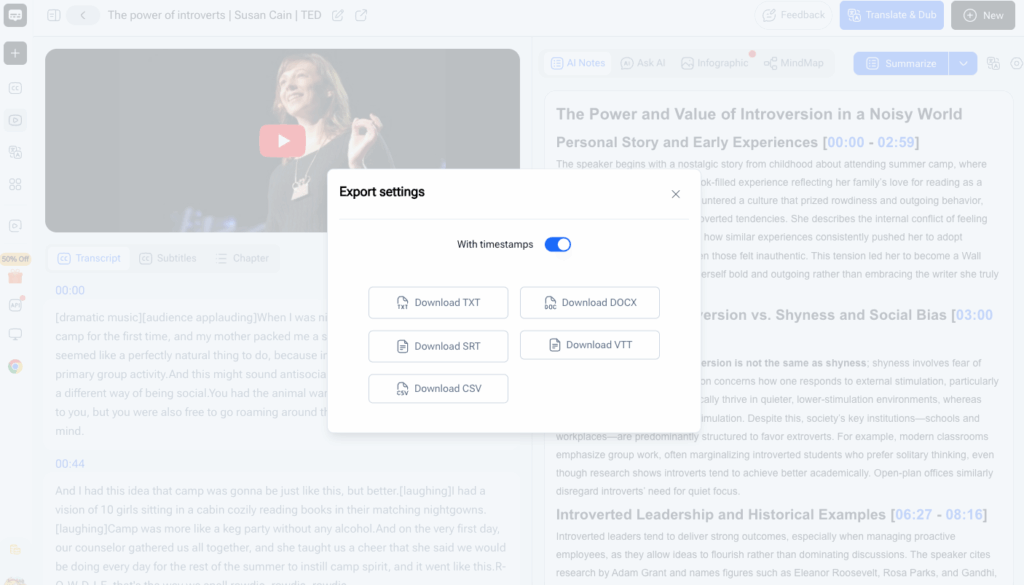
Use a clear file name such as topic-speaker-date-transcript.txt. If timing matters, save SRT too. You will have an editable reading copy and a subtitle-ready version.
Pro Tips for Better Results with Video Transcriber AI
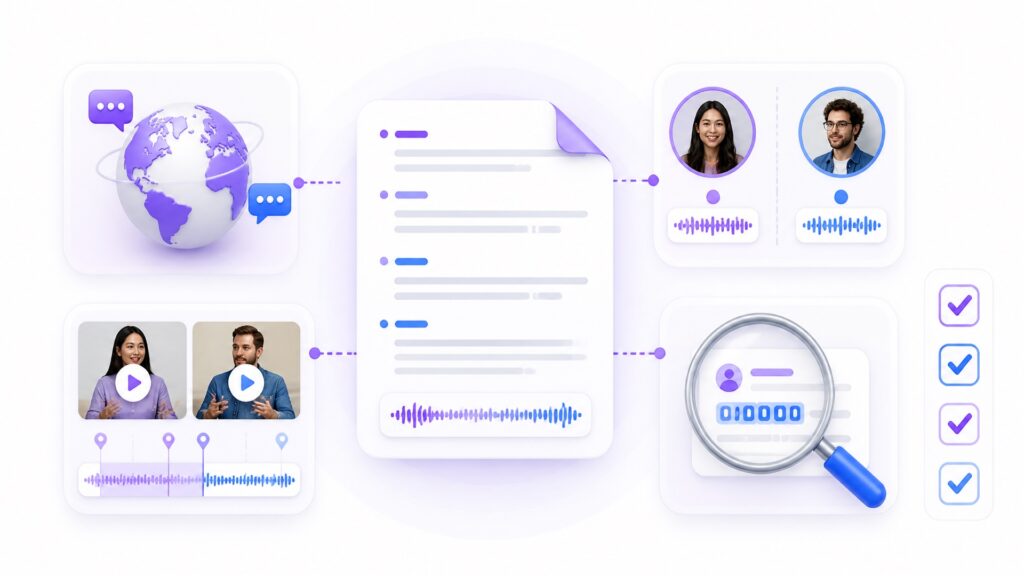
A clean workflow improves accuracy and usefulness. These tips focus on choices inside Video Transcriber AI before and after export.
Choose the Correct Language to Download YouTube Transcript Text
Auto Detect is convenient, but choosing the language can help with strong accents or less common languages. Review any language switches after processing.
For multilingual research, label exported files with the source language so translated or edited versions remain organized.
Review Details After You Download YouTube Transcript Text
Unusual names and niche terminology may require correction. When you download YouTube transcript text for publication, compare critical terms with the title, description, slides, or another reliable source.
For recurring work, search for names, percentages, dates, currencies, and abbreviations. A targeted review is faster than distrusting every line equally.
Use Timestamps to Navigate Long YouTube Videos
Timestamps are shortcuts back to the evidence. Keep them when you download YouTube transcript material for research, quotations, or collaboration.
When taking notes, place the timestamp beside each important claim. If a colleague asks where a point came from, you can jump straight to the source instead of replying, “Somewhere around the middle, probably.”
Export the Transcript in the Right Format for Your Workflow
Match the format to the job: TXT for portable text, DOCX for document editing, or SRT for timed captions.
For writing and video editing, export both a document and SRT. Video Transcriber AI lets you download YouTube transcript content in formats suited to each stage.
Real-World Examples of Downloading YouTube Transcripts
The value becomes clearer when the transcript has a specific destination. Here are two practical ways people can use Video Transcriber AI rather than letting an exported file gather digital dust.
Example 1: A Student Turns a Lecture into Study Notes

Maya has a 75-minute public lecture to review before an exam. She pastes the URL into Video Transcriber AI, confirms the lecture language, enables a smart summary, and generates timestamped text. She then chooses to download YouTube transcript content as a DOCX file.
Maya uses the summary to find major themes, searches for syllabus concepts, checks difficult passages against timestamps, and turns the best explanations into notes. The transcript does not study for her, sadly, but it speeds up collection.
Example 2: A Content Creator Repurposes a Video into a Blog Post

Daniel wants to turn his public tutorial into an article. He submits the video link, generates the transcript, and exports both TXT and SRT. The TXT file becomes the raw material for his outline, while the SRT file remains available for caption updates.
Daniel reviews technical terms, removes filler, groups related points, and checks quotations against timestamps. By using Video Transcriber AI to download YouTube transcript files, he can edit ideas instead of typing the recording.
Frequently Asked Questions
Can I Download YouTube Transcript Text with Video Transcriber AI?
Yes. Paste a public YouTube link, choose appropriate settings, and generate the transcript. You can then download YouTube transcript text for reading, research, or content work, even if the source lacks captions.
Which Transcript File Formats Can I Download?
Video Transcriber AI supports TXT, DOCX, and SRT exports. TXT provides simple plain text, DOCX is useful for document editing, and SRT contains timed subtitle cues. If you want readable notes and subtitle timing, download YouTube transcript results in a text format and SRT.
How Accurate Is the Generated YouTube Transcript?
Clear speech, a strong microphone, limited noise, and the correct language setting usually improve accuracy. Still review names, numbers, quotations, and technical terms before publishing or conducting formal research.
Can Video Transcriber AI Process Long or Multilingual YouTube Videos?
Video Transcriber AI is designed to handle long videos and supports more than 200 languages. For the best result, confirm the language setting, use speaker separation when several people are talking, and review any code-switching or accented terminology. When you download YouTube transcript text from a lengthy video, timestamps and summaries can make the output much easier to navigate.
Conclusion: Download YouTube Transcript Text in Minutes
To download YouTube transcript content without manual typing, paste a public link into Video Transcriber AI, choose the right settings, review the result, and export TXT, DOCX, or SRT. The same workflow works even when the original video has no captions.
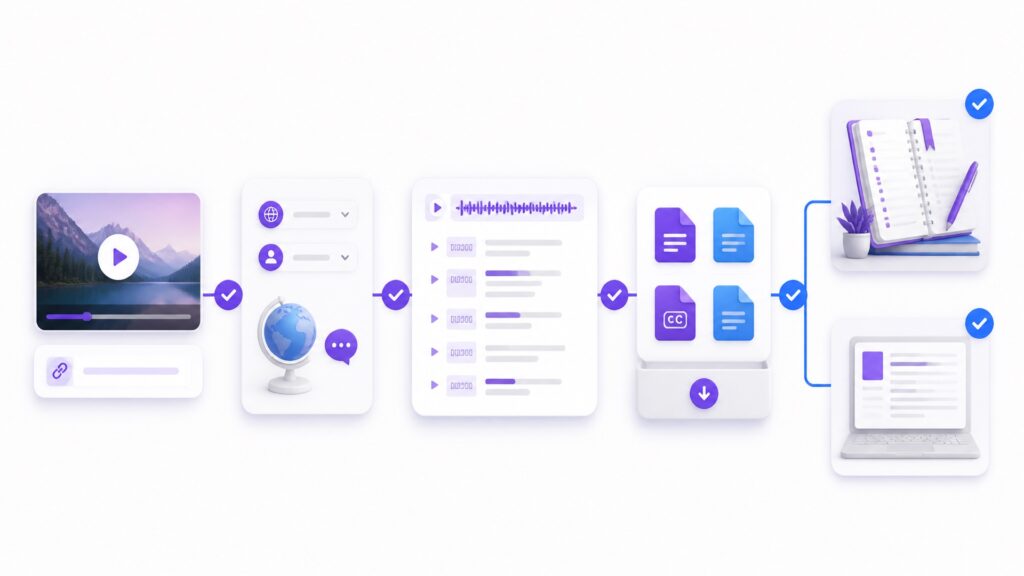
Use download YouTube transcript when you need searchable notes, editable text, or timed subtitles. Whether you download YouTube transcript text for study or download YouTube transcript subtitles for production, keep the timestamps and verify important names, numbers, and quotations. You can download YouTube transcript files for research and download YouTube transcript subtitles for editing from the same result. Start with your next video and turn its spoken ideas into a file you can actually use.