


Want to transcribe youtube video to text without replaying every sentence? Video Transcriber AI turns a public video into editable text in a few simple steps.
Introduction
YouTube is packed with lectures, interviews, tutorials, and expert conversations, but useful information is often buried inside a long timeline. Learning how to transcribe youtube video to text gives you a searchable version that is easier to read, edit, and reuse.
Video Transcriber AI simplifies the entire process. You provide the video, choose the appropriate settings, let the system generate the transcript, and then review or export the result. There is no need to type every sentence manually. Whether you are creating study notes, preparing captions, or turning a discussion into an article, you can transcribe youtube video to text while keeping the workflow in one place.
This guide explains YouTube transcription, the complete product workflow, practical review tips, and realistic use cases.
What Does It Mean to Transcribe YouTube Video to Text?
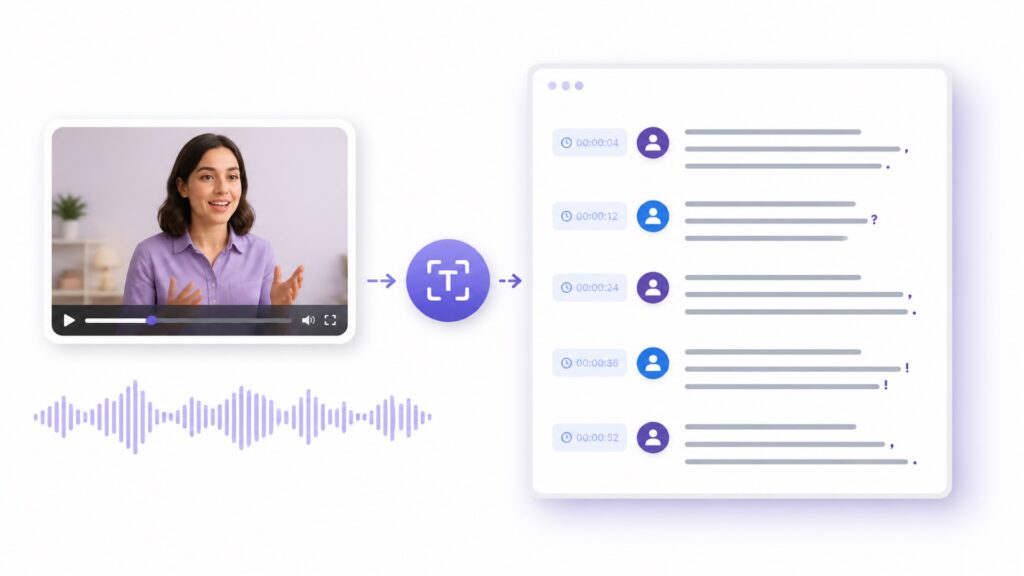
To transcribe youtube video to text means converting spoken dialogue into written words. A finished transcript may include paragraphs, speaker changes, punctuation, and timestamps. Unlike a summary, it preserves the spoken content for searching, quoting, and review.
Video Transcriber AI uses speech recognition to produce text, while you control the final review. The result can become notes, captions, a record, or source material.
How YouTube Video Transcription Works
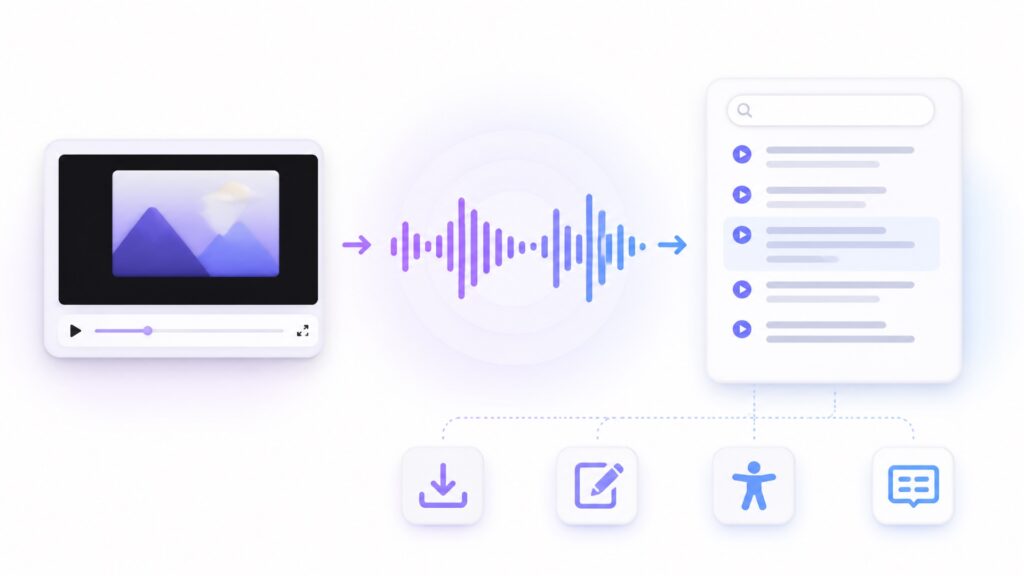
When Video Transcriber AI helps you transcribe youtube video to text, it processes the audio, recognizes speech, and organizes the words into a readable transcript. Clear speech and clean audio usually produce the strongest first draft.
The workflow has four parts: provide the supported video, recognize the speech, format the words, and review important details. A brief human check still matters for rare names, acronyms, and specialized language.
YouTube Transcripts vs. Captions and Subtitles
A transcript is designed for reading and reference. Captions are synchronized with video and may include meaningful sounds, while subtitles commonly translate or display dialogue.
When you transcribe youtube video to text with Video Transcriber AI, you get a flexible record for study material, articles, or captions.
Why Transcribe YouTube Video to Text?
Text is faster to scan than video. When you transcribe youtube video to text, you can search for a phrase and review key sections without replaying the recording.
One transcript can support notes, captions, articles, and documentation.
Decide how you will use the transcript. Research may require timestamps, while a blog draft benefits from readable paragraphs and speaker labels. Choosing the destination first prevents unnecessary editing. This small planning step also keeps the final editing process focused.
Make Video Content Easier to Search and Review
A transcript lets you search for a name, definition, claim, or instruction. This is valuable when a long lecture, interview, or tutorial contains one crucial explanation.
Video Transcriber AI can transcribe youtube video to text for review at your own pace. Timestamps help you return to the original moment for context.
Repurpose YouTube Videos into Notes, Articles, and Captions
Editable text can reshape a tutorial into a checklist, an interview into an article, or a lecture into study notes.
Treat the transcript as source material. Use Video Transcriber AI to transcribe youtube video to text, verify it, and edit it for the intended audience without changing the speaker's meaning.
Improve Accessibility with an Accurate Text Transcript
Text supports people who cannot hear the audio, prefer reading, have limited bandwidth, or use assistive technology. Multilingual readers can also inspect unfamiliar vocabulary at their own speed.
Accuracy is essential. When you transcribe youtube video to text for accessibility, review speaker names, key terminology, and any passage where the audio is unclear. Video Transcriber AI handles the heavy lifting, while your final check ensures the text communicates the intended message.
How to Transcribe YouTube Video to Text with Video Transcriber AI
The process is straightforward: provide the source video, configure the transcript, generate the text, and review the output. These steps show you how to transcribe youtube video to text without an afternoon of frantic typing.
Step 1: Copy the YouTube Video URL
Copy the public video's complete URL, confirm the upload, and note its language. Only process content you may use, since transcription does not remove copyright or privacy obligations.
Step 2: Add the YouTube Video to Video Transcriber AI
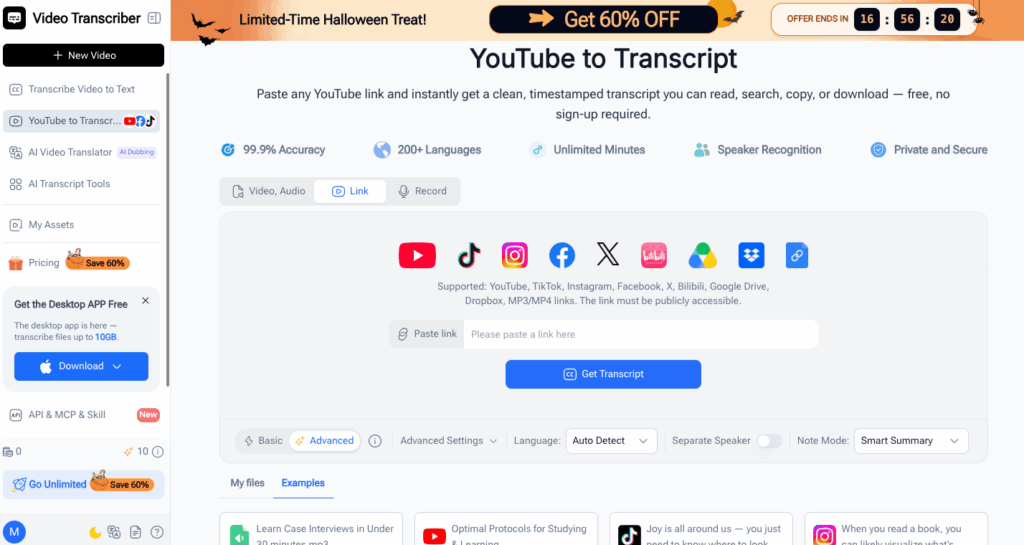
Open Video Transcriber AI's YouTube transcription page and paste the URL into the input field. Here you can transcribe youtube video to text without playing, pausing, and typing every line.
Check that the URL is complete and accessible. Private, deleted, restricted, or unavailable videos may not be processable.
Step 3: Select the Language and Transcription Settings
Choose the spoken language when available. For multilingual videos, select the dominant language and review language changes.
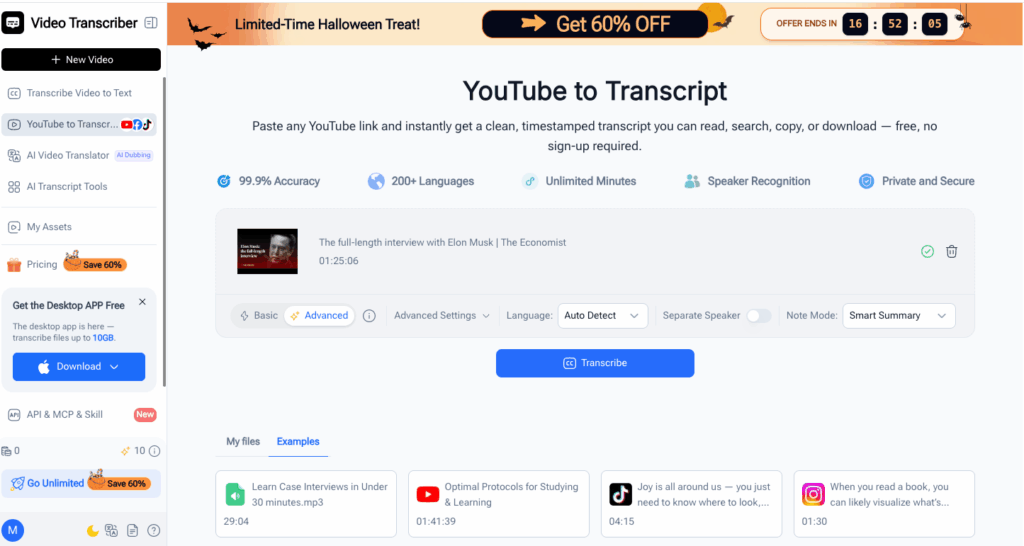
Select timestamps, speaker organization, and output style based on your goal:
- Study notes: Keep timestamps for quick reference.
- Interview editing: Preserve speaker distinctions where possible.
- Article drafting: Favor readable paragraphs and punctuation.
- Caption preparation: Retain timing information when supported.
Good settings make it easier to transcribe youtube video to text in a form that already resembles your intended output.
Step 4: Generate and Review the YouTube Transcript
Start the transcription and let Video Transcriber AI process the source. Do not submit duplicate requests while it runs.
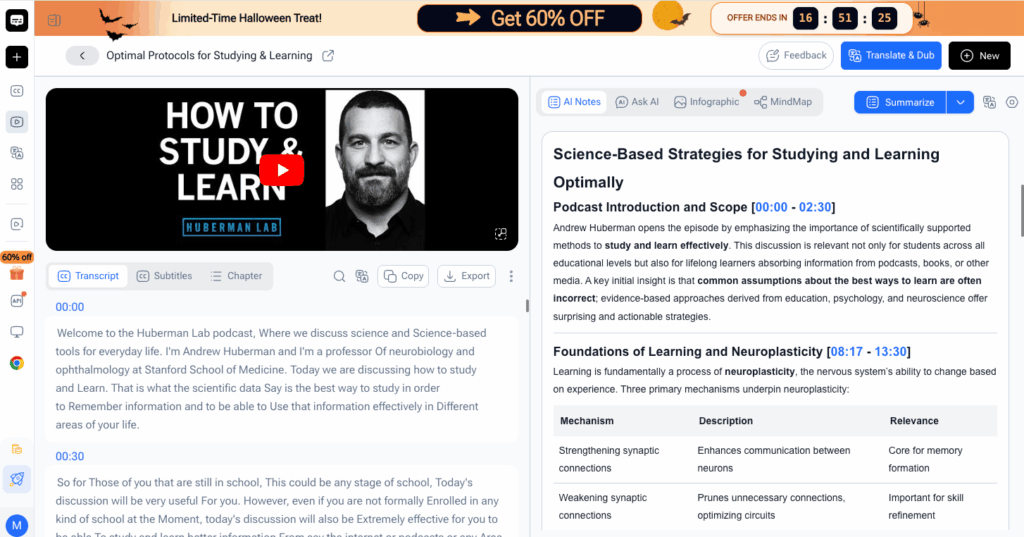
Check important passages against the video, focusing on:
- Personal names and company names
- Numbers, dates, prices, and measurements
- Acronyms and technical terminology
- Speech affected by music or background noise
- Overlapping speakers
- Quotations you intend to publish
For a long video, review in short sections instead of reading the entire document at once. Compare the transcript with the recording at natural topic breaks, correct high-impact details, and save your work regularly. This approach keeps review manageable and makes repeated terminology easier to spell consistently throughout the document.
Prioritize errors that could change meaning.
Step 5: Edit, Copy, or Export the Transcript
Correct errors and format the text for its destination. Add paragraphs, headings, and speaker labels. Remove filler only when it does not distort the message.
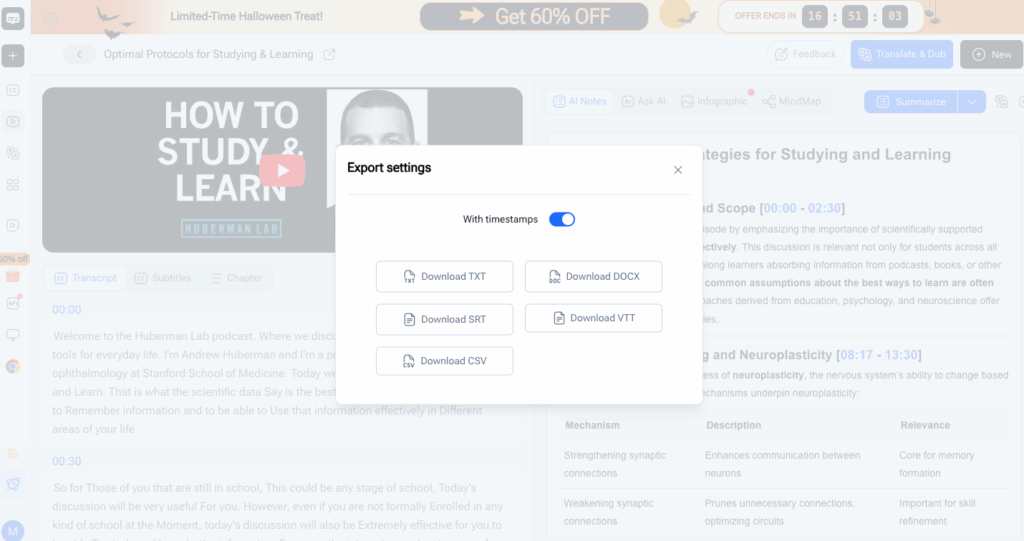
Copy or export the transcript, keeping an untouched reference before major edits. You now have a source copy and a polished document created with Video Transcriber AI to transcribe youtube video to text.
Pro Tips for Better Results with Video Transcriber AI
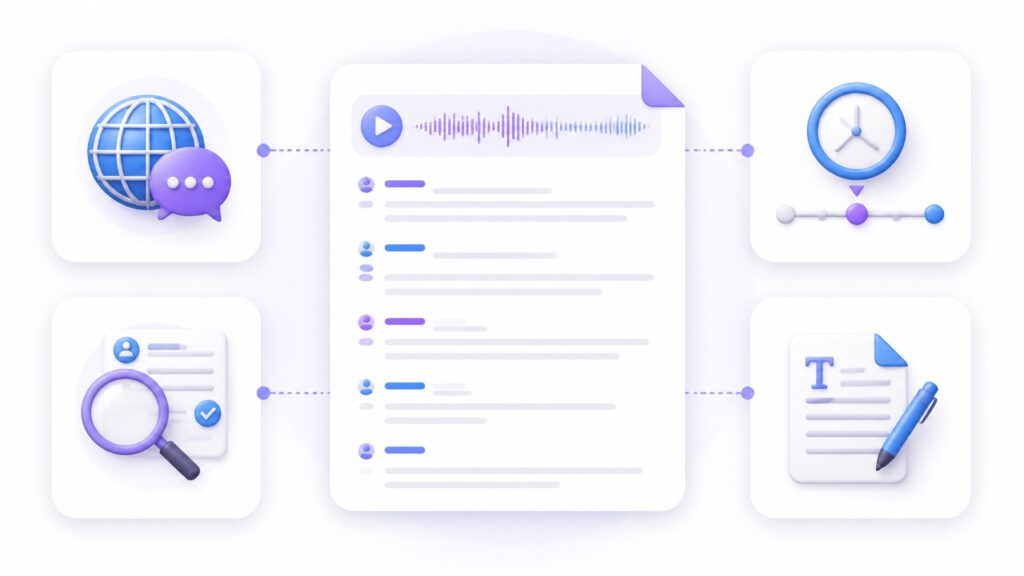
These product tips help you transcribe youtube video to text accurately and spend less time cleaning the result.
Choose the Correct Spoken Language Before Transcription
Match the selected language to the recording's primary language. If speakers switch languages, mark those sections and compare them with the original audio.
Accurate language selection also provides better context for strong regional accents.
Review Names, Numbers, and Technical Terms
Before reviewing, list important names, product terms, abbreviations, and numerical claims. Then search the generated transcript for those items.
When you transcribe youtube video to text for research or publication, check names and numbers carefully because small errors can change facts.
Use Timestamps to Navigate Long YouTube Videos
Keep timestamps when you expect to revisit the recording. They help you check tone, context, or difficult phrases in interviews, lectures, and multi-topic videos.
After verification, remove timestamps from polished articles or keep them in notes and research documents.
Format the Transcript for Notes, Captions, or Blog Content
Do not force one transcript format to serve every purpose. Use Video Transcriber AI to create the accurate source, then adapt a copy:
- For notes, add headings, bullets, definitions, and action items.
- For articles, remove filler and reorganize ideas while preserving meaning.
- For captions, keep wording concise and check timing against the video.
- For records, retain speaker labels, timestamps, and key details.
Formatting turns raw speech into useful text.
Real-World Examples of Using Video Transcriber AI
These examples show how Video Transcriber AI helps people transcribe youtube video to text for practical tasks.
Example 1: Transcribe YouTube Video to Text for Study Notes
A student finds a long public lecture containing several exam topics. They paste the URL into Video Transcriber AI, select the language, keep timing information, and generate the transcript.
They search for key terms, check definitions against the recording, and create bullet-point notes. Timestamps make difficult explanations easy to revisit, so the transcript becomes a map through the lecture.
Example 2: Convert a YouTube Interview into an Editable Article
An editor uses Video Transcriber AI to transcribe youtube video to text from a public interview, then verifies the guest's name, organization, statistics, and quotations.
The editor preserves the source and creates a publication copy. Questions become headings, repetition is trimmed, and strong quotations remain faithful to the speaker.
Example 3: Create Accessible Text from a Tutorial Video
A course creator submits an approved tutorial to Video Transcriber AI, reviews each instruction, corrects technical vocabulary, and formats the transcript into numbered steps.
The final page includes the edited transcript and helpful headings. Learners can search for a step or use the text with accessibility tools. The creator can also transcribe youtube video to text for other lessons and reuse the same formatting template.
Frequently Asked Questions About Video Transcriber AI
Can Video Transcriber AI Transcribe Any Public YouTube Video?
Video Transcriber AI processes supported, accessible videos. Private, deleted, restricted, or unavailable content may not work. Verify the URL and your permission to process the source.
How Accurate Is Video Transcriber AI for YouTube Videos?
Accuracy depends on the recording. Clear speech, limited noise, and the correct language setting help. Accents, overlapping dialogue, music, and specialized terms may require review. Check important names, numbers, and quotations against the source.
How Long Does Video Transcriber AI Take to Generate a Transcript?
Processing time varies with length, audio complexity, and service conditions. Submit the video once, let the job finish, and review the result instead of starting duplicate requests.
Which Transcript Formats Can I Export from Video Transcriber AI?
Available options may vary with the product interface. Choose the format that suits reading, editing, notes, or captions. Keep a source copy before restructuring the generated text.
Conclusion: Transcribe YouTube Video to Text in Minutes
You can transcribe youtube video to text. Transcribe youtube video to text for lectures, transcribe youtube video to text for interviews, or transcribe youtube video to text for tutorials. Transcribe youtube video to text for notes, accessibility, and captions.
Use Video Transcriber AI to transcribe youtube video to text. Check key details. When you transcribe youtube video to text, save it. Transcribe youtube video to text accurately, transcribe youtube video to text quickly, and transcribe youtube video to text without typing. Teams can transcribe youtube video to text for documentation. Transcribe youtube video to text in minutes and transcribe youtube video to text with confidence.