


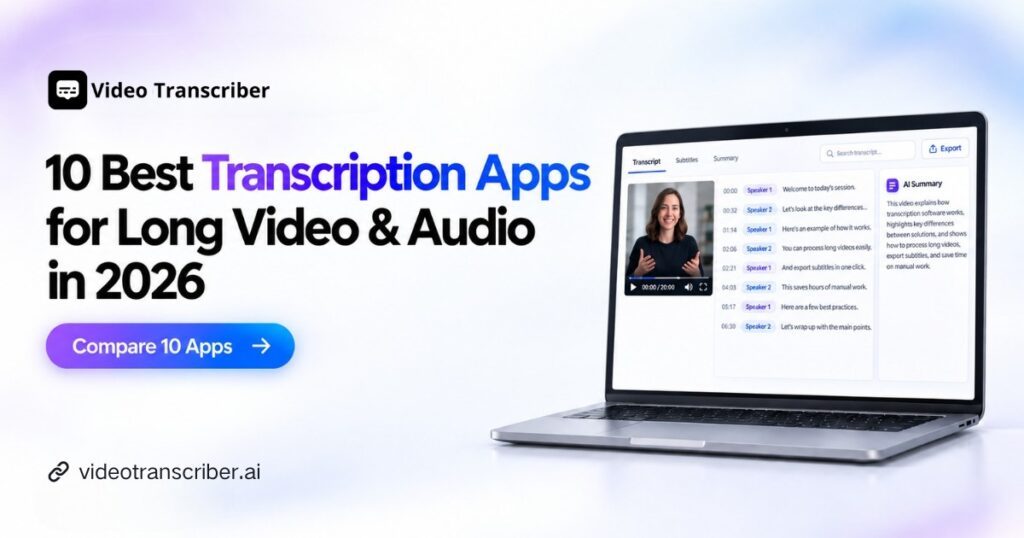
Choosing the best transcription app is easy when the source is a five-minute voice memo. The decision becomes harder when the source is a two-hour lecture, a large MP4, a multi-speaker interview, or an online video that must become searchable notes, subtitles, summaries, or reusable content.
For long-form media, accuracy is only one part of the experience. The best transcription app also needs to fit the workflow around transcription: how media enters the app, how long jobs are handled, how easily completed work can be reviewed, and what users can create from the transcript.
That is why the best transcription app for a creator working with large videos can differ from the best transcription app for meetings or occasional recordings. This guide compares ten desktop options across file handling, local and online inputs, background workflows, speaker tools, editing, AI features, and exports, so each best transcription app candidate is judged on the same basis.
Why Desktop Transcription Apps Still Matter in 2026
Web tools remain convenient, especially for occasional tasks. A desktop transcription app becomes more useful when transcription is a repeated workflow involving local media, several jobs, or processing that runs for a long time. In those situations, the best transcription app needs to behave like a dependable workspace rather than a one-time converter.
Desktop Apps Reduce Browser and App Switching
Digital work is already fragmented. Research covering 137 workers across 20 teams found that participants switched between apps and websites roughly 1,200 times per day, and the time needed to reorient added up to nearly four hours per week. The study was broader than transcription, but it explains why the best transcription app can add value by keeping media, transcripts, search, editing, summaries, and exports close together.
A large workplace survey also found that many people lacked uninterrupted focus time and spent too much of the day searching for information. A well-designed desktop transcription app can reduce some of that friction by providing a persistent place for active jobs and completed transcripts.
Background Tasks Fit Long-Running Workflows
Long media introduces waiting. A video may require preprocessing, upload, transcription, speaker recognition, and post-processing before review begins. Desktop software can connect those stages to persistent windows, system notifications, microphones, system audio, and local files. The best transcription app for frequent use should let people continue other work and return when the result is ready.
Local Processing Can Improve Privacy and Control
Several desktop products support local or offline transcription. That can reduce how much sensitive audio leaves a device and can remove cloud-minute limits. Local work also depends on the computer's CPU, GPU, memory, and storage, so it is not automatically the best transcription app path for every user. Cloud processing can still be simpler on modest hardware or when people move between computers.
What to Look for in a Desktop Transcription App
Before comparing products, define what the best transcription app must handle. Long-form users should check file size and duration limits, accepted media formats, speaker tools, timestamps, search, playback synchronization, editing, and export formats.
Input flexibility matters as well. The best video transcription app may need to accept local MP4 files, audio recordings, microphone input, system audio, YouTube links, or other website sources. Each manual download and conversion adds another step.
Post-transcription work deserves equal attention. The best AI transcription app may provide summaries, transcript questions, highlights, subtitle creation, or exports such as TXT, DOCX, SRT, VTT, CSV, and JSON. The best transcription app is the product that supports the complete path from source media to the final deliverable.
- File size, recording length, and supported video and audio formats
- Local files, online links, microphone input, and system audio
- Speaker detection, timestamps, synchronized playback, and search
- Transcript editing, summaries, AI questions, and collaboration
- Document, subtitle, data, and media export options
10 Best Transcription Apps for Long Video and Audio
These ten tools all provide a meaningful desktop workflow, but they solve different problems. Each recommendation below uses the same scope: product focus, main desktop capabilities, practical limits, and the user for whom it may be the best transcription app.
1. Video Transcriber AI: Best for 10GB Files and Multi-Source Workflows
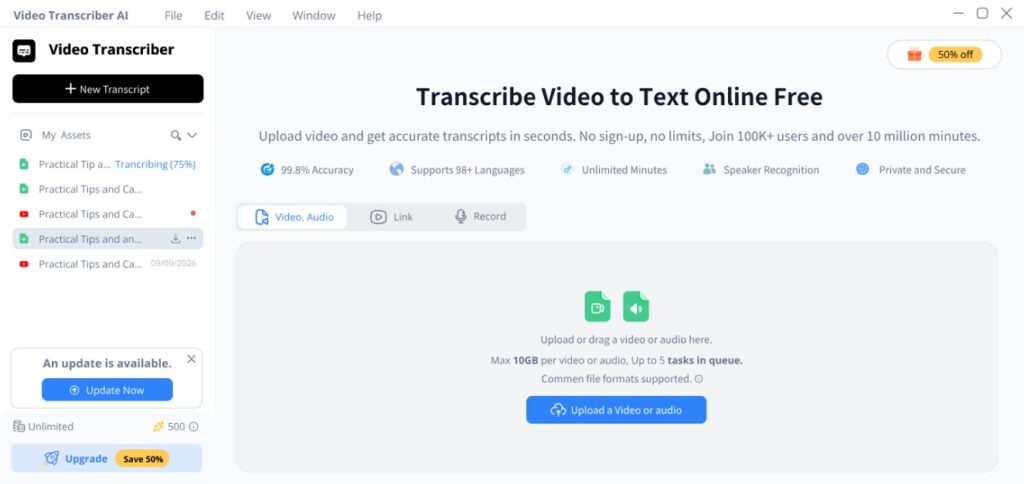
Video Transcriber AI is built around large media and mixed sources. The Windows desktop app accepts local video and audio files up to 10GB, recordings, and links from YouTube, TikTok, Instagram, Facebook, X, and Bilibili. Video preprocessing occurs locally before upload, which can reduce the transferred data for large files. Jobs can continue in the background, system notifications link back to finished transcripts, and users can keep several transcript detail windows open. Speaker detection, timestamps, search, editing, AI summaries, AI chat, and multiple exports extend the workflow after transcription. It can be the best transcription app for people who regularly combine large local files with online sources. Mac availability should be checked because the current positioning lists it as coming soon.
Best transcription app fit: large local files, online sources, and background jobs.
2. Descript: Best for Transcript-Based Media Editing
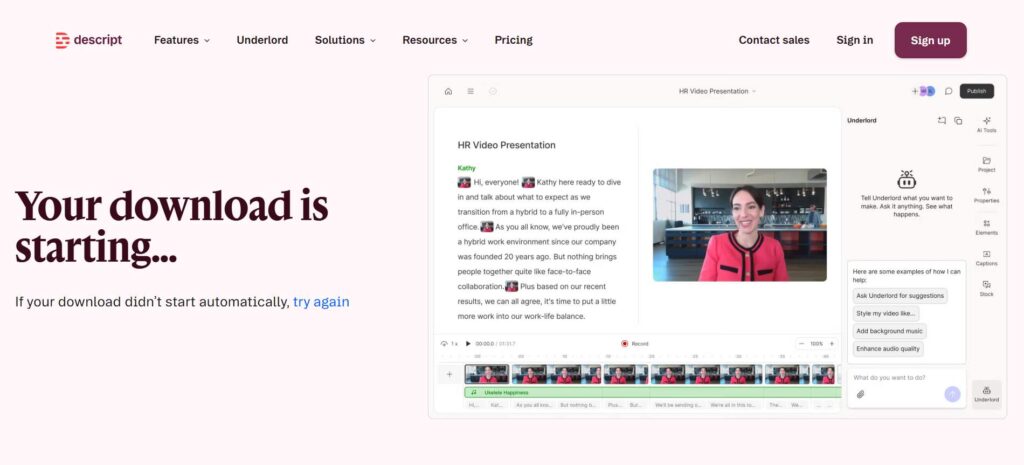
Descript connects transcript text directly to the underlying audio or video. Removing words from the text changes the media, which makes transcription part of an editing workflow rather than a separate output. Its Windows and macOS apps combine recording, transcription, captions, timeline editing, and production tools in one workspace. This approach is particularly useful for podcasts, interviews, tutorials, and social clips that require revision after transcription. The extra editing surface can be more than a user needs when the goal is only a clean text file, and cloud features may shape usage limits. Descript may be the best transcription app for creators who want transcript-based editing and publication tools in the same product.
Best transcription app fit: creators who edit podcasts or video through transcript text.
3. Otter.ai: Best for Meetings and Imported Recordings
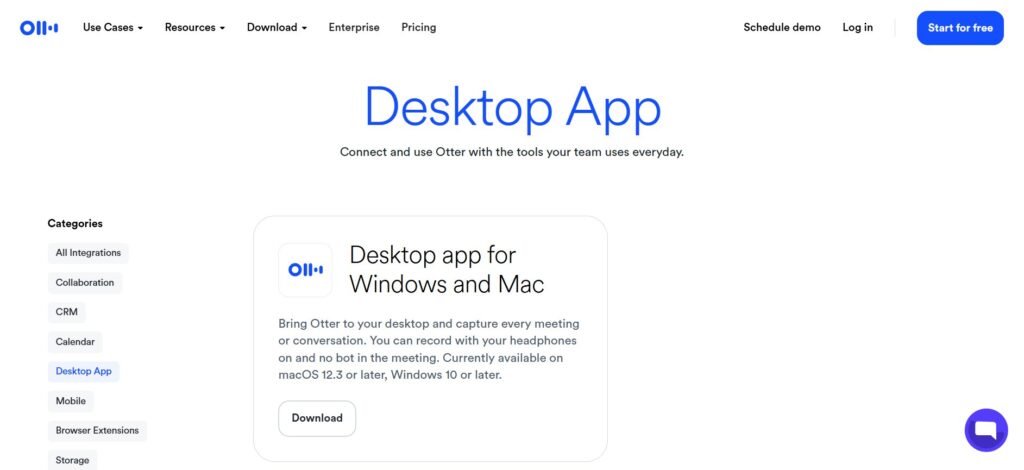
Otter.ai places meetings and conversations at the center of its desktop experience. Its Windows and macOS apps support botless recording, meeting detection, microphone and system audio capture, notifications, transcript editing, and AI chat. Users can also import existing audio and video files, with documented support for files up to 5GB. Speaker identification, summaries, and searchable conversation history help teams revisit decisions and action items. It is less oriented toward detailed video editing or subtitle timing than creator-focused products. Otter can be the best transcription app for people whose long recordings are mainly meetings, interviews, or discussions and who value meeting intelligence more than large-video production.
Best transcription app fit: meeting-heavy teams that also import recorded conversations.
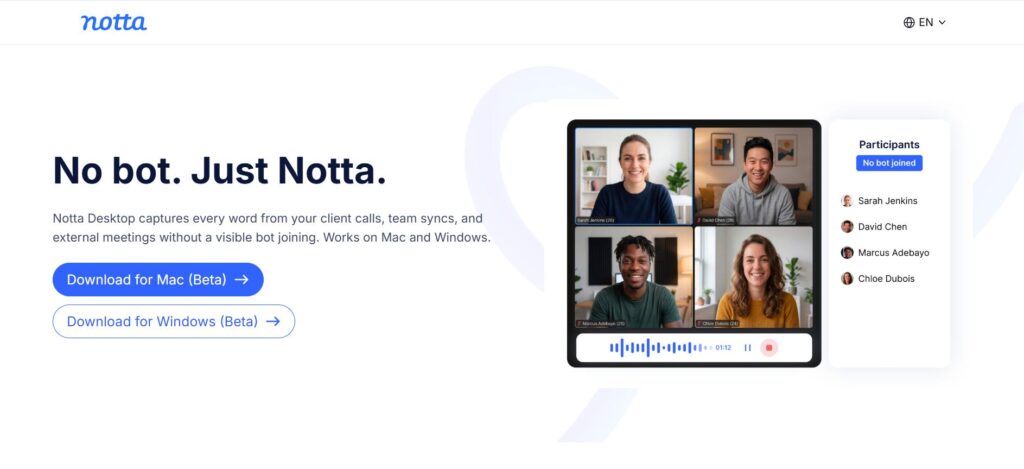
4. Notta: Best for Multilingual and Privacy-Focused Work
Notta combines cloud transcription with Windows and macOS desktop apps and offers a dedicated Privacy Mode. In that mode, recording and transcription can be processed on the device and stored in a user-selected local folder. Its wider cloud workflow supports multilingual transcription, meetings, imported audio and video, summaries, and exports. Large cloud video imports can reach 10GB in some workflows, while speaker recognition and plan choices can change the applicable limits. Users should distinguish local Privacy Mode from features that rely on cloud services. Notta may be the best transcription app for people who need multilingual flexibility and want both convenient cloud tools and a local option for sensitive recordings.
Best transcription app fit: multilingual work that may require a local privacy option.
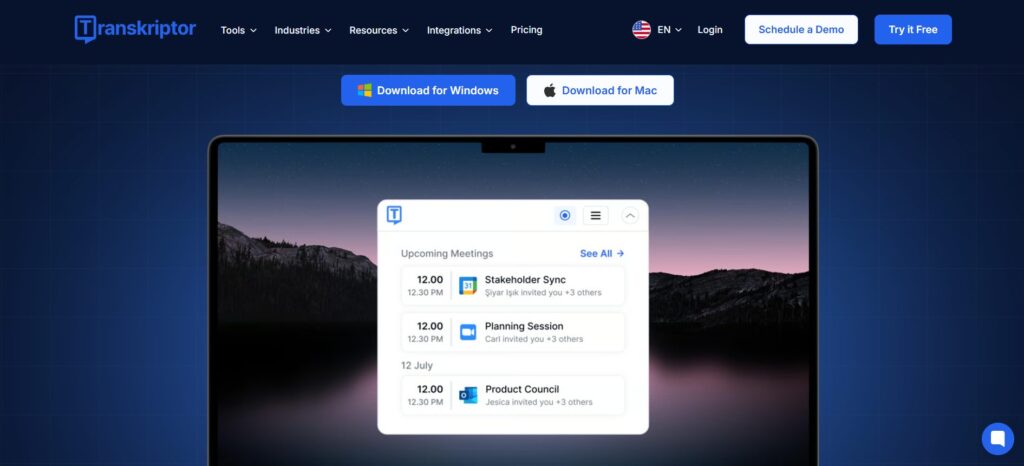
5. Transkriptor: Best for Bot-Free Meeting Capture
Transkriptor provides desktop apps for Windows and macOS and focuses on meetings as well as general file transcription. The desktop workflow can detect meetings, record microphone and system audio, and produce speaker-labelled transcripts without adding a visible bot to Zoom, Microsoft Teams, or Google Meet. Summaries, action items, editing, translation, and export tools support follow-up after a call. The broader service also handles uploaded audio and video, making it useful beyond live meetings. It is less specialized for large video production or frame-accurate subtitles. Transkriptor can be the best transcription app for users who want discreet meeting capture together with a general-purpose transcript and summary workflow.
Best transcription app fit: discreet meeting capture and general transcript follow-up.
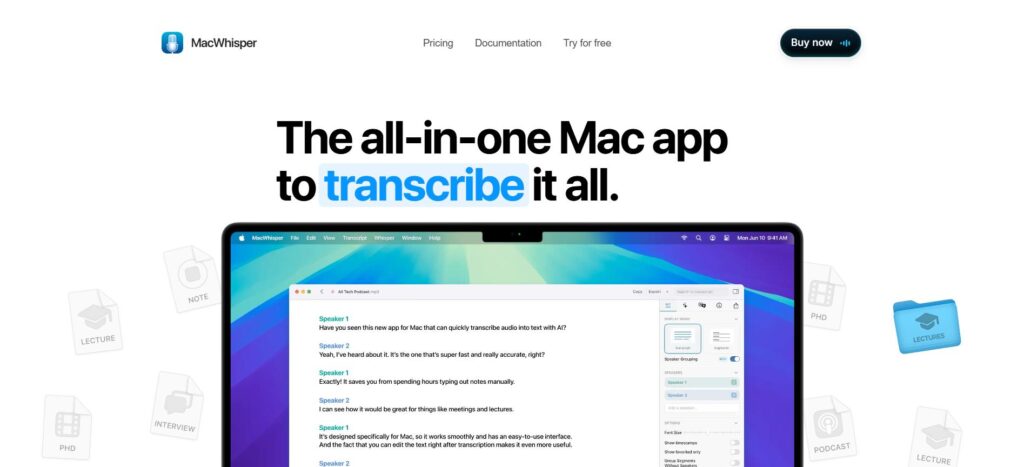
6. MacWhisper: Best for Local Transcription on Mac
MacWhisper is designed specifically for macOS and centers the workflow on local speech recognition. It can process audio and video on the Mac, import media from common sources, and transcribe YouTube content from a URL. Users can choose among speech models, search and edit transcripts, create subtitles, and use optional integrations for advanced AI tasks. Local processing can keep core transcription on the device, although speed and model choice depend on Mac hardware. Optional cloud or AI connections should be evaluated separately when privacy is a priority. MacWhisper may be the best transcription app for Mac users who want native software, local control, and flexible handling of recorded media.
Best transcription app fit: Mac users who prioritize local processing and native software.
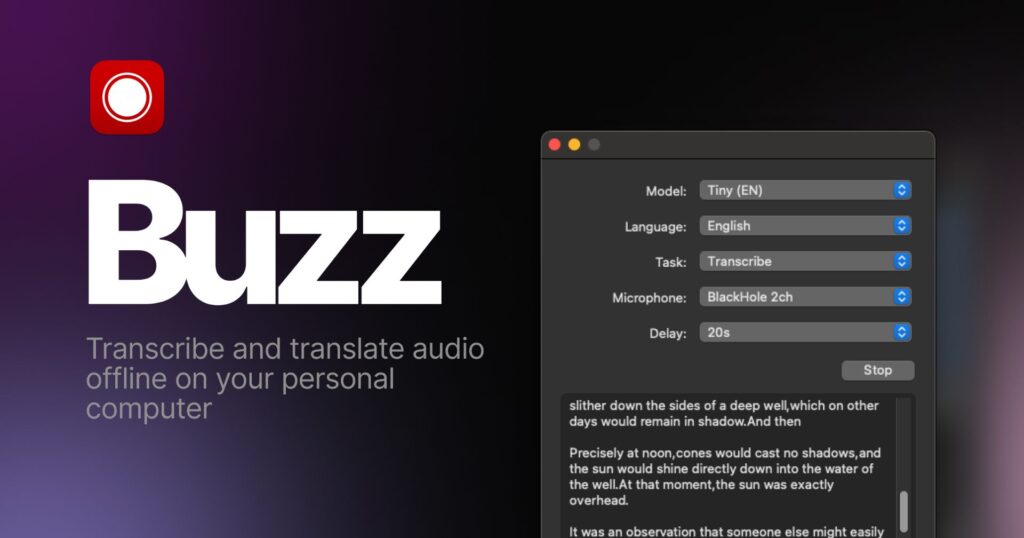
7. Buzz: Best for Open-Source Offline Transcription
Buzz is an open-source desktop transcription app for Windows, macOS, and Linux. It can process audio and video files locally, work with YouTube links, identify speakers, and export text and subtitle formats including TXT, SRT, and VTT. Watch folders can automatically start work when new media arrives, which is useful for repeatable local workflows. Because processing runs on the user's machine, speed and practical file length depend on the selected model and available hardware. The interface and setup may feel more technical than a polished cloud service, but there is no recurring cloud transcription quota. Buzz can be the best transcription app for technical users who value open-source software, offline processing, and cross-platform availability.
Best transcription app fit: technical users seeking open-source offline transcription.
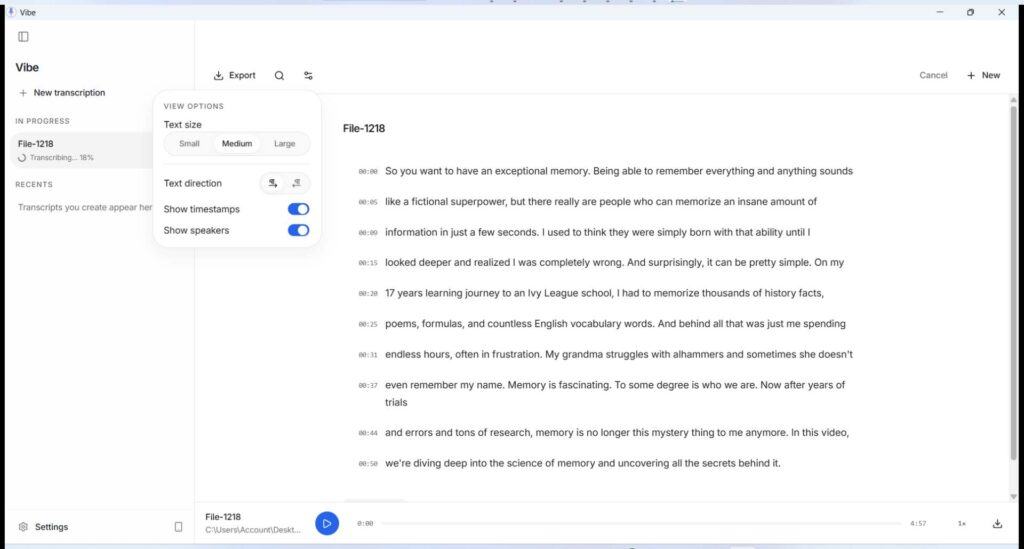
8. Vibe: Best for Cross-Platform Local Workflows
Vibe supports Windows, macOS, and Linux and combines local transcription with a broad set of input methods. It can handle audio and video files, selected website sources, batch jobs, microphone input, and system audio. Speaker diarization, timestamps, translation, and subtitle-oriented exports make it useful for interviews and media libraries as well as simple notes. Processing remains tied to local hardware, so long jobs may run slowly on older systems, and users may need to select models carefully. Compared with cloud-first products, collaboration and hosted project management are not the central focus. Vibe may be the best transcription app for users who want local control across several operating systems and need more than basic file-to-text conversion.
Best transcription app fit: cross-platform local, batch, and diarization workflows.
9. SpeechPulse: Best for Offline Files and System Audio
SpeechPulse offers desktop software for Windows and Apple Silicon Macs with a strong emphasis on offline processing. File Mode can transcribe audio and video locally, while System Audio Mode captures speech playing through the computer. The product also supports microphone dictation, speaker diarization, and tools for reviewing and editing transcription results. That combination suits users who move between saved media, live computer audio, and spoken input. Hardware determines processing speed, and the platform range is narrower than tools that support Linux or older Macs. SpeechPulse can be the best transcription app for users who prefer traditional desktop software and need both local file transcription and reliable system-audio capture.
Best transcription app fit: offline files, microphone dictation, and system audio.
10. Subtitle Edit: Best for Subtitle Production
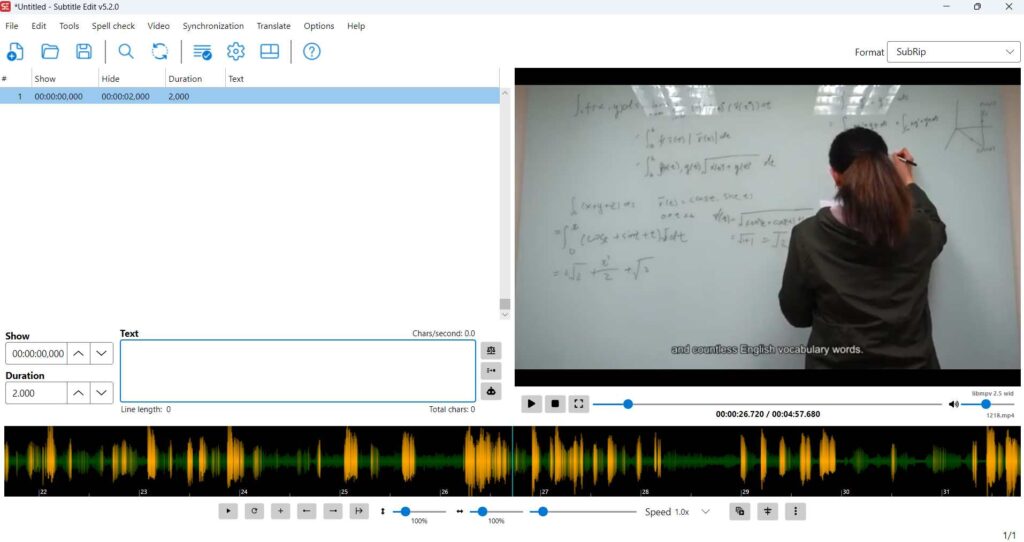
Subtitle Edit treats speech recognition as the starting point for a detailed captioning workflow. Its desktop application supports Windows, macOS, and Linux and can use several local or online recognition engines, including Whisper-based options. Batch transcription, waveform and timing tools, subtitle synchronization, error checks, translation support, and many subtitle formats give users precise control over the final captions. The interface is built for subtitle work, so it can feel complex for someone who only needs meeting notes or a prose transcript. Model setup and performance also depend on the chosen engine. Subtitle Edit may be the best transcription app for video professionals whose final deliverable is accurately timed, editable subtitles rather than a simple text document.
Best transcription app fit: video professionals producing precisely timed subtitles.
Best Desktop Transcription Apps Quick Comparison
| App | Desktop OS | Main strength | Local processing | Large media | Best fit |
| Video Transcriber AI | Windows; Mac planned | 10GB files, URLs, background jobs | Local preprocessing | Up to 10GB | Best transcription app for large mixed sources |
| Descript | Windows, macOS | Transcript-based media editing | Cloud-centered | Plan dependent | Best transcription app for media editing |
| Otter.ai | Windows, macOS | Meetings and imports | No | Up to 5GB imports | Best transcription app for meetings |
| Notta | Windows, macOS | Multilingual plus Privacy Mode | Yes in Privacy Mode | Up to 10GB in some cloud imports | Best transcription app for multilingual work |
| Transkriptor | Windows, macOS | Bot-free meeting capture | Recording before sync | Plan dependent | Best transcription app for bot-free capture |
| MacWhisper | macOS | Native local transcription | Yes | Hardware dependent | Best transcription app for Mac users |
| Buzz | Windows, macOS, Linux | Open-source offline workflow | Yes | Hardware dependent | Best transcription app for open-source use |
| Vibe | Windows, macOS, Linux | Cross-platform local workflow | Yes | Hardware dependent | Best transcription app for local batch work |
| SpeechPulse | Windows, Apple Silicon Mac | Files and system audio | Yes | Hardware dependent | Best transcription app for system audio |
| Subtitle Edit | Windows, macOS, Linux | Subtitle production | With local engines | Hardware dependent | Best transcription app for video subtitles |
The comparison shows why a single feature count cannot identify the best transcription app. File size, meetings, privacy, editing, local processing, and subtitle production create different priorities.
Which Desktop Transcription App Fits Your Workflow
A short decision checklist can narrow the field before comparing individual features:
- Choose a large-file workflow when long videos and multi-gigabyte media are routine.
- Choose a meeting-focused best transcription app when calls, interviews, and action items dominate.
- Choose local processing when privacy, offline access, or cloud quotas are the main concern.
- Choose transcript-based editing when the transcript will drive changes to audio or video.
- Choose a subtitle-focused best transcription app when timing and caption formats are the final deliverable.
For Large Video Files and Content Creation
Start with documented file limits and then evaluate what happens after transcription. Video Transcriber AI is relevant when 10GB files, online links, background jobs, and AI analysis belong in one workflow. Descript becomes more attractive when the next step is media editing. The best transcription app is the one that removes the most friction between opening the source and producing useful content.
For Online Video and Social Media Content
Direct URL support can avoid repeated downloading, conversion, and re-uploading. Video Transcriber AI covers several major social platforms, while MacWhisper, Buzz, and Vibe provide support for selected online sources. For this use case, the best transcription app should be judged by source coverage, reliability, and what it lets users do with the transcript afterward.
For Meetings and Interviews
Otter.ai, Notta, and Transkriptor place meetings closer to the center of their desktop products. Meeting detection, system audio, discreet recording, summaries, and action items may matter more than the maximum upload size. When a workday is dominated by calls and interviews, the best transcription app is usually meeting-aware and makes completed conversations easy to search and share.
For Privacy-Focused Local Transcription
MacWhisper, Buzz, Vibe, SpeechPulse, and Notta Privacy Mode provide local or offline paths. The best transcription app for sensitive material should clearly explain which stages stay on the device and whether optional AI services send transcript content elsewhere. Users should also consider hardware speed, storage, model downloads, and whether collaboration is needed.
For Video Editing and Subtitle Production
Descript and Subtitle Edit lead to different deliverables. Descript uses text as an interface for editing the media itself. Subtitle Edit provides granular control over caption timing, formats, and synchronization. The best transcription app depends on whether the goal is an edited podcast or video, a readable transcript, or precisely timed subtitles.
What Is the Best Free Desktop Transcription App
Free can describe a limited cloud plan, a trial, or open-source software that runs locally without a monthly transcription quota. Buzz, Vibe, and Subtitle Edit are open-source options whose practical long-job limits depend mainly on hardware. Commercial products may offer free minutes or trials but restrict file size, exports, AI features, or monthly use.
Before choosing a free best transcription app, check:
- Monthly minutes, maximum file size, and recording-length limits
- Whether video, speaker detection, and subtitle exports are included
- Whether local models require a large download or faster hardware
- Whether commercial use, collaboration, or AI features require payment
For occasional work, a cloud free tier may be the best transcription app because setup is minimal. For regular offline use, the best free transcription app may be an open-source product if the computer has enough processing power and the user is comfortable managing local models.
Frequently Asked Questions About Desktop Transcription Apps
What Is the Best Transcription App for Long Videos
There is no universal best transcription app for every long video. Compare file-size and duration limits, accepted formats, background behavior, speaker tools, editing, and exports. Large-file support matters only when the rest of the workflow also matches the intended output.
Which Transcription App Can Handle Large Video Files
Video Transcriber AI documents support for files up to 10GB. Notta supports large video imports in some cloud workflows, and Otter.ai documents imports up to 5GB. The best transcription app should also be checked for plan restrictions, speaker-recognition limits, duration limits, and upload requirements.
Can Desktop Transcription Apps Transcribe Online Videos
Some can. Video Transcriber AI accepts links from several major platforms. MacWhisper, Buzz, and Vibe support selected online sources. If online video is the main input, the best transcription app should minimize download-first steps while still providing the required editing and export tools.
Is a Desktop Transcription App Better Than a Web App
Desktop software is useful for repeated work with local files, system audio, background jobs, or local speech models. Web apps are convenient for occasional use and access from several computers. The best transcription app depends on workflow frequency, hardware, privacy needs, and how the transcript will be used.
Can Desktop Transcription Apps Run in the Background
Some can, but the behavior varies. Video Transcriber AI supports background upload and transcription with system notifications. Other products use persistent recording, desktop notifications, or watched folders. For frequent users, background behavior can help determine the best transcription app as much as raw speech recognition quality.
Conclusion
The best transcription app in 2026 is not a universal winner because desktop products solve different problems. Video Transcriber AI focuses on large files and mixed sources. Descript connects transcription with media editing. Otter.ai, Notta, and Transkriptor emphasize conversations and meetings. MacWhisper, Buzz, Vibe, and SpeechPulse prioritize local control, while Subtitle Edit specializes in caption production.
Choose the best transcription app by following the complete workflow: source input, processing, transcript review, editing or AI analysis, and final export. A balanced best transcription app comparison makes the right choice clearer without giving any single recommendation disproportionate emphasis.