


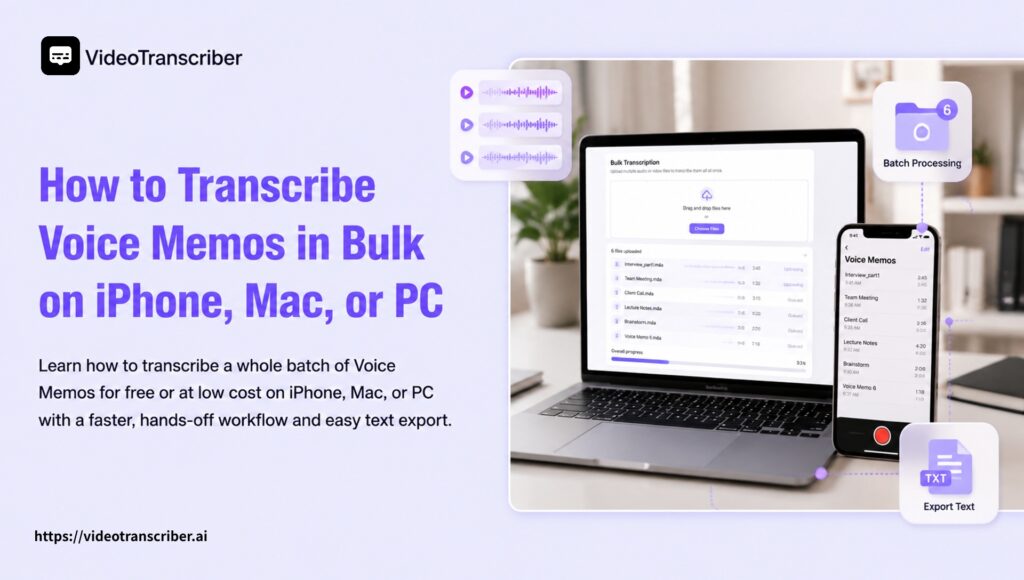
Need to turn one recording, or a whole backlog of Voice Memos, into searchable text? The best method depends on your device, the number of recordings, and whether you need extras such as speaker labels, summaries, or exportable files.
Quick Comparison
| Method | Cost | Batch-friendly | Best for | Main limitation |
| Apple Voice Memos transcription | Free | Limited | One or a few recordings on a supported iPhone | Device, language, and region restrictions |
| Apple Notes audio transcription | Free | No | Recording and transcribing new meetings or lectures | Less suitable for an existing Voice Memos archive |
| Online AI transcription | Free or low cost | Yes | Long recordings, multiple files, speakers, summaries, and exports | Audio is processed by an online service |
| Manual transcription | Free, excluding your time | No | Very short or highly sensitive memos | Slow and difficult to scale |
| Professional human transcription | Paid | Yes | Legal, medical, or accuracy-critical recordings | More expensive and slower |
The Quick Answer
On a supported iPhone, open Voice Memos, select a recording, tap the More button, and choose View Transcript or Copy Transcript.
If the option is missing, your iPhone model, language, software version, or region may not support native transcription. You can still select the recording, tap Share, save it as an M4A file, and upload it to an online speech-to-text tool.
For dozens or hundreds of Voice Memos, export several recordings together instead of processing them individually. A batch-friendly AI tool can transcribe the files while you work on something else, then return searchable text, summaries, timestamps, or speaker-labeled transcripts.
Method 1: Transcribe Voice Memos on iPhone for Free
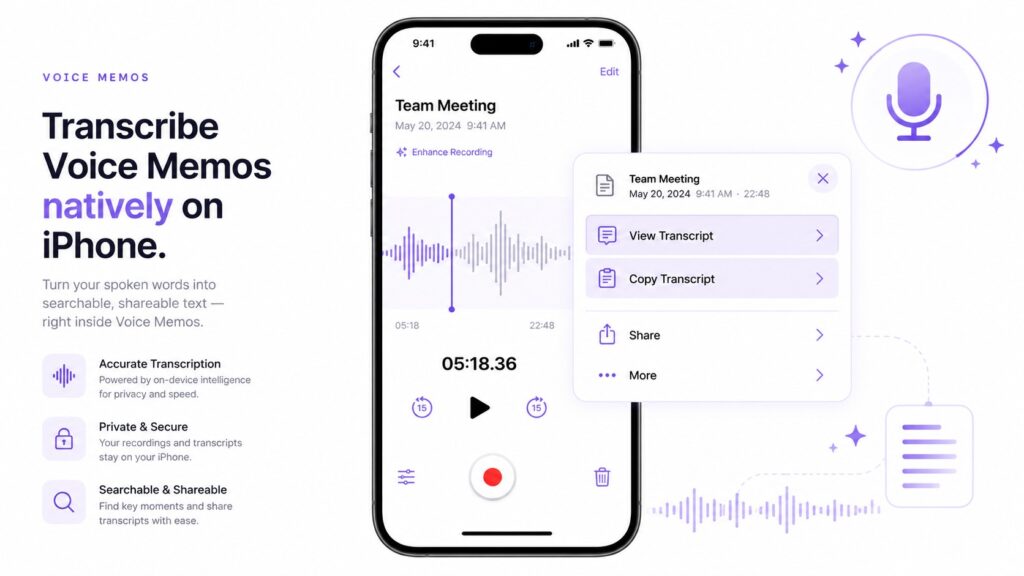
Apple’s built-in transcription is the easiest option when it is available. You do not need to install another app or manually export the recording.
How to view a Voice Memo transcript
- Open the Voice Memos app on your iPhone.
- Select the recording you want to transcribe.
- Tap the More button represented by three dots.
- Select View Transcript.
- Read the transcript while listening to the recording.
- Select part of the text and tap Copy, or return to the menu and choose Copy Transcript to copy everything.
You can paste the result into Notes, Mail, a document, or another app.
Apple also lets you search text inside supported Voice Memos transcripts. Selecting a result can move playback to the corresponding part of the recording, which is useful when you need to locate one decision, quote, or idea without replaying the entire file.
According to Apple’s current Voice Memos documentation, audio transcription is available on iPhone 12 or later for supported languages. Availability can still vary by country or region.
Supported languages currently include variants of:
- English
- Spanish
- Portuguese
- Italian
- French
- German
- Japanese
- Korean
- Simplified Chinese
- Traditional Chinese
Apple may update this list, so check the current documentation if a recording in a particular language does not produce a transcript.
Can Apple transcribe old Voice Memos?
Yes, in supported cases. When you open an older recording containing speech, Voice Memos may generate a transcript automatically.
Processing may not be immediate, especially for a long recording. Leave the recording available for a while, confirm that your phone is connected and updated, and then check the menu again.
When Apple’s method is enough
Use the built-in option when:
- You have a supported iPhone.
- You only need one or a few transcripts.
- The recording uses a supported language.
- You want a free method.
- Plain searchable text is enough.
- You prefer to remain inside Apple’s built-in workflow.
A third-party tool is unnecessary if Apple already produces a usable transcript and gives you the export options you need.
Method 2: Batch Transcribe Multiple Voice Memos
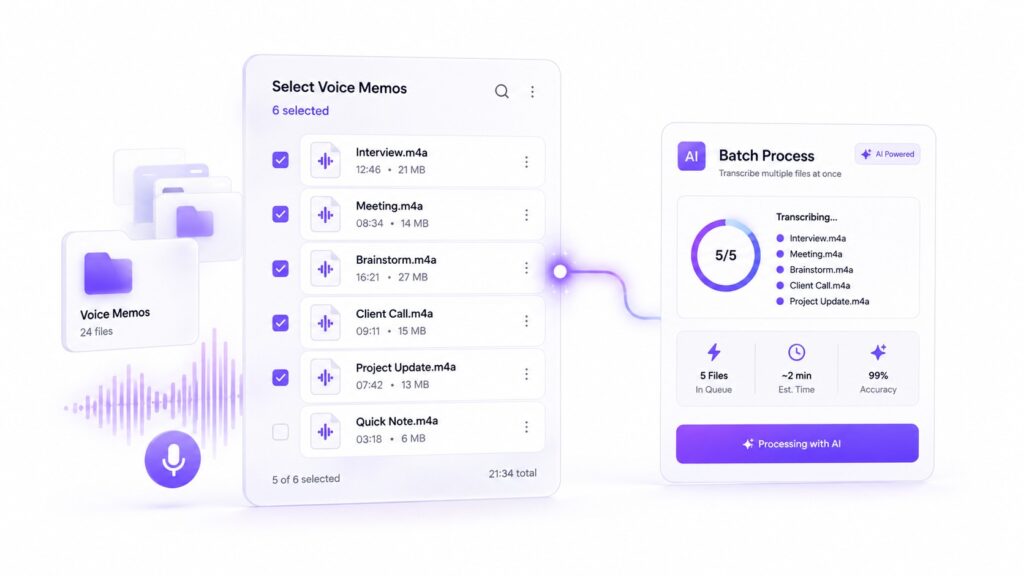
A common problem is not one new Voice Memo. It is a backlog of dozens or hundreds of recordings with unclear titles such as “New Recording 42.”
Processing every file manually becomes tedious:
- Open a recording.
- Wait for the transcript.
- Copy the text.
- Paste it into a document.
- Rename and organize it.
- Repeat the process for every recording.
The better workflow is to export several recordings together and process them as a batch.
Export multiple Voice Memos from an iPhone
Apple allows users to share more than one recording:
- Open Voice Memos.
- Tap Select above the recordings list.
- Select every memo you want to transcribe.
- Tap Share.
- Choose Save to Files, AirDrop, Mail, or another available destination.
- Save the recordings in a dedicated folder.
Voice Memos normally exports a rendered recording as an M4A file. M4A is widely supported by modern transcription services, so converting every file to MP3 first is usually unnecessary.
If you have hundreds of recordings, divide them into sensible folders before exporting. For example:
- Interviews
- Meetings
- Lectures
- Personal ideas
- Client calls
- Research notes
- To process
- Completed
Clear filenames also make the finished transcripts easier to match to the original audio.
Transcribe the exported files
Once the recordings are saved, open an AI speech-to-text converter and upload the M4A files.
A typical batch workflow looks like this:
- Upload the exported recordings.
- Choose the spoken language or use automatic detection.
- Enable speaker separation when a recording contains several people.
- Select the preferred note or summary mode.
- Start transcription.
- Let the files process in the queue.
- Review each result.
- Copy, download, or organize the transcripts.
This is more hands-off than opening and copying every Apple transcript individually. It is especially useful for an archive where the goal is to make all previous ideas, interviews, or meetings searchable.
Turn a Voice Memo archive into a searchable knowledge base
After transcription, keep a consistent format:
Recording title:
Recording date:
Duration:
Speakers:
Summary:
Full transcript:
Action items:
Keywords:
You can save each transcript separately or combine related recordings into a master Markdown or text document.
This creates a searchable archive that can be used to:
- Find an idea recorded months ago
- Review recurring meeting decisions
- Locate quotes from interviews
- Generate summaries
- Extract tasks and follow-ups
- Group notes by subject
- Prepare material for an AI assistant
- Repurpose spoken ideas into written content
Before uploading a transcript archive to any AI service, remove confidential details and review the service’s privacy terms.
Method 3: Transcribe Voice Memos on a Mac
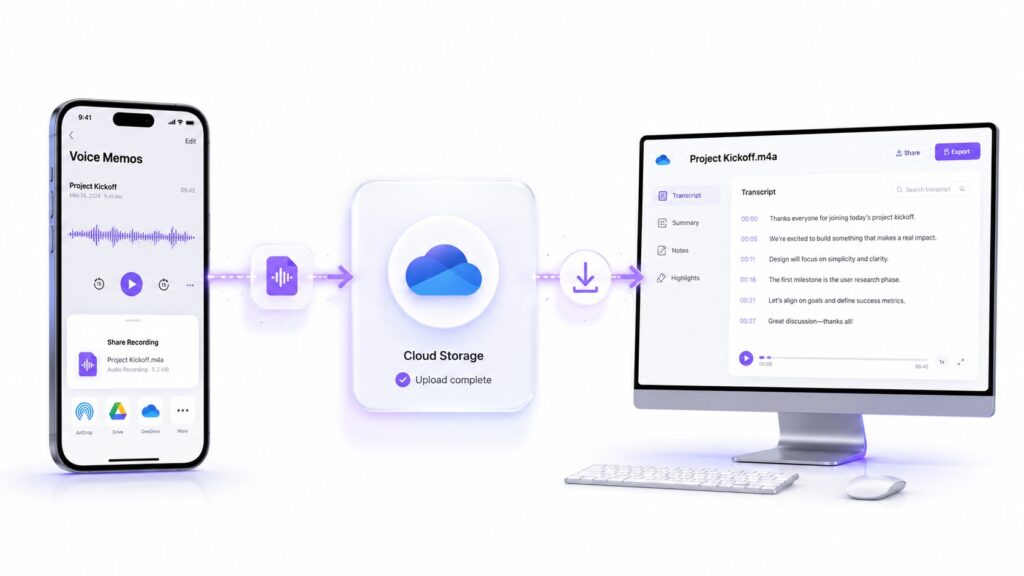
If Voice Memos is enabled in iCloud, recordings can sync between an iPhone and Mac signed in to the same Apple Account.
This can be easier than working entirely on a phone, especially when you have long recordings or need to organize several transcript documents.
Export a Voice Memo on Mac
- Open the Voice Memos app.
- Select the recording you need.
- Drag the recording into a Finder folder.
You can also select the Share button and send the recording through Mail, Notes, or another compatible application.
Apple’s Voice Memos guide for Mac confirms that recordings can be dragged from Voice Memos into Finder.
Once the audio file is in Finder, upload it to a browser-based transcription tool. This workflow is useful when the transcript option appears on a Mac but not on the original iPhone, or when desktop editing and file management are more convenient.
Method 4: Transcribe Voice Memos on a Windows PC
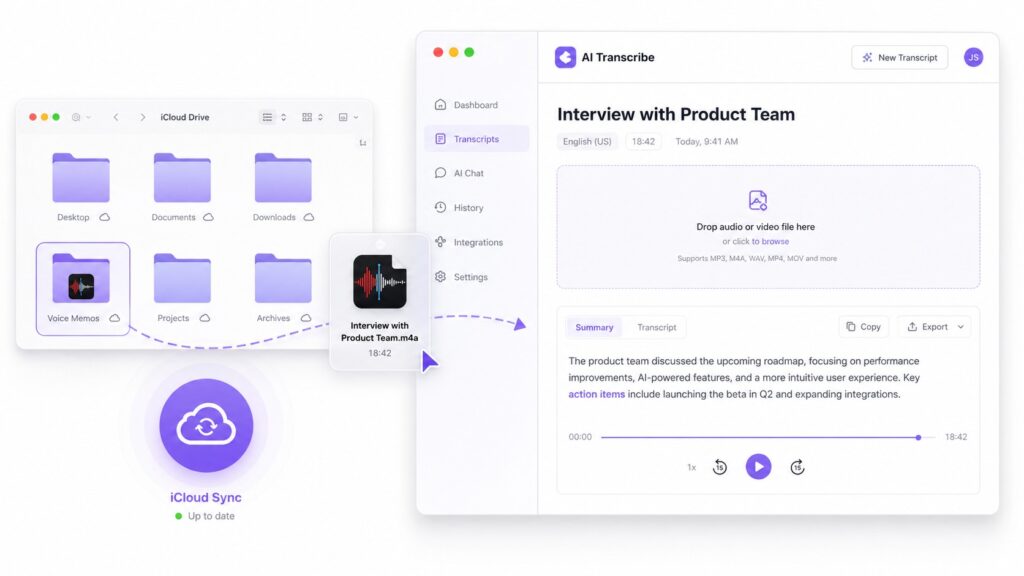
Windows does not include Apple’s Voice Memos app, but you can transfer the recording before transcription.
Option 1: Use iCloud Drive
- On your iPhone, open the Voice Memo.
- Tap More, followed by Share.
- Choose Save to Files.
- Save the file in iCloud Drive.
- Open iCloud Drive on your Windows PC.
- Download the M4A recording.
- Upload it to an online transcription tool.
Option 2: Send the recording to yourself
For a short, non-sensitive recording, you can send the M4A file through email or another file-sharing service. Download it on your PC and upload it for transcription.
Large audio files may exceed email attachment limits, so iCloud Drive, Google Drive, Dropbox, or another storage service is usually more dependable.
Option 3: Transfer several recordings together
Use the Select button in Voice Memos to choose several files before sharing them to Files or cloud storage. Download the folder on your PC, then submit the files as a group.
This avoids repeating the iPhone-to-PC transfer for every recording.
Method 5: Record and Transcribe in One Workflow
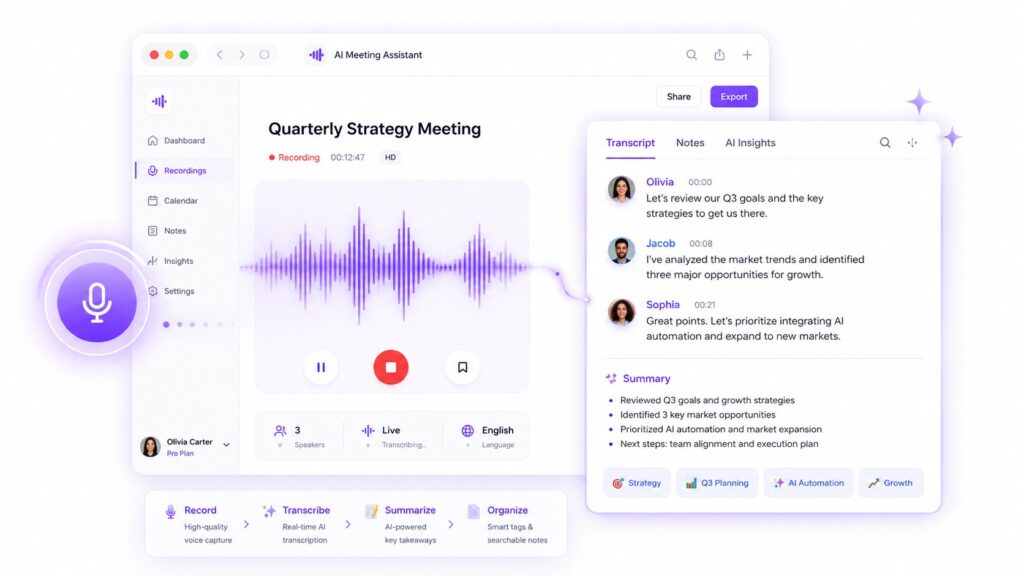
If your current process creates a growing Voice Memos backlog, consider changing how new recordings are captured.
Instead of recording first and deciding what to do with the audio weeks later, use an AI voice recorder for searchable notes. It can move directly from recording to transcript, speaker-aware notes, timestamps, and summaries.
A more efficient workflow is:
- Start recording in the browser.
- Select the source language or automatic detection.
- Enable speaker separation for a meeting or interview.
- Stop the recording when finished.
- Let AI produce the transcript and notes.
- Review the result while the context is still fresh.
- Rename and file the transcript immediately.
This prevents new recordings from disappearing into a list of files with generic titles.
Apple Voice Memos remains useful for fast, reliable capture. An AI recorder is more appropriate when the desired output is not just audio, but organized text and follow-up information.
Why Is Voice Memos Transcription Missing?
If View Transcript or Copy Transcript does not appear, check the following.
1. Your iPhone model
Apple currently limits Voice Memos transcription to supported hardware, including iPhone 12 or later. An older iPhone may still record perfectly but not offer native transcription.
In that case, export the M4A file and transcribe it on a Mac, PC, or online tool.
2. Your iOS version
Install the latest compatible iOS update:
- Open Settings.
- Select General.
- Select Software Update.
- Install an available update.
- Reopen Voice Memos.
The phone may be “up to date” while still running an older major iOS version because the hardware cannot support a newer release.
3. The recording language
Native transcription may not appear when Apple cannot detect a supported language. This can also happen with:
- Mixed-language speech
- Very quiet voices
- Music instead of speech
- Heavy background noise
- Long silent sections
- Overlapping speakers
Try playing the beginning of the recording. If the speech is difficult for a person to understand, automatic transcription will also struggle.
4. Country or region availability
Apple notes that transcription is not available in every country or region. Device and language support alone may not guarantee access.
5. Processing is not finished
A long recording may take time to process. Reopen it later and check the More menu again.
6. The transcript appears on Mac but not iPhone
If Voice Memos is synchronized through iCloud, open the recording on a compatible Mac. Some users report seeing a transcript after moving to another Apple device even when it was unavailable on the phone.
7. The recording is too important to leave unresolved
If the original file plays correctly but Apple still does not generate text, export it rather than repeatedly retrying the same menu. A separate transcription tool can process the audio independently of Apple’s transcript availability.
Voice Memos vs Notes Audio Transcription
Apple also supports recording and transcribing audio inside Notes. These features overlap, but the workflows serve different needs.
Use Voice Memos when:
- Audio capture is the priority.
- You want a dedicated recordings library.
- You already have an archive of recordings.
- You need trimming and playback controls.
- You may later export the original audio.
Use Notes when:
- The recording belongs inside a written note.
- You want to combine typed notes and audio.
- You want the transcript attached to the same note.
- You are recording a lecture or meeting.
- You want to search, copy, or summarize the result.
Notes can be more hands-off for new recordings because the audio, transcript, and written context remain together. It does not automatically organize an existing Voice Memos backlog, so old recordings still need to be exported or processed separately.
How to Improve Voice Memo Transcription Accuracy
No AI transcript should be assumed to be perfect. Accuracy depends heavily on the original recording.
Record closer to the speaker
Distance creates echo and reduces speech clarity. Place the phone near the person speaking without blocking the microphone.
Reduce background noise
Fans, traffic, music, keyboard sounds, and nearby conversations can interfere with speech recognition. Record in a quiet location whenever possible.
On supported iPhones, Voice Isolation may help reduce background sounds during recording.
Avoid overlapping speech
Speaker diarization can identify different voices, but two people speaking simultaneously remains difficult. Ask participants to avoid interrupting each other when the transcript is important.
Select the correct language
Automatic detection is convenient, but manually selecting the source language can help when a recording contains an accent, a short introduction, or similar languages.
Use speaker separation
For an interview or meeting, enable speaker recognition before processing. This helps prevent a long conversation from becoming one undifferentiated paragraph.
Review names and specialized terms
People’s names, product names, abbreviations, and technical vocabulary are common sources of error. Search for them during review.
Check long recordings for repeated text
Users sometimes report repeated sentences or accuracy declining partway through a long recording. When reviewing a long transcript:
- Search for duplicated sentences.
- Check abrupt topic changes.
- Compare suspicious sections with the audio.
- Use timestamps to find the original moment.
- Split unusually large recordings if processing repeatedly fails.
A transcript can look fluent while still containing an incorrect name or missing phrase. Review important information before publishing, quoting, or acting on it.
How to Choose Between Free, AI, and Human Transcription
Choose Apple’s free transcription when:
- Your device and language are supported.
- You have a small number of recordings.
- You only need plain text.
- The recording is personal or informal.
- Minimal setup matters most.
Choose an online AI tool when:
- You have a batch of recordings.
- Your device does not support Apple transcription.
- You need more languages.
- Recordings contain multiple speakers.
- You need summaries or structured notes.
- You want to work on Mac or PC.
- You need easier copying and exporting.
Video Transcriber AI is designed for this broader workflow, accepting audio and video files and producing editable transcripts with optional speakers and smart notes.
Choose human transcription when:
- A transcript will become legal evidence.
- Medical or financial decisions depend on it.
- The audio is extremely poor.
- Exact wording is mandatory.
- Certification is required.
Human transcription costs more and takes longer, but it remains appropriate when an unreviewed AI result would create unacceptable risk.
Privacy Questions to Ask Before Uploading Voice Memos
Voice Memos can contain personal thoughts, client conversations, interviews, medical information, or confidential business plans.
Before using a cloud service, check:
- Is the file encrypted during transfer?
- How long is the audio stored?
- Can the recording be deleted?
- Is the transcript used for model training?
- Can employees or contractors access it?
- Is data shared with subprocessors?
- Does the service support your legal or compliance requirements?
- Can you process the recording locally instead?
For highly sensitive material, prefer an appropriate on-device workflow or a vetted professional service with suitable contractual protections.
Never assume that “AI-powered” means private by default.
Frequently Asked Questions
Can I transcribe Voice Memos for free?
Yes. On a supported iPhone, Apple’s built-in Voice Memos transcription is free. If the option is unavailable, some online tools provide free access or limited free processing.
Can I transcribe multiple Voice Memos at once?
Yes. In Voice Memos, tap Select, choose multiple recordings, and share them to Files or another destination. You can then submit the exported M4A files to a batch-friendly transcription workflow.
What format does iPhone Voice Memos use?
Voice Memos normally exports rendered recordings as M4A files. Most modern transcription tools accept M4A directly, so MP3 conversion is often unnecessary.
Why can’t I see View Transcript in Voice Memos?
Possible causes include an unsupported iPhone, outdated software, an unsupported language or region, unclear speech, or processing that has not finished.
Can I copy a Voice Memos transcript?
Yes. Open the recording, tap More, and choose Copy Transcript. You can also open View Transcript and copy only a selected passage.
Can I transcribe old Voice Memos?
Yes. Apple may transcribe older recordings automatically on supported devices. You can also export the original M4A files and process them using another transcription service.
Can I transcribe Voice Memos on Windows?
Yes. Save the recordings to Files or cloud storage on your iPhone, download them on the Windows PC, and upload them to a browser-based transcription tool.
Can AI identify different people in a Voice Memo?
It can if the transcription tool supports speaker diarization. Results are generally better when each participant has clear audio and speakers do not talk over one another.
Is Apple’s transcript better than an online AI transcript?
It depends on the recording. Apple is the easiest free choice on supported devices. Online AI tools can be more useful for batch processing, unsupported languages, speakers, summaries, long recordings, and flexible exports.
Final Recommendation
Start with Apple’s built-in Voice Memos transcription because it is free and already available on supported iPhones. For one clear recording in a supported language, it may be all you need.
If the Transcript button is missing, export the recording as M4A instead of abandoning it. The same approach works when moving Voice Memos to a Mac or Windows PC.
For a whole backlog, use Select and Share to export multiple recordings together. Process them through a batch-friendly AI workflow, keep filenames consistent, and store the results in searchable text or Markdown documents.
The best method is not simply the one with the highest advertised accuracy. It is the one that handles your number of recordings, device, language, privacy requirements, and final output with the least repeated work.