


If you have ever wished you could turn a voice recording into written text without typing it all out yourself, learning how to transcribe recording to text is exactly what you need. Whether you are a student capturing lectures, a journalist recording interviews, or a professional documenting meetings, Video Transcriber AI turns any audio recording into accurate, searchable text in minutes. This guide shows you how to transcribe recording to text with Video Transcriber AI, step by step.
By the end, you will know exactly how to transcribe recording to text, the best practices for getting clean results, and how to make the most of every transcript. No clunky software, no manual typing: just upload a recording, get text back.
What Is Recording Transcription?
Before you learn how to transcribe recording to text, it helps to understand what the process actually involves. Recording transcription is the act of converting spoken audio into written words. Instead of listening to a recording and typing it out by hand, an AI tool listens for you and produces the text automatically.
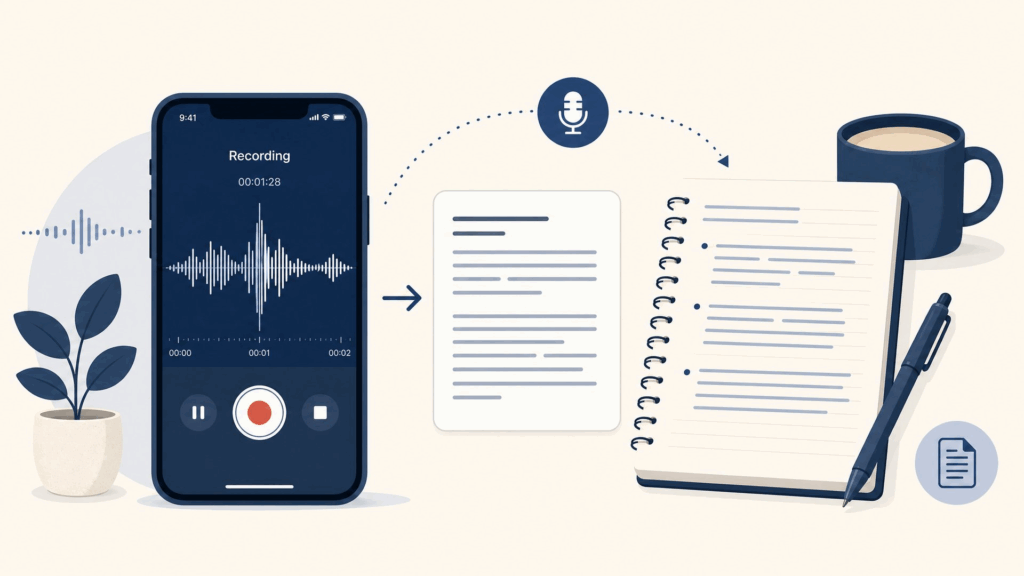
It applies to any kind of audio: voice memos, meeting recordings, interviews, lectures, podcasts, and even voicemail. Whenever you have spoken words trapped inside an audio file, learning how to transcribe recording to text is the key to unlocking them.
How Recording-to-Text Conversion Works
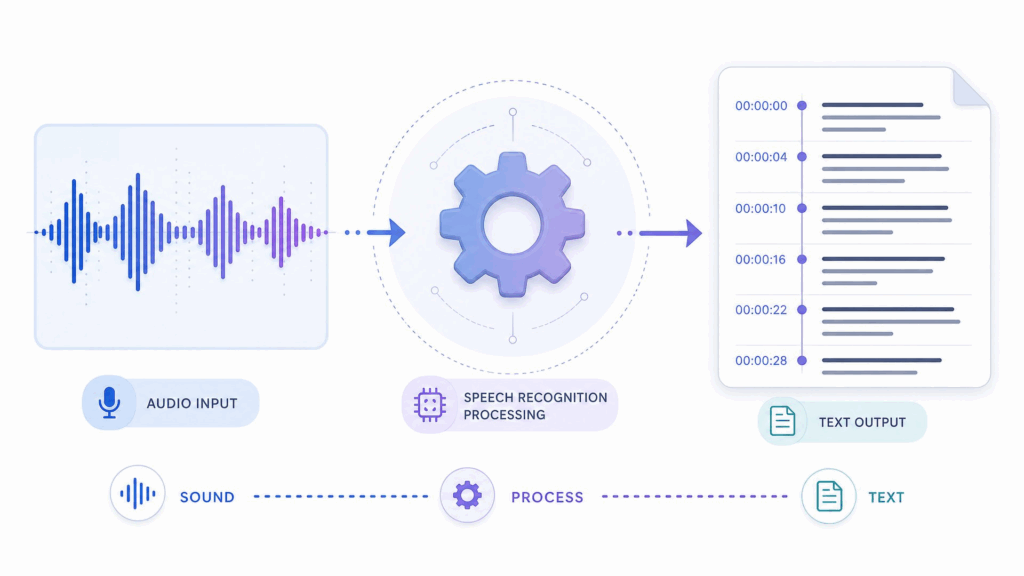
Video Transcriber AI uses speech recognition to turn audio into text. You upload a recording, the AI processes the sound, and it returns a written transcript with timestamps and speaker labels. The heavy lifting happens automatically, so you do not need any technical skills to transcribe recording to text. It is designed to be simple enough for anyone, yet powerful enough for daily professional use.
Transcribe Recording to Text vs. Manual Typing
Manual transcription means listening to a recording and typing every word yourself, which easily takes three to four times the length of the recording. When you transcribe recording to text with Video Transcriber AI, the same work is done in minutes. A quick review pass is all that is left, and the time you save is enormous. Once you make the switch, you will wonder why you ever typed out a recording by hand.
Why Transcribe Recording to Text Matters
People learn how to transcribe recording to text for a few strong reasons, and each one pays off quickly. Here are the three that matter most, along with how each one benefits from a fast, accurate way to transcribe recording to text.
Save Hours on Meetings, Interviews, and Lectures
The biggest reason to transcribe recording to text is the time it saves. A one-hour meeting becomes a searchable document in minutes, freeing you from hours of manual typing. Students turn lecture recordings into study notes, and professionals turn interviews into shareable summaries, all without lifting a finger. That time can go back into the actual work, which is the whole point of knowing how to transcribe recording to text efficiently.
Make Recordings Searchable and Accessible
Text is far easier to work with than audio. When you transcribe recording to text, you can search for a specific phrase, jump to a key moment, and share a readable document. It also makes your content accessible to people who prefer reading over listening, and it ensures nothing important gets lost in a long recording.
Repurpose Audio into Written Content
A recording is a single format, but text can become anything: a blog post, a report, captions, or social media snippets. When you know how to transcribe recording to text, every recording becomes a source of written content you can reuse across channels. One interview can feed a week of content once it is in text form.
How to Transcribe Recording to Text: Step-by-Step Guide with Video Transcriber AI
Now for the practical part. Here is how to transcribe recording to text with Video Transcriber AI, in five simple steps.
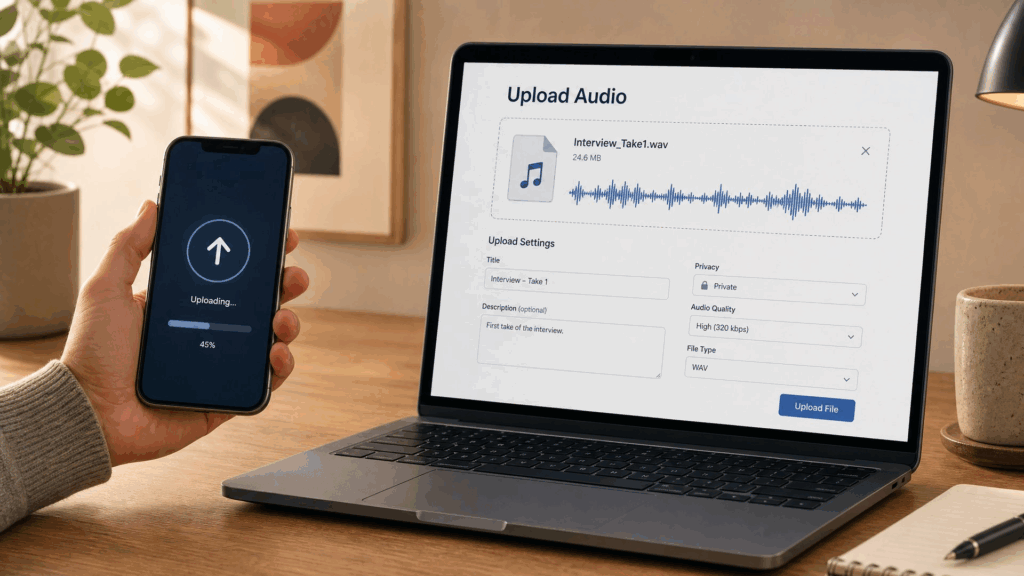
Step 1: Upload Your Audio Recording
Start by going to Video Transcriber AI and uploading your recording. The tool accepts common audio formats like MP3, WAV, M4A, and more, so your voice memos, meeting recordings, and interviews will all work. You can also paste a link from a supported platform instead of uploading a file. Either way, this first step takes only a few seconds and sets you up to transcribe recording to text in minutes.
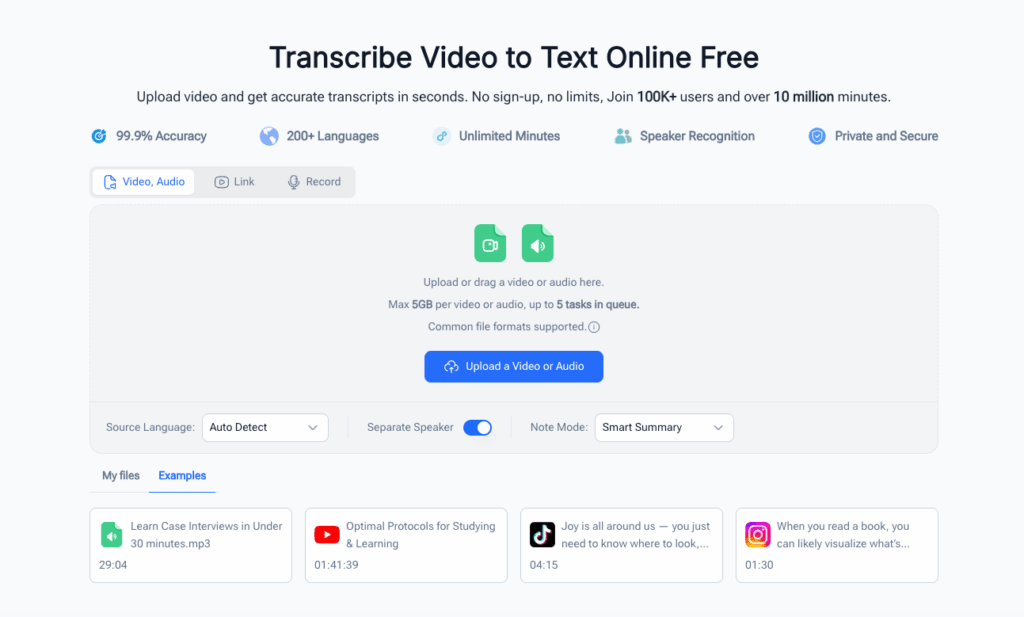
Step 2: Choose Your Language and Settings
Next, pick the language of the recording and any settings you want, such as speaker identification. Choosing the right language helps the AI produce a more accurate result, which is a small but important part of learning how to transcribe recording to text correctly.
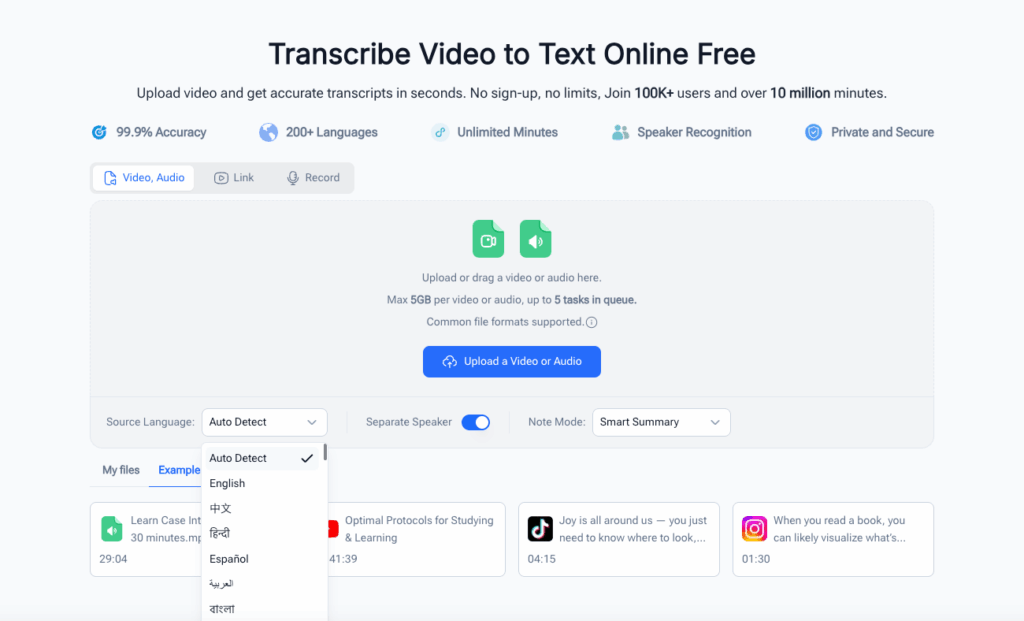
Step 3: Let Video Transcriber AI Transcribe the Recording
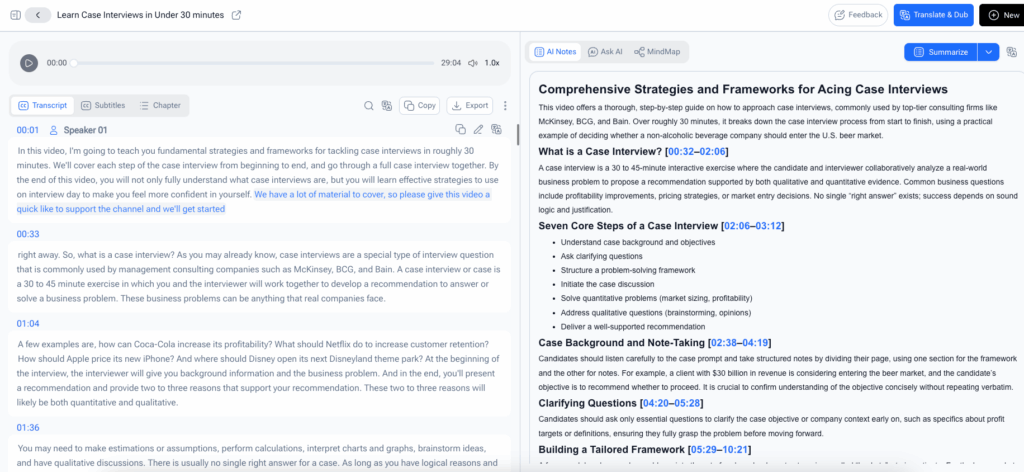
Now the AI takes over. Video Transcriber AI processes your recording and produces a transcript with timestamps and speaker labels. Most recordings are ready in just a few minutes, and you can watch the progress as it works. This is the core step of how to transcribe recording to text, and it is where all the heavy lifting happens automatically.
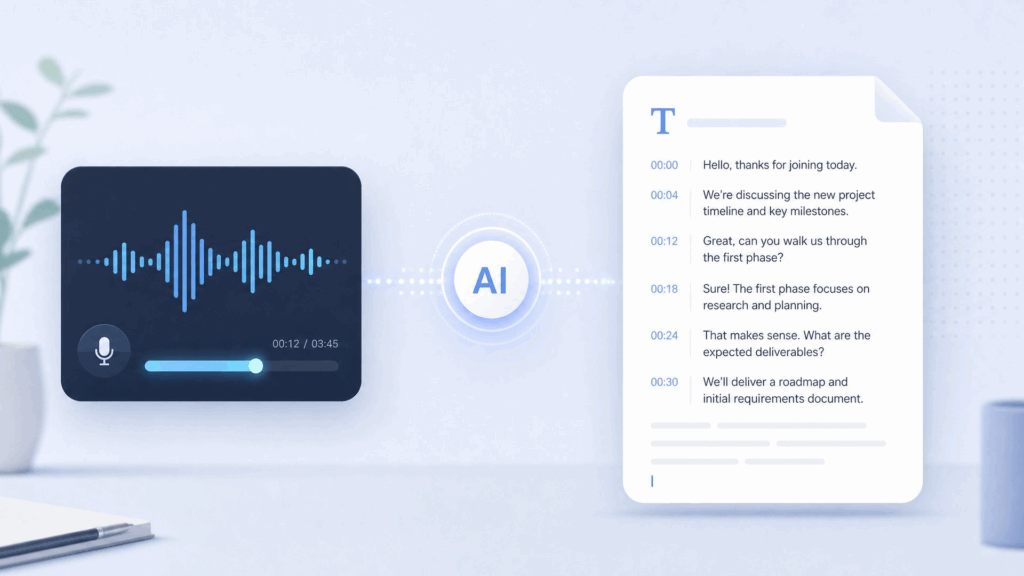
Step 4: Review and Edit the Transcript
When the transcript is ready, give it a quick review. Fix any names or words the AI may have misheard, adjust the speaker labels, and remove any filler words you do not want. The built-in editor makes it easy, and a few minutes of review is all it takes to polish the result. This review step is the final touch that makes your document ready to share when you transcribe recording to text professionally.
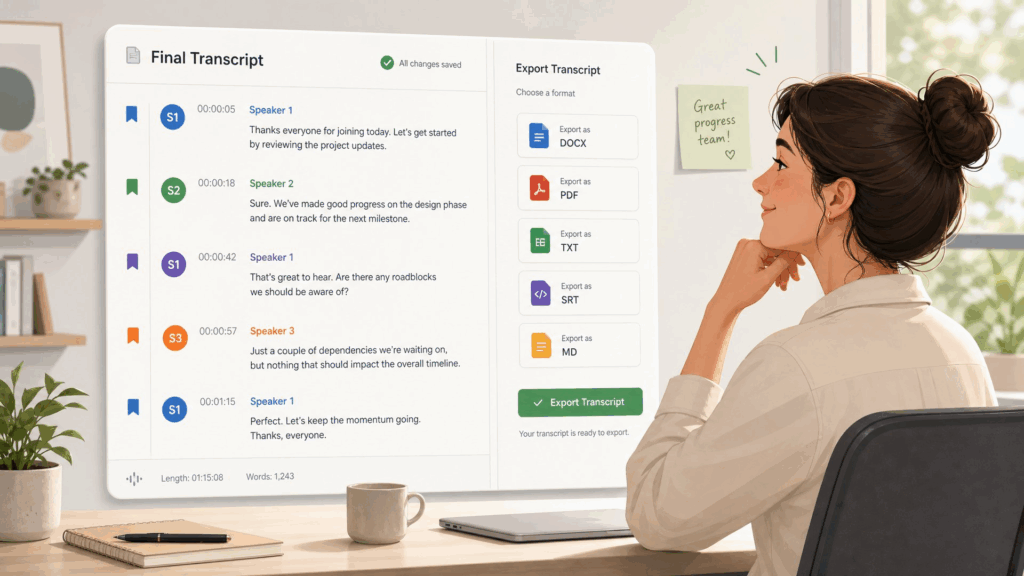
Step 5: Export and Use Your Transcript
Finally, export your transcript in the format you need, whether that is plain text, a Word document, or captions for video. Use it for notes, reports, subtitles, or anything else. That is the complete loop of how to transcribe recording to text: upload, transcribe, review, export. Once you have it down, transcribe recording to text becomes a habit you will rely on every single week.
Pro Tips for Better Results with Video Transcriber AI
Once you know the basics of how to transcribe recording to text, these tips help you get cleaner output from every recording, and each one builds on the last.
Tip 1: Start with a Clear, High-Quality Recording
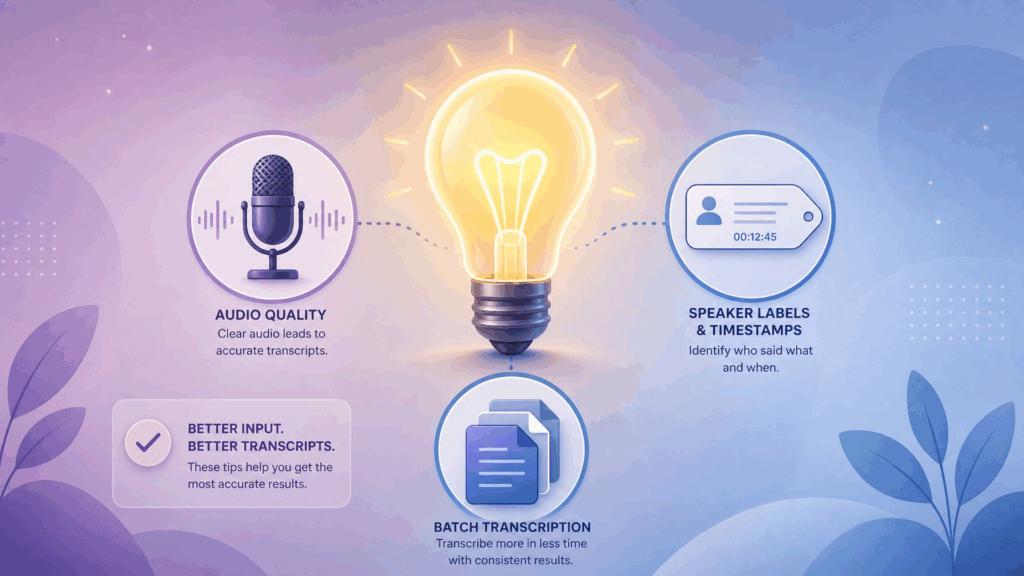
The quality of your transcript starts with the quality of your recording. Clear audio, minimal background noise, and a steady speaker produce the most accurate results. Whenever possible, record in a quiet room with the microphone close to the speaker. A little care up front makes a big difference in how cleanly you transcribe recording to text later.
Tip 2: Use Speaker Labels and Timestamps
Video Transcriber AI can identify different speakers and add timestamps to every line. Rename the speaker labels to actual names or roles so the transcript reads naturally, and use the timestamps to jump straight to key moments. These small touches make a big difference when you transcribe recording to text for interviews and multi-person meetings.
Tip 3: Transcribe in Batches for Large Projects
If you have many recordings, process them in batches rather than one at a time. Video Transcriber AI makes it easy to work through a queue of files, which keeps your workflow efficient when you transcribe recording to text at scale.
Real-World Examples: How People Use Video Transcriber AI
Example 1: A Student Transcribing Lecture Recordings
A college student records every lecture on her phone. Instead of trying to scribble notes during class, she uploads each recording to Video Transcriber AI after class and gets a full transcript in minutes. She turns those transcripts into clean study notes and aced her exams without ever retyping a single lecture. For her, learning how to transcribe recording to text was the single biggest study upgrade she made all year.
Example 2: A Journalist Transcribing Interviews
A freelance journalist records interviews for every story. He used to spend hours transcribing them by hand, but now he uploads each recording to Video Transcriber AI and gets a searchable transcript in minutes. He finds quotes in seconds, files his stories faster, and takes on more work because the transcription no longer eats his day. Once he learned how to transcribe recording to text reliably, his whole workflow changed for the better, and he now recommends the tool to every colleague who asks how to transcribe recording to text quickly.
Frequently Asked Questions
How accurate is Video Transcriber AI?
Video Transcriber AI produces highly accurate transcripts, especially for clear audio. Accuracy depends on audio quality, accents, and background noise. The built-in editor makes it easy to fix any errors in minutes, so you can always transcribe recording to text with confidence.
What audio formats does Video Transcriber AI support?
Video Transcriber AI supports common audio formats like MP3, WAV, M4A, and AAC, and it can also accept links from popular platforms. Whether you have a voice memo or a full meeting recording, you can transcribe recording to text from the format you already have, with no conversion step required.
How long does it take to transcribe a recording?
Most recordings are transcribed in just a few minutes. A short voice memo may finish in under a minute, while a one-hour meeting might take a few minutes. The tool shows real-time progress, so you always know when your text is ready. This speed is what makes it practical to transcribe recording to text on a regular basis instead of only for special occasions.
Is my recording data secure?
Yes. Video Transcriber AI processes your recordings over encrypted connections and does not use your content for training or share it with third parties. You can transcribe recording to text with confidence, even for sensitive meetings and interviews, knowing your audio stays private.
Conclusion
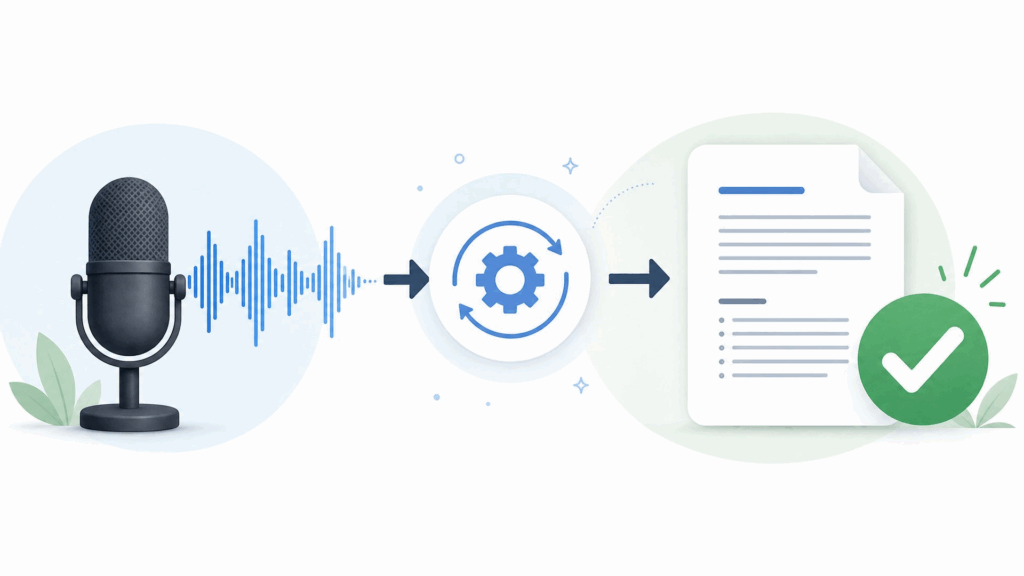
Learning how to transcribe recording to text used to mean hours of manual typing, but Video Transcriber AI has turned it into a five-step process that takes just minutes. Upload, choose your settings, transcribe, review, and export: that is the whole workflow, and it is a skill worth mastering because you will use it to transcribe recording to text again and again.
Whether you are a student, a journalist, or a busy professional, knowing how to transcribe recording to text with Video Transcriber AI gives you fast, accurate, searchable text you can actually use. If you have been looking for a reliable way to transcribe recording to text, try Video Transcriber AI with your next recording and see how much easier the process can be. Once you experience how to transcribe recording to text in minutes instead of hours, you will never go back to typing it out by hand.